

How to Batch Install Apps and Run Batch Tasks on Cloud Phones: A Control Tutorial
1. What Is Batch Control, and Why Does It Matter?
Many people first approach cloud phones as simply virtual phones that can be run many at a time. But after using them for a while, you will notice that more than half of their real value comes from batch control: one operation, executed simultaneously across dozens or even hundreds of devices. Whether you are farming games with multiple instances, stress-testing an app, or keeping many accounts active day by day, tapping through devices one at a time will exhaust you.
Batch control boils down to two things: batch app installation (installing the same app on all devices at once) and batch task execution (making all devices perform the same set of actions). This tutorial explains both in plain language.
2. Three Common Ways to Install Apps in Batch
Using the admin console of ChangChang Cloud Phone (ccloudphone) as an example, batch installation usually follows one of three paths depending on your scenario:
Method 1: Upload an APK and distribute it in batch. In the console, open the app management or batch installation section, upload your APK file, then tick the target devices (select all or pick by group) and hit distribute. The system pushes the app to every cloud phone and completes installation automatically. This works best for self-packaged apps or packages you cannot find in an app store.
Method 2: One-click install from the built-in app store. If the app is available in the cloud phone's own app store, simply choose install to all devices, or tick multiple devices for batch installation. It is the fastest route and saves you from hunting for APK files.
Method 3: Clone a template device. First configure one template device: install the apps, log in, and adjust the settings. Then use the copy or clone feature to replicate that environment onto new devices in batch. This suits scenarios that require a logged-in state, such as multi-instance game accounts.
| Method | Best for | Advantage | Watch out for |
|---|---|---|---|
| APK upload and distribution | Self-packaged or niche apps | Not limited by any app store | APK version compatibility |
| App store batch install | Mainstream popular apps | Fastest and easiest | Version follows the store |
| Template device cloning | Logged-in states and full setups | Perfectly identical environments | Copying takes longer |
3. How to Execute Tasks in Batch
Installing apps is only step one; the real efficiency boost comes from batch task execution. There are three common forms:
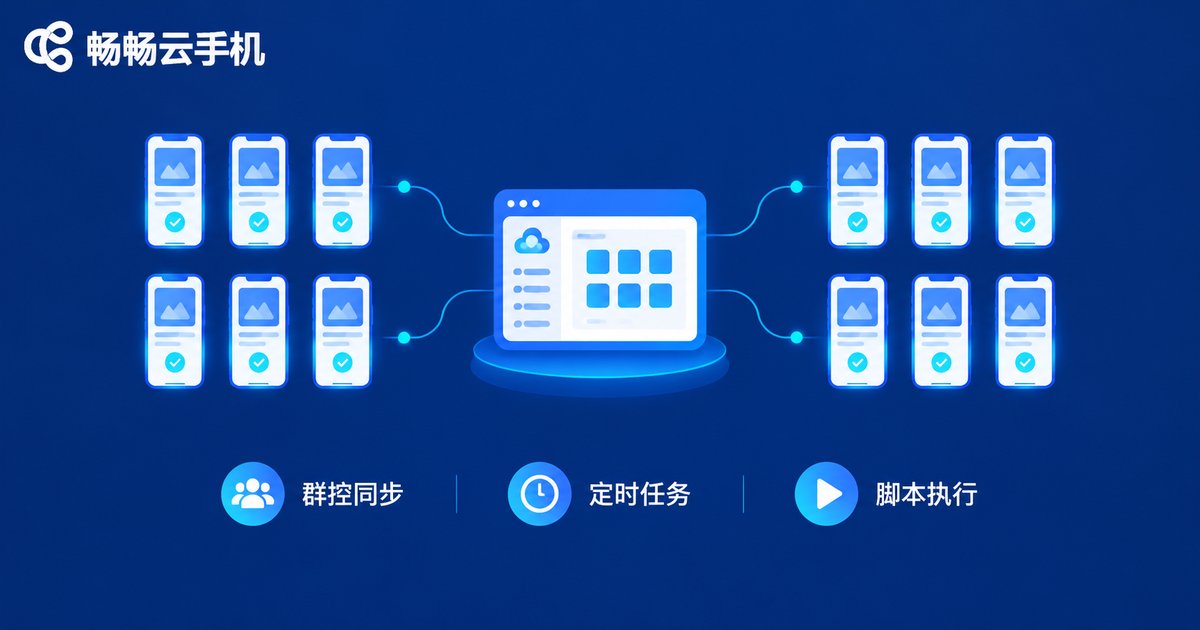
1. Group control synchronized operations. After selecting multiple devices in the console, your actions are mirrored on every selected cloud phone: open an app on one and all others open it too; swipe on one and all others swipe. This suits one-off operations that need human guidance.
2. Scheduled tasks. Configure a plan such as: at a set time each day, open a specific app, stay for a while, and perform certain actions. The system then runs it automatically across all or chosen devices. Perfect for daily check-ins and routine activity: set it once and let it run long term.
3. Scripted tasks. Write a complete operation flow (tap coordinates, swipe paths, wait times) as a script, or generate one with a recording tool, then push it to devices for looping execution. This offers the highest flexibility, ideal for idle farming and automated testing.
4. Pitfalls to Avoid in Batch Control
Batch operations feel great, but a few traps are worth dodging in advance:
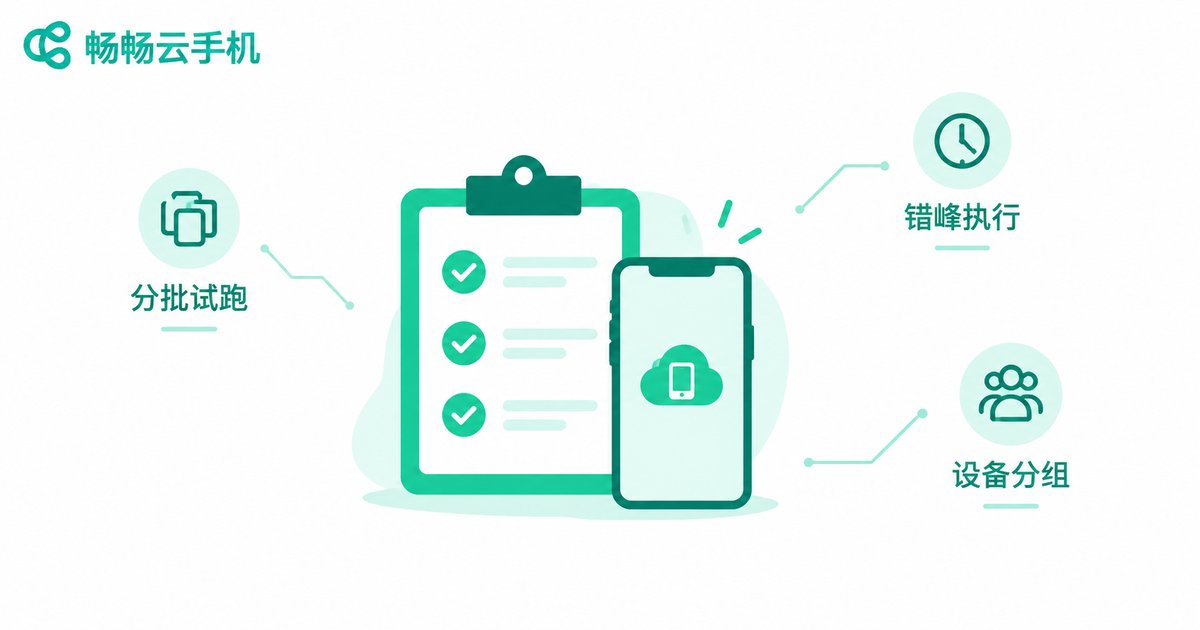
Run a small batch first. Before launching a brand-new task on every device, test it on three to five devices. Confirm the flow works, then scale up, so one wrong step is not copied fifty times over.
Stagger your task times. Dozens of devices performing identical actions within the same second looks unnaturally uniform and may be flagged by target platforms. Offset start times by a few minutes to tens of minutes for safer, more natural behavior.
Group your devices. Organize devices by purpose in the console (for example, a gaming group and a testing group). Batch operations by group are faster and less likely to hit the wrong targets.
Watch storage and data usage. Before batch installing large games, make sure every cloud phone has enough disk space, and keep an eye on your plan's data allowance for long-running tasks.
5. Why ChangChang Cloud Phone Works Well for Batch Control
Plenty of tools claim to handle batch control, but stability and peace of mind come first. ChangChang Cloud Phone (ccloudphone) holds up well on these points:
A stable cluster with low disconnect rates. The biggest fear in batch tasks is devices dropping mid-run. ChangChang's cloud cluster stability ranks among the best in its class, making long idle sessions far less stressful.
Complete group control features. Batch installation, synchronized operations, scheduled tasks, and other everyday controls are all covered, with a console whose logic is clear enough for beginners to pick up after a few passes.
Works across devices. You can manage your cloud phones from a computer, phone, or tablet, checking batch task progress anytime, anywhere.
If you are ready to put batch installation and batch task execution into practice, register on the ChangChang Cloud Phone official website, validate the workflow with a handful of devices, and then scale up step by step.
FAQ
Q: Is batch app installation slow?
Speed depends mainly on the app package size and the number of devices installing at once. Ordinary apps usually finish distributing within minutes; for large games, install in batches and avoid peak hours for a smoother experience.
Q: What if one device fails during batch execution?
A good group control system shows the execution status of each device, so you only need to handle the failed one while the rest continue unaffected. This is exactly why a small test batch is recommended.
Q: Can I run batch tasks without writing scripts?
Yes. Scheduled tasks and synchronized group control require no coding at all, and some platforms offer action recording: perform the flow once and it becomes a repeatable automated sequence.
Q: Will batch operations be detected by platforms?
Cloud phones are independent device environments, but overly uniform behavior can still draw attention. Stagger execution times and vary action intervals so activity feels more human.
Q: How many cloud phones can one computer manage?
Management runs through the cloud console; your local computer only handles display, not device computing. The number you can manage depends on how many cloud phones you own, not your computer's specs.


