
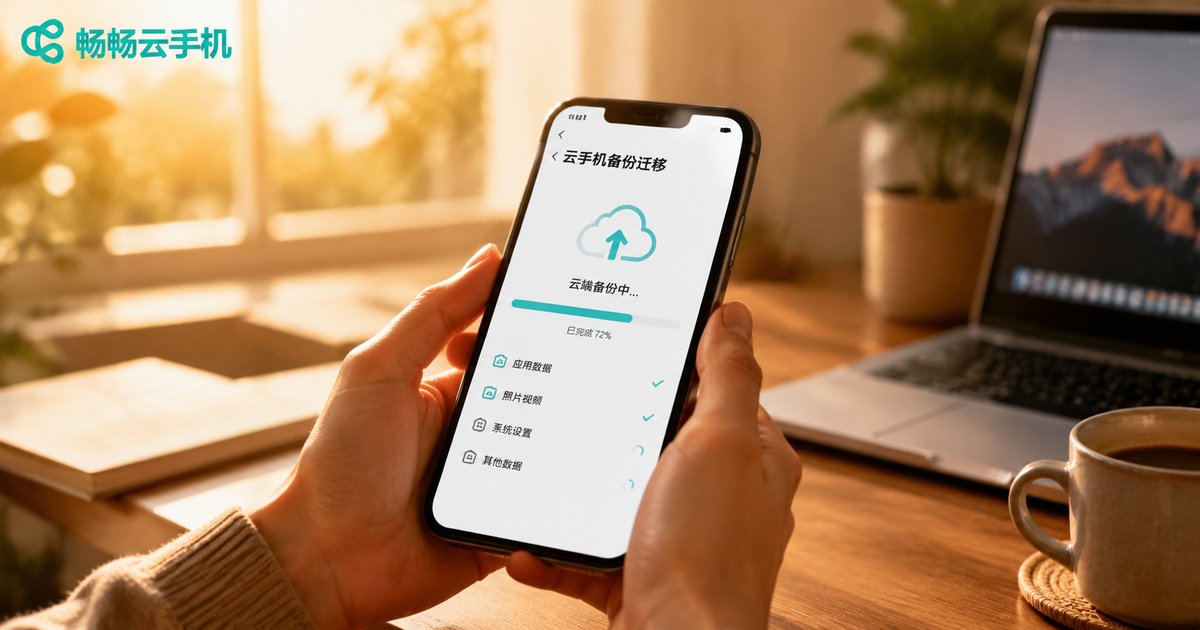
How to Backup and Migrate Your Cloud Phone Account Environment: Complete Data Recovery and Cross-Platform Transfer Tutorial
Why Do Cloud Phones Need Backup and Migration?
Many users assume that because cloud phones run on remote servers, their data is “naturally safe.” In reality, when a cloud phone instance is reset, expires, or moves to new hardware, everything inside—apps, login states, and game progress—can be wiped if no backup exists. For users running game multi-instance setups or account matrices, a mature account environment can take weeks or even months to build. Backup and migration capability directly determines operational efficiency.
What Is an “Account Environment”? What Exactly Gets Backed Up?
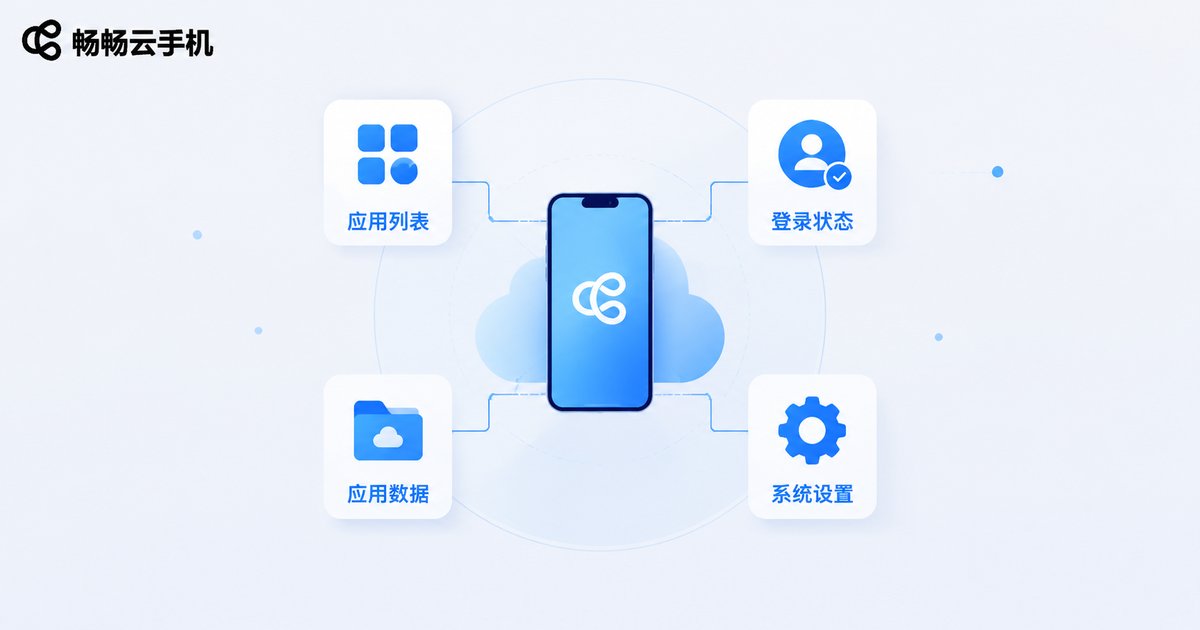
An account environment is the overall state of a cloud phone instance, made up of the app list, login states, app data, and system settings. Take a game as an example: the environment includes the game client, the logged-in session, local saves, and device parameters. Backing up an account environment means packaging all of this into a snapshot that can be restored anytime—whether you are switching instances or rolling back to a previous state.
Three Things to Do Before Backing Up
Before you start, take care of three things:
1. Trim your apps: Uninstall unused apps and clear caches to reduce backup size and speed up restoration.
2. Verify login states: Make sure every account you want to keep is logged in. Some apps require re-verification after reinstall, so checking in advance helps you avoid surprises.
3. Record key credentials: Store important passwords and binding details somewhere safe as a final layer of protection beyond your backups.
Step-by-Step Cloud Phone Backup Tutorial
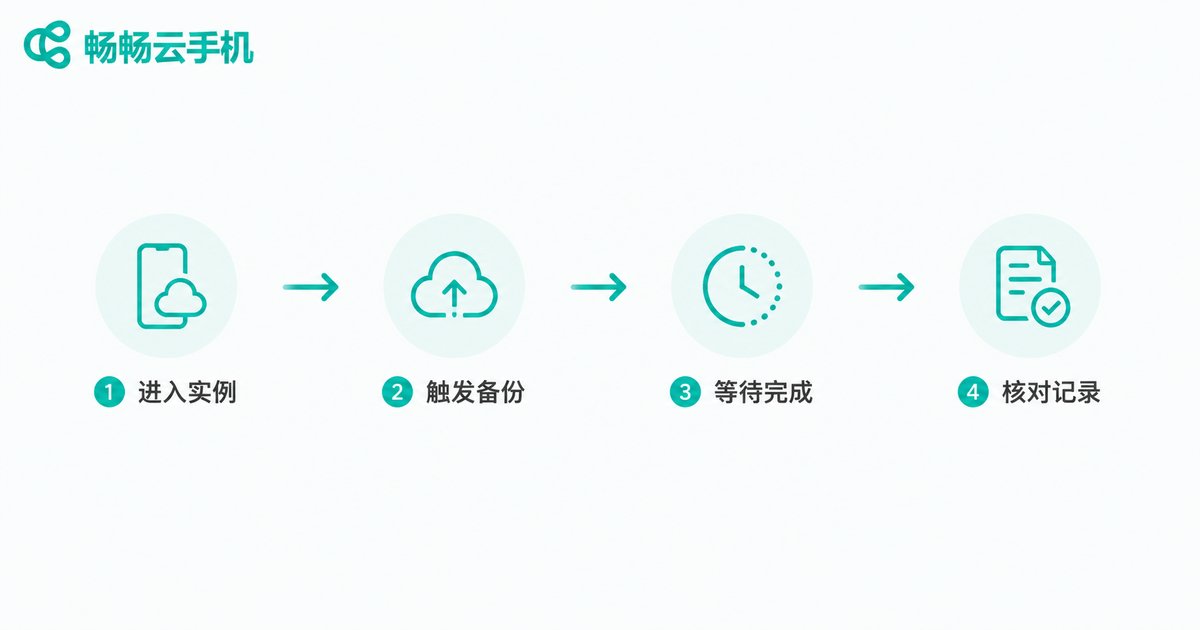
Using CCLOUDPHONE as an example, a full-instance backup comes down to four steps:
Step 1: Open instance management. Launch the CCLOUDPHONE app or web console and locate the cloud phone instance you want to back up in the device list.
Step 2: Trigger a full backup. Find the “Backup/Snapshot” feature in the instance's tools or settings menu. The system will package the complete current state of the instance.
Step 3: Wait for completion. Avoid heavy operations inside the instance during the backup to prevent data inconsistency.
Step 4: Verify the backup record. Once done, confirm the timestamp and size in the backup list. Adding notes to important backups makes them easier to find later.
Account Environment Migration: Switch Devices Without Re-Logging In
When you need to change cloud phone instances—say, upgrading specs or switching nodes—there are two mainstream approaches:
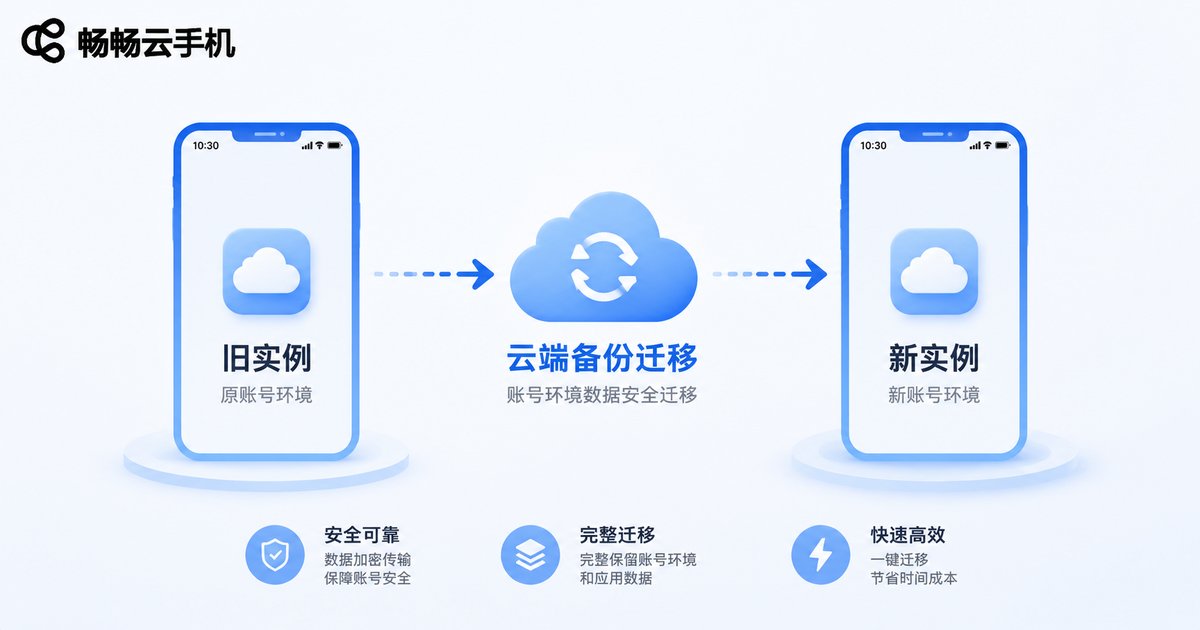
Option 1: Backup-and-restore migration. Complete a full backup on the old instance, then choose “Restore from backup” on the new one. Apps, data, and login states are restored as a whole, so you switch devices without re-logging in.
Option 2: Direct instance transfer. Where supported, you can transfer an instance directly to a new device group. The environment stays intact, and no account needs to be logged in again.
Data Recovery: What to Do After Accidental Deletion or Failure
The ultimate purpose of backup is recovery. Common scenarios and solutions:
Accidentally deleted an app: Restore from backup—both the app and its data come back together, with no re-downloading or reconfiguring.
Instance failure: If an instance will not start, use a backup to rebuild the environment on a new instance and resume operations within minutes.
Rollback: When an account behaves abnormally, restore to a previous backup point to keep losses to a minimum.
Cross-Platform Transfer: Moving Between Local and Cloud Phones
Cross-platform transfer works in two directions:
Local → Cloud: Install the same apps on your cloud phone and sign in with the same accounts. Use each app's built-in cloud sync (such as official game account binding or social account login) to pull your data. Apps that support cloud saves restore everything upon login.
Cloud → Local: Do the reverse—sign in on your local device with the same account to sync data. For apps without cloud sync, use their local backup export feature or your system's built-in device-switching tool.
Manual Backup vs. Full-Instance Backup: Which Should You Choose?
| Dimension | Manual Per-App Backup | Cloud Full-Instance Backup |
|---|---|---|
| Backup scope | Individual app data | Entire instance environment |
| Restore speed | Slow; reinstall one by one | Fast; one-click restore |
| Login states | Usually lost | Fully preserved |
| Difficulty | Relatively high | Low |
| Best for | A few critical apps | Multi-instance, matrix operations |
For cloud phone users whose core asset is the account environment, full-instance backup offers far better value; manual backup works well as a supplement for a few critical apps.
Choose the Right Platform, and Backup Gets Easier
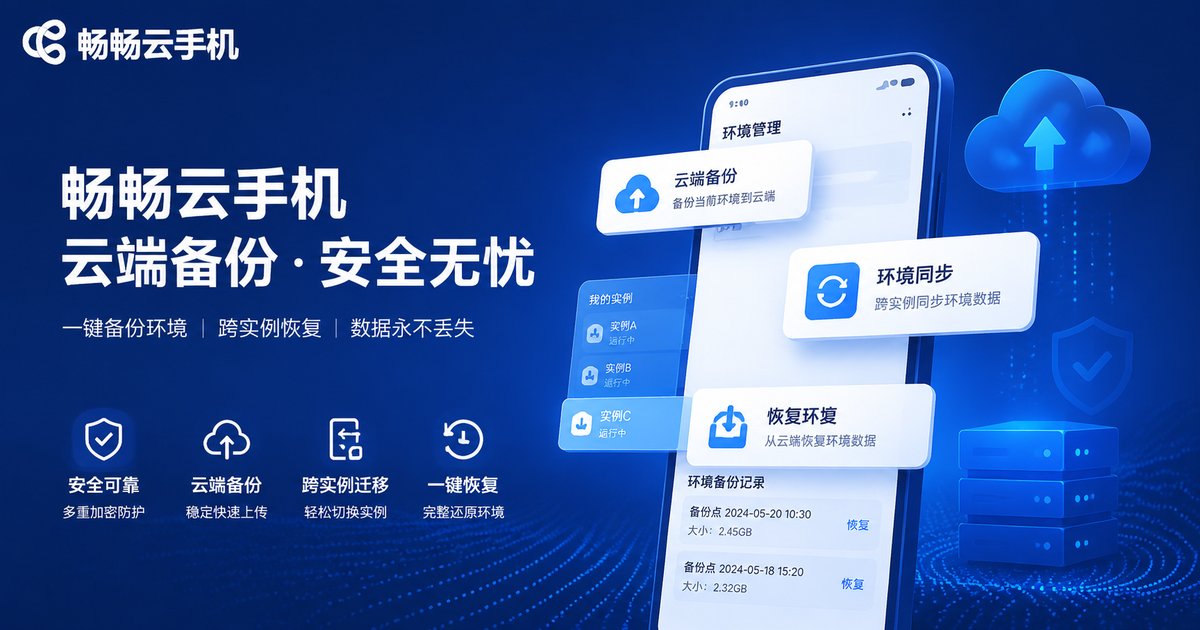
The backup and migration experience depends heavily on platform capability. CCLOUDPHONE provides cloud instance management with full-instance backup, operable from both the app and the web console, with instances online around the clock—well suited for game multi-instance setups and long-term app hosting. Combine the habit of “snapshot before major operations” with the platform's full-instance backup and restore features, and your account environments get double protection.
FAQ
Q: Does cloud phone backup take up space on my local phone?
No. Full-instance backups are stored on cloud servers, not your local storage, and restoration happens entirely in the cloud.
Q: After restoring a backup, do I need to log in to apps again?
Full-instance backups preserve login states, so the vast majority of apps will not require re-login after restoration. A few high-security apps may ask for secondary verification, which is normal.
Q: Will my game progress be lost when moving from a local phone to a cloud phone?
As long as the game supports account binding or cloud saves, signing in with the same account on the cloud phone inherits your progress. For apps without cloud sync, try exporting a local backup and importing it.
Q: Can a backup be used across instances?
Yes. A backup is essentially a portable snapshot. Within permitted permissions, it can be restored to other instances under the same account—this is the foundation of switching devices without re-login.
Q: Can multiple cloud phones be backed up in bulk?
You can back them up one by one. We recommend adding notes to each instance's backups and grouping them by purpose to avoid confusion.


