

How to Use Cloud Phone Automation: Common Workflows, Efficiency Scenarios, and Risk Warnings
What Is Cloud Phone Automation?
In simple terms, a cloud phone is an Android device that runs in the cloud. It does not depend on any physical phone in your hand — as long as the network is online, it keeps running. Automation tasks mean letting the cloud phone perform repetitive actions such as tapping, swiping, signing in, or posting, according to rules you set in advance.
Combining the two gives you a digital employee that works around the clock: while you sleep, it handles daily quests in your game; while you are in a meeting, it keeps your social media accounts active. Everything runs in the cloud, consuming none of your local device's battery or performance.
The Common Workflow of an Automation Task
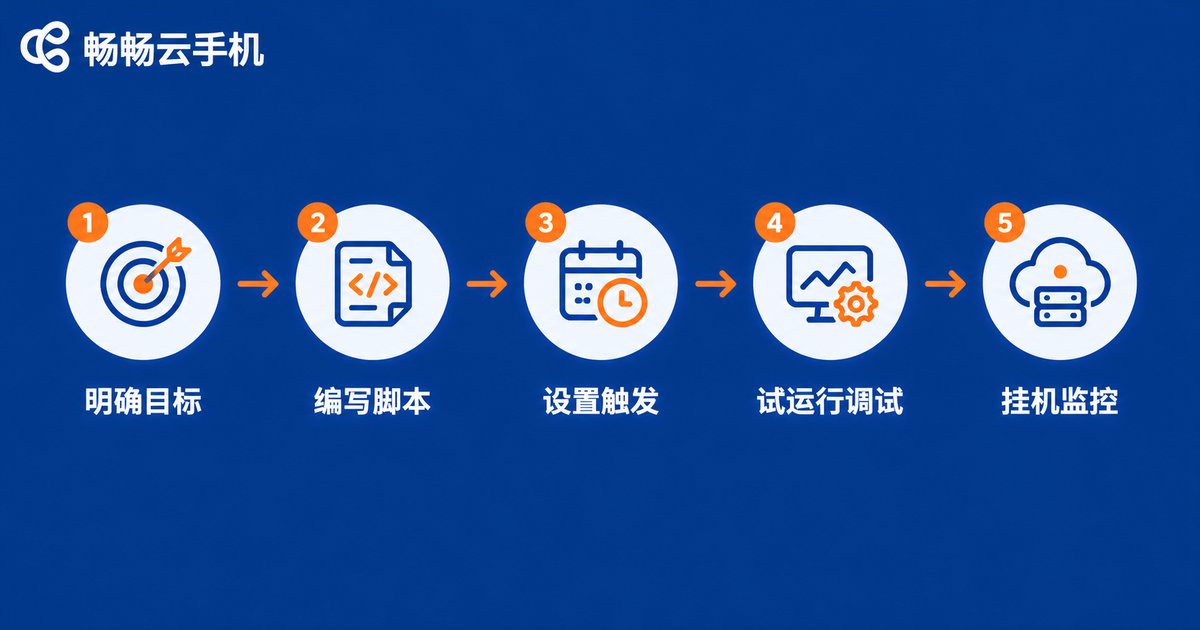
Every tool looks different, but a complete automation workflow basically follows five steps:
Step 1: Define your goal.Be clear about what you want to automate — daily check-ins, claiming stamina in a game, or publishing content on a schedule. The more specific the goal, the easier the script.
Step 2: Record or write the script.Most solutions offer two modes: a recording mode, where you perform the actions once and the tool records them into a script, and a coding mode, where you use a JavaScript- or Python-like syntax to control every step precisely.
Step 3: Set trigger conditions.Common triggers include scheduled triggers (every day at 8 a.m.), interval triggers (every 30 minutes), and event triggers (execute when a certain on-screen element appears).
Step 4: Test run and debug.Before going live, run the full flow once manually. Check whether the waiting times and conditions at each step are reasonable, so the script does not get stuck somewhere.
Step 5: Run continuously and monitor.Hand the task over to the cloud phone, then check the run logs regularly and adjust whenever something looks off.
Five High-Efficiency Use Cases
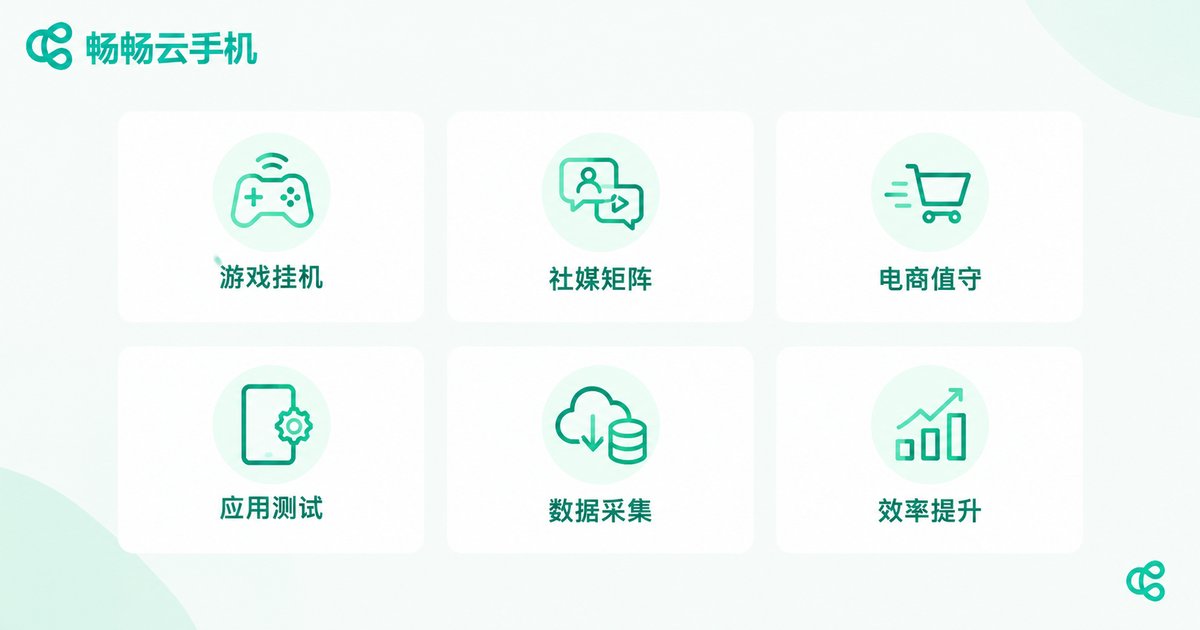
Automation delivers the most value in scenarios that are highly repetitive and rule-based. Here are the most common ones:
1. Daily game quests and idle grinding.Check-ins, stamina claims, dungeon runs, and resource gathering — these daily repeats are perfect for scripts. Combined with the always-on nature of a cloud phone, tasks keep running even when your local device is off.
2. Social media account matrices.If you manage multiple accounts, set a unified publishing schedule so each cloud phone posts and replies at the designated time, keeping every account active.
3. E-commerce store watching.Auto-reply to common questions, check inventory on schedule, and get reminders about listing times, freeing store owners from trivial repetitive work.
4. Batch app testing.Developers need to verify app compatibility across many devices. Scripts that batch-install, launch, and screenshot are far faster than testing one by one.
5. Scheduled data collection.Open designated pages at fixed times and capture or record specific information, building a regular stream of data.
Manual vs Automated: An Efficiency Comparison
| Dimension | Manual operation | Cloud phone automation |
|---|---|---|
| Daily check-ins (10 accounts) | About 30-50 minutes | Batch script execution, done in minutes |
| Game idle grinding | Ties up a physical phone, drains battery, generates heat | Runs in the cloud, local devices fully freed |
| Multi-account publishing | Log in and switch one by one, easy to miss | Scheduled and executed uniformly |
| Overnight tasks | Requires someone on duty | Unattended around the clock |
Five Risk Warnings You Should Take Seriously
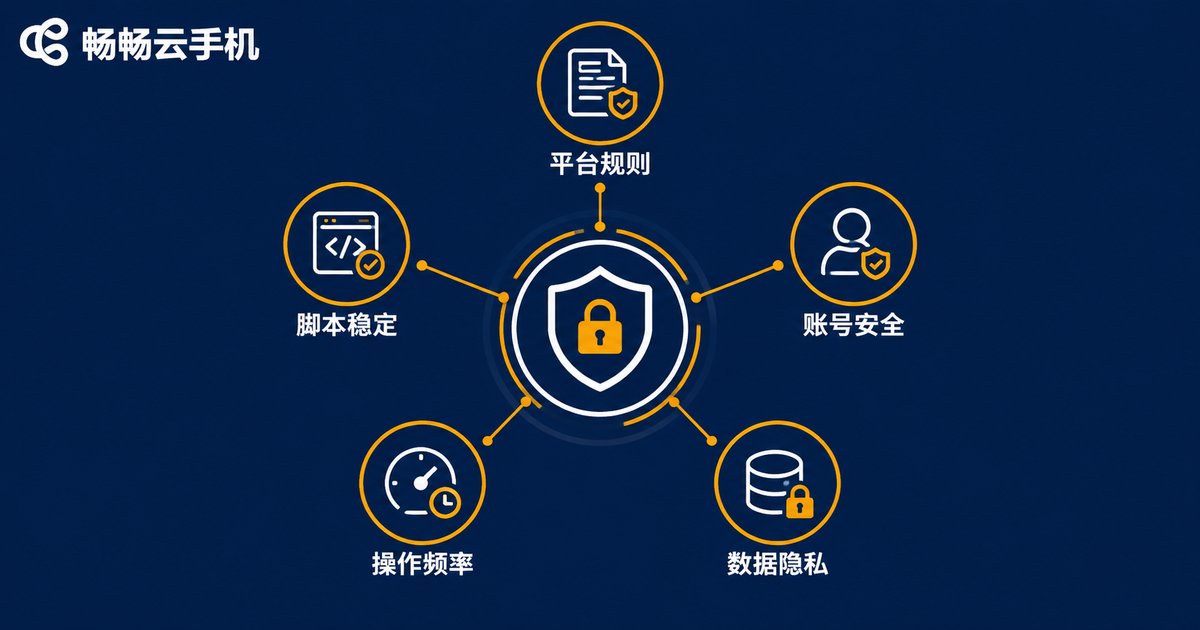
Automation brings efficiency, but careless use brings trouble. Keep the following in mind:
1. Platform rule risks.Some games and apps explicitly restrict third-party scripts. High-frequency, mechanical operation patterns are easy for risk-control systems to flag, and in serious cases accounts may be limited. Read the target platform's user agreement first, and keep operation frequency within a human-like range.
2. Script stability risks.Network jitter, interface redesigns, and pop-up interruptions can all leave a script stuck. Build exception handling and timeout retries into your scripts, and make a habit of reviewing logs regularly.
3. Account security risks.Never put account passwords into scripts from unknown sources. When authorizing automation tools, follow the principle of least privilege — do not grant permissions you do not need.
4. Frequency and behavior-pattern risks.Humans operate with variable speed, pauses, and hesitation, while scripts are often unnaturally precise. Adding random delays and randomized operation paths significantly reduces the chance of being flagged as bot behavior.
5. Data and privacy risks.Automation may generate chat records, order information, and other data. Pay attention to where it is stored and how long it is kept, and clean up sensitive information periodically.
Why Run Automation Tasks on a Cloud Phone
Automation scripts need a device that stays online for long hours. On a physical phone you quickly run into heat, battery drain, and device occupation; on a PC emulator you are limited by local hardware. Cloud phones solve both pain points:
First, always-on availability.Cloud phones run in cloud data centers, so powering off your local devices does not interrupt tasks — ideal for overnight grinding and long-running jobs.
Second, multi-instance and batch management.Services like ChangChang Cloud Phone (ccloudphone) let you manage multiple cloud phones from a single console and deploy the same script across devices in batches, multiplying efficiency for matrix-style needs.
Third, zero local resource consumption.Scripts consume cloud computing power, so your phone and computer stay free for everything else.
If you are planning to hand repetitive operations to automation, start with a single cloud phone to validate the full workflow, confirm the script is stable, and then scale up gradually. A steady start is always the safest path.
FAQ
Q: Can I use cloud phone automation without knowing how to code?
Yes. Most automation solutions offer a recording feature — perform the actions once and a script is generated. Zero coding background is fine to start; learn basic script syntax later if you want to go further.
Q: Will tasks on the cloud phone stop when my local phone is off?
No. Cloud phones run in the cloud. As long as the cloud phone instance itself is online, tasks keep running regardless of your local device's status.
Q: Could automation get my account banned?
It is possible — it all comes down to frequency and behavior patterns. Controlling frequency, adding random delays, and following platform rules keeps the risk very low. Test scripts on a secondary account first.
Q: How many automation tasks can one cloud phone run at the same time?
It depends on the resource usage of each task. Lightweight tasks such as scheduled check-ins can run several in parallel; games are performance-heavy, so it is better to dedicate one cloud phone per game task and add more cloud phones for more concurrency.
Q: What if a script gets stuck in the middle of the night?
Build timeout detection and automatic retry logic into the script, and review the run logs daily. You can also set up tasks that watch each other, so a backup task triggers when one fails.


