

Are Cloud Phones Good for Automation Scripts? Real Performance of Tasker and Similar Tools in the Cloud
Are Cloud Phones Reliable for Running Automation Scripts?
Before trying cloud phones, many people share the same question: I use tools like Tasker and MacroDroid on my local phone for automation—scheduled check-ins, auto sign-ins, batch operations. If I move this setup to a cloud phone, will it still work? The answer: the vast majority of automation tools run stably on cloud phones, and in many scenarios, the cloud setup is even more worry-free than local devices.
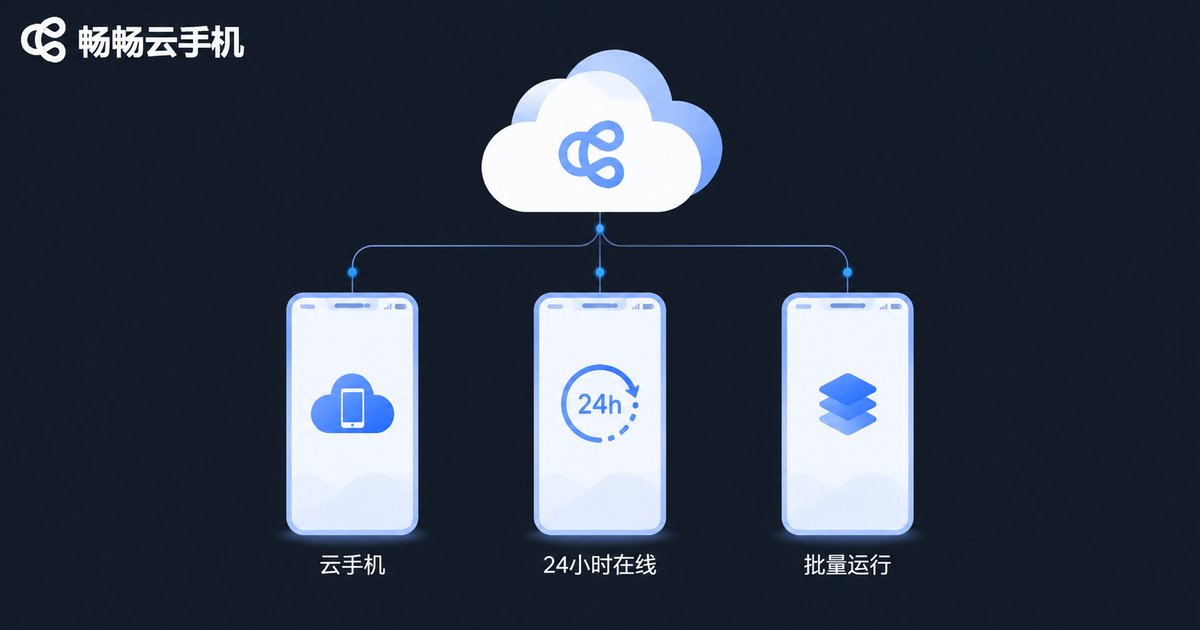
A cloud phone is essentially an Android device running on cloud servers that you control remotely through an app or web page. It has a complete Android system, independent storage, and real device parameters, so tools like Tasker that rely on system permissions and background services perform almost identically to a real device.
Why Cloud Phones Beat Local Devices for Scripting
Running automation scripts on a local phone comes with three major pain points: the device must stay on, battery drain is fast, and the network is unstable. Cloud phones solve all three:
1. Online 24/7 without occupying your phone. Scripts keep running in the cloud while your local device can be shut down or swapped at any time—tasks continue unaffected.
2. No power or network interruptions. Cloud phones rely on data-center-grade networks and power, far more stable than home environments. Scripts dying at midnight due to a dropped connection basically never happens.
3. Batch deployment support. Need to manage automation tasks across dozens of accounts? Spin up multiple cloud phones, each running its own script set without interference—something a single local device can hardly achieve.
Real Performance of Tasker on Cloud Phones
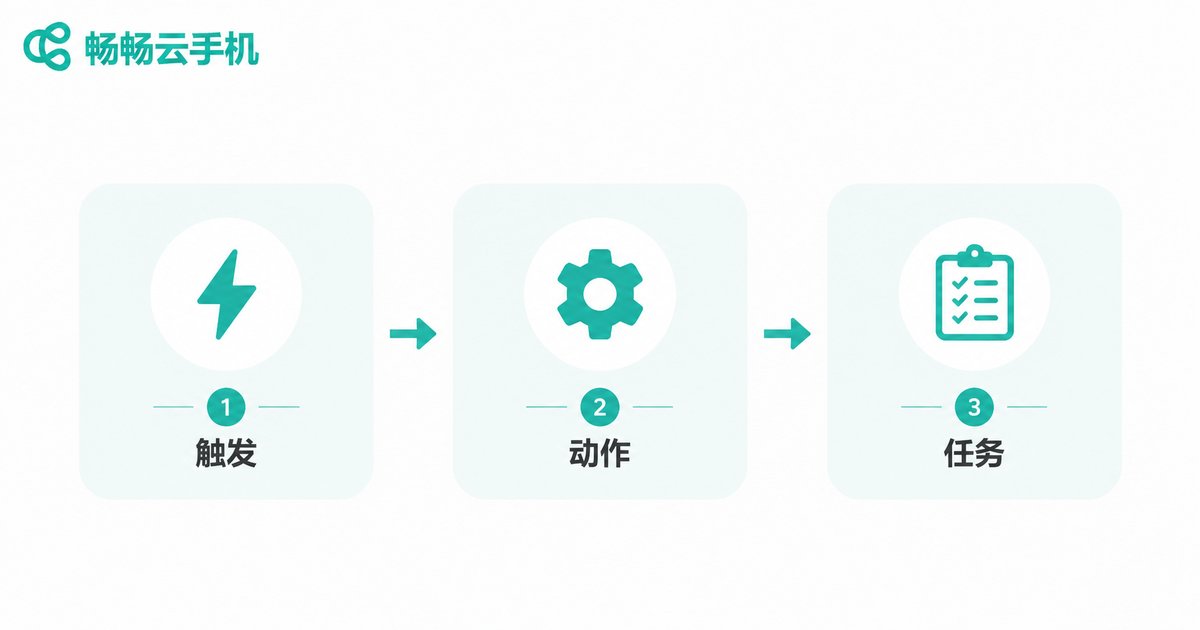
Tasker is the most classic automation tool in the Android ecosystem. By combining triggers, actions, and tasks, it can implement almost any automation logic. After installing it on a cloud phone, a few practical details deserve attention:
Installation and permissions. Cloud phones support installing third-party APKs, so you can install Tasker directly. Accessibility and notification permissions can all be enabled normally—the prerequisite for Tasker to work smoothly.
Higher background survival rate. On local phones, Tasker is often killed by aggressive battery-saving mechanisms; cloud phones have no such power-saving policies, so background tasks survive noticeably longer. This is the biggest reason many people migrate scripts to the cloud.
More precise scheduled tasks. Tasker's time triggers run reliably on cloud phones. Combined with uninterrupted cloud availability, scheduled check-ins and timed data collection can truly run unattended.
Local Phone vs Cloud Phone for Scripts: At a Glance
| Dimension | Local Phone | Cloud Phone |
|---|---|---|
| Uptime | Limited by battery, needs constant charging | Online 24/7, zero intervention |
| Background survival | Often killed by battery savers | No aggressive power saving, high survival |
| Batch capability | One device, one script set | Multiple instances, parallel execution |
| Network stability | Depends on home or mobile network | Data-center network, stable and low-latency |
| Device wear | Long-term load damages battery | Cloud bears the load, zero local wear |
| Management cost | Occupies physical devices | On-demand provisioning, centralized management |
Common Cloud Automation Use Cases
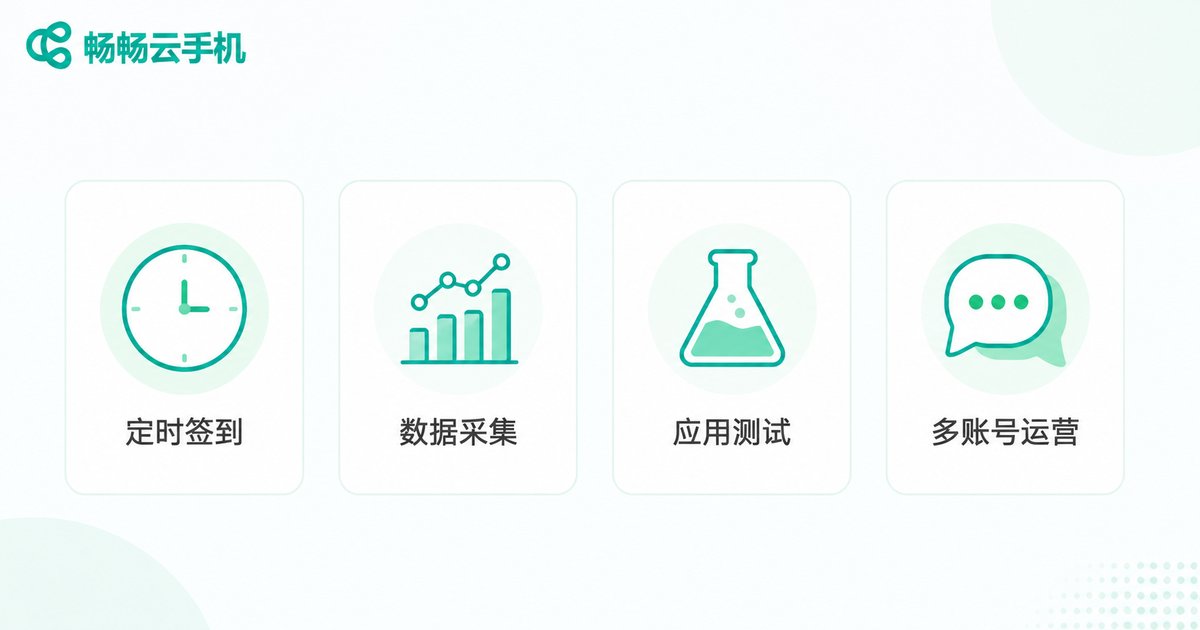
Scheduled check-ins and sign-ins. Use Tasker to open a target app at a fixed time each day and complete the action. The cloud phone ensures tasks execute on time—no more missed check-ins.
Data collection and monitoring. Scripts fetch page information on schedule and send alerts on anomalies. Continuous cloud availability leaves no monitoring blind spots.
App testing and regression. Development teams run automated test scripts in bulk on cloud phones, with multiple devices working in parallel—far more efficient than a single real device.
Multi-account content operations. Schedule posts and replies across accounts. Each cloud phone is an independent environment, keeping tasks isolated and management simple.
Practical Tips for Stable Scripts in the Cloud
Validate on a small scale first. After migrating scripts to a cloud phone, run them for a day or two while watching logs. Confirm triggers and actions work correctly before moving to production.
Use logs and notifications. Configure failure notifications in Tasker so you discover problems immediately, not days after a task silently stopped.
Mind app compatibility. A few apps detect their running environment. If you encounter crashes or abnormal behavior, check the match between the app version and the cloud phone's system version first.
Stagger your schedules. When running multiple cloud phones in parallel, spread out task start times to avoid resource contention when everything launches at once.
FAQ
Q: Does installing Tasker on a cloud phone cost extra?
Tasker itself is a paid app, priced the same as on a real device. Cloud phone platforms do not charge additional tool fees.
Q: Will scripts on a cloud phone be flagged as abnormal behavior?
Cloud phones provide a complete Android environment; whether a task is compliant depends on how the script is designed. We recommend mimicking natural operation rhythms and avoiding high-frequency mechanical requests.
Q: If the cloud phone briefly loses connection, will script data be lost?
Cloud phone data is stored in the cloud; tasks resume after a brief disconnection. Adding checkpoint-and-resume logic to your scripts further reduces risk.
Q: Besides Tasker, which other tools work well on cloud phones?
Mainstream automation tools such as MacroDroid and Automate all run normally. Which one to choose depends mainly on task complexity and personal preference.


