
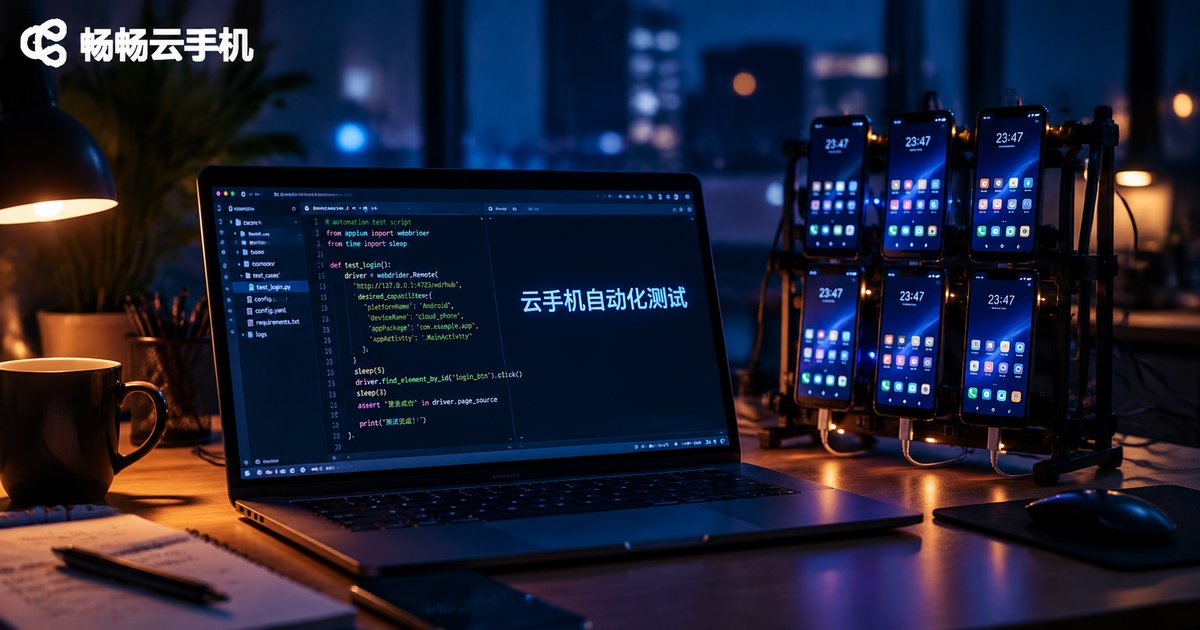
Can Cloud Phones Run Automated Testing? Hands-On Experience with App Compatibility Testing and UI Automation
Can Cloud Phones Really Handle Automated Testing?
Short answer: yes—and it has become a routine choice for many QA teams. A cloud phone is essentially a real Android environment running in a cloud data center, with a genuine Android system and genuine app runtime—not an x86 emulator on your PC. As long as your cloud phone provider exposes ADB debugging, the automation scripts you already run on local devices can be migrated to the cloud almost seamlessly.
That said, 'feasible' does not mean 'plug and play.' Cloud phones differ from the handsets on your desk in network latency, screen streaming, and compatibility with deeply customized systems. These differences determine which tests belong in the cloud and which still need local devices. Below, we break down our hands-on experience of running compatibility testing and UI automation on cloud phones.
Why Compatibility Testing Is a Perfect Fit for Cloud Phones
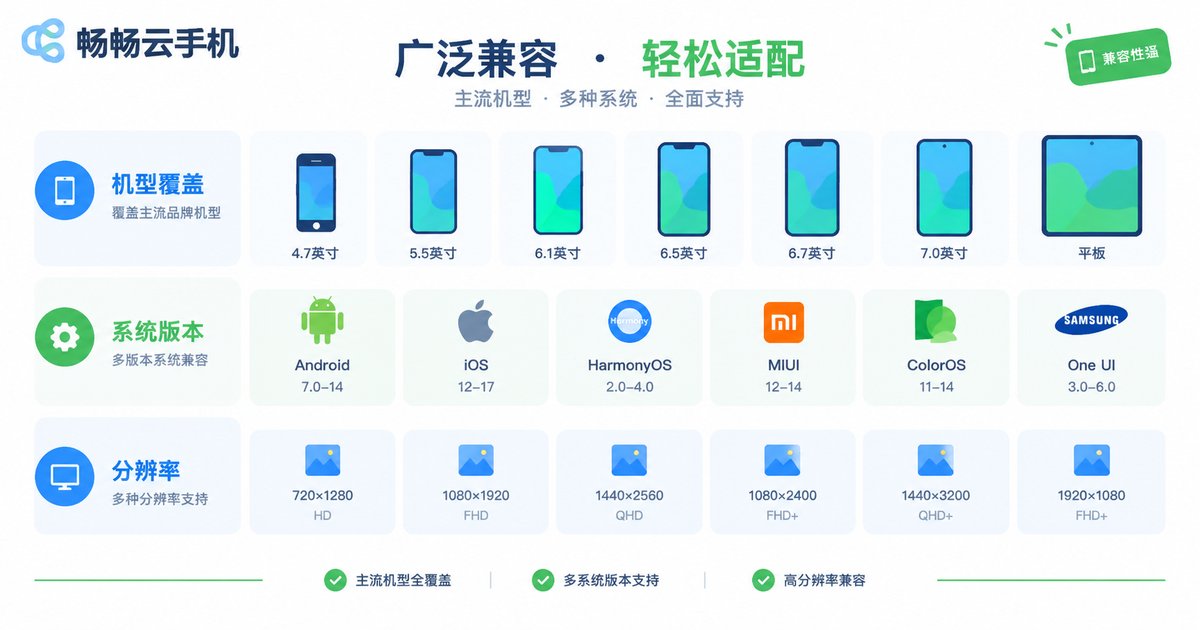
The biggest pain point of compatibility testing is the device matrix: mainstream brands, price tiers, Android versions, and screen resolutions easily add up to dozens of devices. Building an in-house device lab is expensive, hard to manage, and depreciates fast. Cloud phones solve all three problems:
| Dimension | Self-owned devices | Cloud phones |
|---|---|---|
| Upfront cost | Hundreds to thousands per device | Provision on demand, pay monthly |
| Switching devices | Re-plug, reinstall, reconfigure | Switch instances in the console |
| OS version coverage | Limited to devices you own | Choose different Android versions |
| Maintenance | Charging, repairs, loss or theft | Maintained by the provider |
Our actual workflow: list the top 20 or so device and OS version combinations, map them to cloud phone instances, and batch-run installation, launch, core-flow traversal, and Monkey tests. When issues appear, we reproduce the details on the corresponding real device. This catches over 90% of obvious compatibility problems—crashes, white screens, broken layouts, installation failures—before release.
A Practical UI Automation Workflow on Cloud Phones
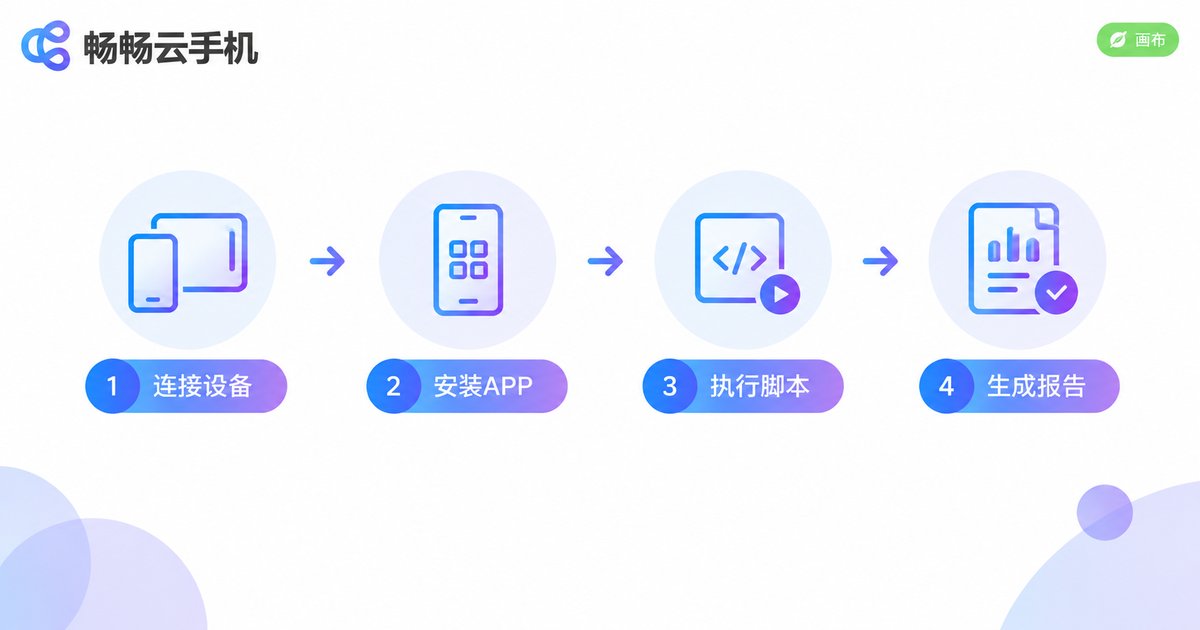
The key to UI automation is making the cloud phone look like an ordinary Android device to your scripts. Taking the common ADB plus Appium or uiautomator2 setup as an example, the workflow has four steps:
Step 1: Connect the device. Get the ADB connection details from the cloud phone console and attach the device to your automation environment:
# Connect to the cloud phone (address and port from the console)
adb connect your-address:port

# Confirm the device is recognized
adb devices
Step 2: Install the app under test. Push the APK over ADB exactly as you would with a real device:
adb install -r app-release.apkStep 3: Run your automation scripts. A uiautomator2 example—note that the code needs almost no changes:
import uiautomator2 as u2

d = u2.connect('your-address:port')
d.app_start('com.example.app')
d(text='Agree').click()
assert d(text='Home').wait(timeout=10)
Step 4: Collect results. Screenshots, logs, and performance data can all be pulled over ADB. Combined with a scheduled CI job, you get fully automated nightly regression.
Pitfalls We Hit—and How to Fix Them
Cloud phones are not perfect stand-ins. Here is what we learned, summarized in one table:
| Common issue | Typical symptom | How to fix |
|---|---|---|
| Network latency | Slower scripts, occasional missed taps | Pick a nearby node; add explicit waits to critical steps |
| Control recognition failure | Games and custom-rendered apps expose no widget tree | Switch to image-based locating, or verify on a real device |
| Resolution differences | Coordinate-based scripts tap the wrong spots | Use relative coordinates or control-based locating only |
| Unstable long connections | Long Monkey runs break midway | Add auto-reconnect logic; run tests in segments |
One-line takeaway: widget-based apps (e-commerce, social, utilities) run smoothly on cloud phones; for graphics-heavy games and sensor-dependent scenarios, use cloud phones for first-pass screening and leave fine-grained testing to real devices.
Tips for Building a Test Environment with ChangChang Cloud Phone
If you plan to put this workflow on cloud phones, evaluate providers on four points: ADB debugging support, selectable device specs, instance stability, and batch management convenience. Services like ChangChang Cloud Phone (ccloudphone) offer Android instances in the cloud with a remote management console—move the connect, install, run, and collect steps described above onto it, and one laptop can supervise a whole set of 'cloud test devices.' It is a particularly good fit for small and mid-sized teams that want to automate compatibility testing and daily regression.
A pragmatic rollout: start with one or two cloud phones to get your existing scripts running and verify stability and recognition rates; then expand to the full device matrix and hook it into scheduled CI jobs; finally, keep real devices only for reproducing the suspicious issues flagged by the cloud. Minimal investment, fastest results.
FAQ
Q: Is automated testing on cloud phones stable? Will sessions drop?
Mainstream cloud phones are stable enough for daily regression, but for long-running tasks, build reconnection and segmented result saving into your scripts so one interruption does not force a full rerun.
Q: Can Appium or uiautomator2 connect to cloud phones directly?
Yes. As long as the cloud phone supports ADB debugging, these frameworks treat it as an ordinary Android device, and scripts need almost no changes.
Q: How many cloud phones do I need for compatibility testing?
Start with fewer than 20 combinations covering 'top models × mainstream Android versions' that represent 80% of your user base, then add more based on crash data.
Q: How do cloud phones differ from PC emulators?
A cloud phone is a real Android environment in the cloud, so app behavior and compatibility are much closer to real devices. Emulators run on x86 architecture; some apps detect them and refuse to run, making test results less reliable.
Q: Are cloud phones suitable for testing game apps?
Great for batch screening of installation, launch, and basic flows; for frame-rate and touch-precision testing, follow up on real devices.


