
Cloud Phone Developer Essentials: Best Practices for Remote Debugging and Fast Recovery in a Native ARM Environment
Why the ARM Native Environment Matters for Developers
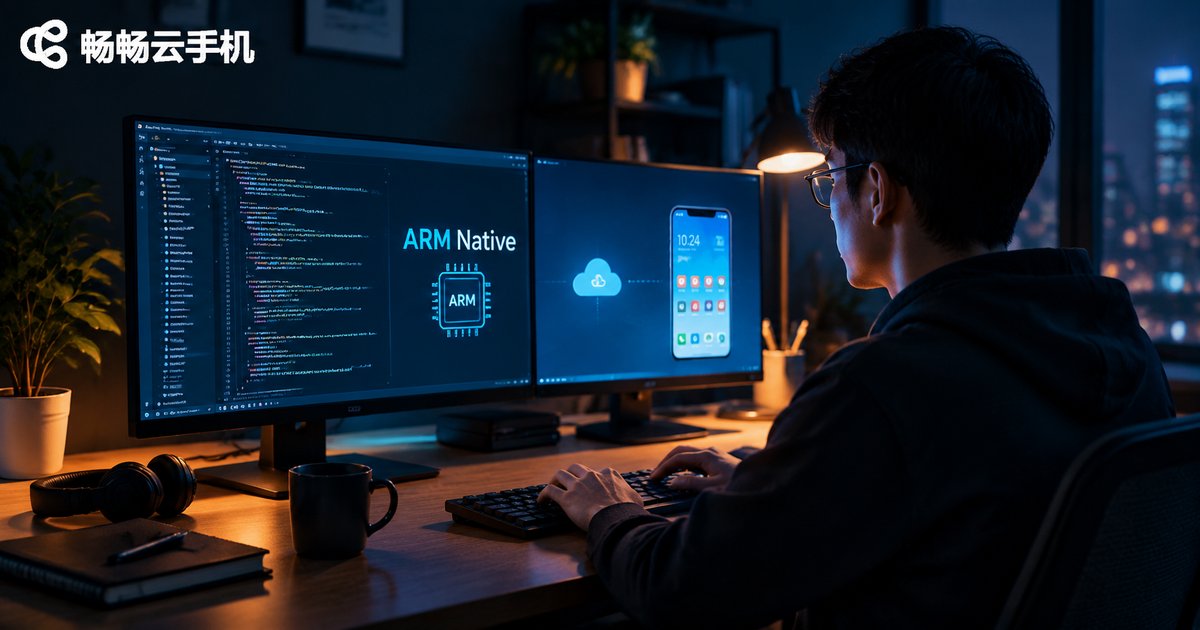
For mobile developers, the authenticity of your test environment directly determines how efficiently you can troubleshoot. Most local emulators run on x86 architecture and rely on instruction translation to execute ARM-compiled apps, which often leads to native library crashes, .so loading failures, and misleading performance data — bugs that never reproduce in the emulator keep appearing on real devices.
Cloud phones are fundamentally different: they run on real ARM servers in the cloud, with the system running on the arm64-v8a architecture. Apps execute natively without any translation layer. What you observe on a cloud phone closely matches real user devices, so your debugging conclusions are far more trustworthy. That is exactly why more and more developers are adding cloud phones to their daily workflow.

Preparing for Remote Debugging
Before you start remote debugging, it pays to get the environment sorted out first so you don't waste time later:
First, verify the instance architecture. After connecting to the cloud phone, run one command to confirm the CPU architecture is native ARM:
adb shell getprop ro.product.cpu.abi
# arm64-v8a means a native ARM environment
Second, prepare your toolchain. Install Android Studio or standalone platform-tools on your local machine, make sure adb is up to date, and keep the cloud phone instance's connection details (IP, port, authorization) handy.
Third, plan your network. Remote debugging depends on a stable connection. Use a wired network or high-quality Wi-Fi, and test the latency before you begin.
Hands-On: Connecting to a Cloud Phone over ADB
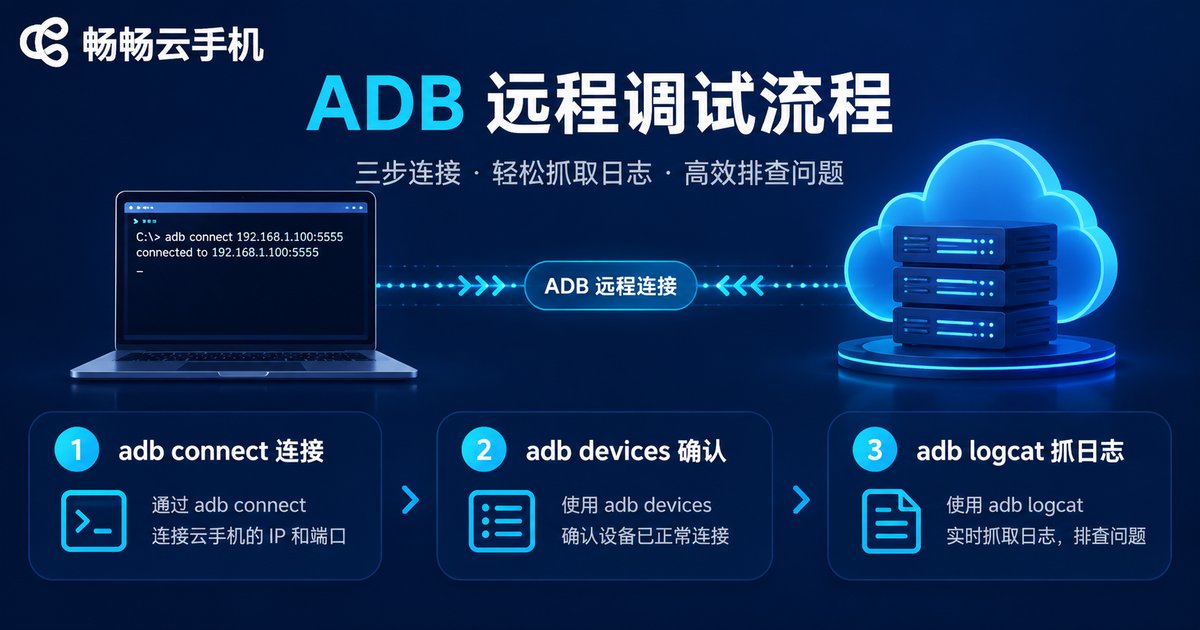
A cloud phone is essentially a complete Android device running in the cloud, so the standard ADB workflow applies in full:
# 1. Connect to the cloud phone instance
adb connect server-address:port

# 2. Confirm the device list
adb devices

# 3. Stream live logs
adb logcat --pid=$(adb shell pidof com.your.app)
Once connected, you can work with the cloud phone just like a local device: install and uninstall APKs, push and pull files, capture logcat output, inspect the UI hierarchy, and run shell commands. Combined with Android Studio's Profiler, you can remotely monitor CPU, memory, and network curves in real time to track down memory leaks and jank.
Tip: save your frequently used connection commands as a script so you can connect with one click instead of typing them every time.
Four Best Practices While Debugging
1. Let logs replace guesswork. When something breaks, capture logcat first and use filters to narrow the scope quickly — far more efficient than reinstalling APKs over and over.
2. Keep the instance clean. Don't clutter your debugging cloud phone with unrelated apps. Fewer variables mean purer test results.
3. Sync version management to the cloud. Name every test build consistently (version number + date) and keep it in the cloud so you can roll back and verify at any time.
4. Back up at key milestones. Before deploying a new build or changing system settings, take a backup first — if anything goes wrong, you can restore instantly.
Snapshots: The Key to Fast Recovery
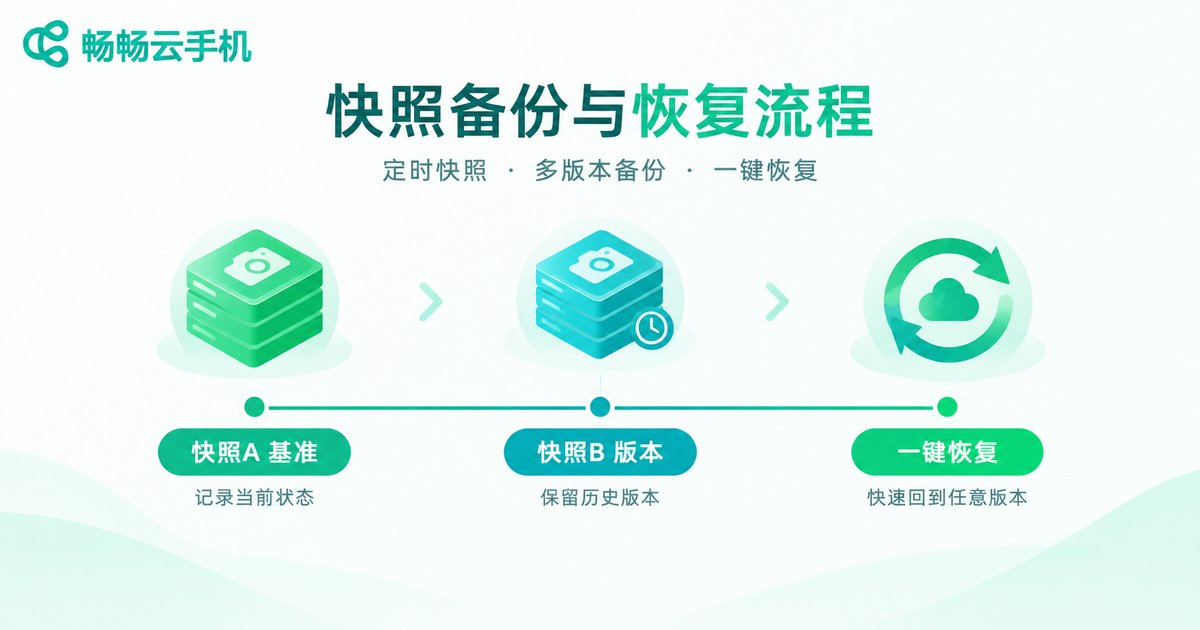
What's the biggest fear in remote debugging? An environment that's been changed beyond recognition, with no idea which settings were touched. Cloud phones have a natural advantage here — snapshot and recovery capabilities. A recommended workflow:
1. Set up the base debugging environment → take snapshot A (clean baseline)
2. Deploy the app and test data          → take snapshot B (version under test)
3. Environment gets messed up mid-debug  → restore snapshot B in one click
4. Need a completely fresh environment   → restore snapshot A
Unlike local emulators, where recovery means reinstalling and reconfiguring everything, cloud phone snapshot recovery usually completes within minutes — and it restores the full environment: apps, data, and settings included. For developers who validate multiple versions back to back, this can reduce environment setup time to almost zero.
Multi-Instance Parallel Testing
Beyond single-instance debugging, the bigger value of cloud phones lies in parallel testing. You can run multiple cloud phone instances simultaneously, each deploying a different APK version to verify compatibility at the same time — or dedicate one instance to automated testing while another reproduces issues manually, without interference.
| Comparison | Local Emulator | Cloud Phone (Native ARM) |
|---|---|---|
| CPU architecture | x86 + translation | Real ARM |
| Native library compatibility | Prone to crashes | Fully compatible |
| Environment recovery | Reconfiguration, slow | Snapshot restore, minutes |
| Parallel capability | Limited by local hardware | Elastic cloud scaling |
Why We Recommend ccloudphone
Among the available options, ccloudphone (畅畅云手机) stands out as one of the few cloud phone services that treats the native ARM environment as a baseline capability: a real Android system running in the cloud, apps executing natively without translation, remote ADB debugging support, and snapshot-based recovery — a great fit for the debugging workflow described in this article. Developers can visit the official ccloudphone website to review instance configurations and plans, and choose what fits their needs.
FAQ
Q: Is a cloud phone really a native ARM environment?
Yes. Cloud phones run on ARM servers in the cloud. Run adb shell getprop ro.product.cpu.abi — if it returns arm64-v8a, you're on a native ARM architecture.
Q: Does remote ADB debugging require root?
No. ADB is Android's official standard debugging protocol. Once the cloud phone instance's connection port is opened at the network level, you can debug it just like a local device.
Q: Will restoring a snapshot delete other data on the instance?
Restoring rolls the instance back to the state at snapshot creation; any changes made after that snapshot will be overwritten. We recommend managing snapshots as a baseline snapshot plus version snapshots to avoid accidental restores.
Q: If my network drops during debugging, will I lose data?
No. The cloud phone runs in the cloud — losing your local connection only affects remote viewing. The instance keeps running normally, and you can pick up right where you left off once reconnected.


