
Can't Install Apps on Cloud Phones? Is a Low Android Version to Blame! Root Cause Analysis
The Short Answer: Yes, an Outdated Android Version Is a Top Root Cause
Many first-time cloud phone users run into the same frustrating scenario: the APK file downloads just fine, but tapping install triggers messages like 'App not installed', 'There was a problem parsing the package', or 'This app is not compatible with your device'. The instinct is to blame the file itself and download it again and again, with no improvement. In fact, an outdated Android version on the cloud phone is one of the most common root causes of failed installations.
The logic is simple: every Android app declares a minimum supported Android version (its minSdkVersion) at build time. If the cloud phone's system version falls below that threshold, the system check fails instantly, and no amount of retrying will help. On top of that, modern apps increasingly require a 64-bit runtime, and older system images may lack the required libraries, which also stalls the installation process.
How Exactly Does the Android Version Block Installation? Three Mechanisms
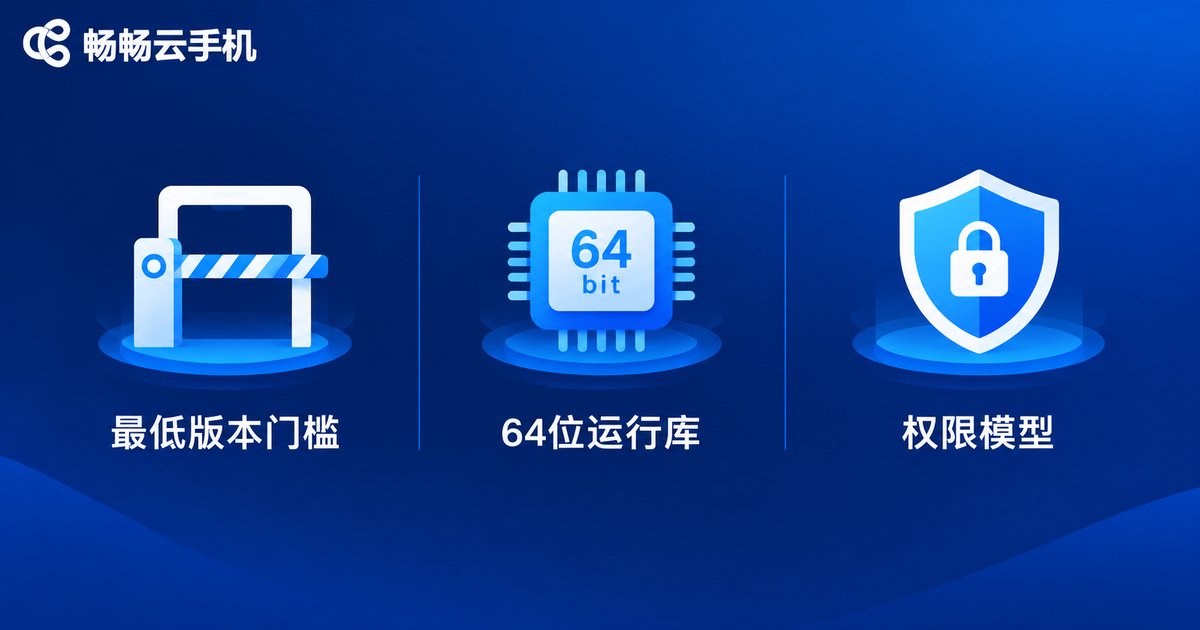
Mechanism 1: The minimum version gate (minSdkVersion). Developers set a compatibility floor for each app. For example, if an app requires Android 8.0 or above but the cloud phone image runs Android 7.1, the version check fails and the system reports 'App not installed' before the installer even opens.
Mechanism 2: The 64-bit library requirement (arm64-v8a). Major app stores have long required 64-bit support, and some newer apps ship 64-bit packages only. If the cloud phone system or runtime supports 32-bit alone, installation will fail as well.
Mechanism 3: New permission models and newer APIs. Some apps rely on permission models and system capabilities introduced in recent Android releases. On older versions they may not install at all, or once installed, they may crash, show black screens, or misbehave.
So when the same app installs normally on other phones but fails only on your cloud phone, checking the Android version first usually saves a lot of time.
Not Just the Version: A Troubleshooting Checklist for Other Common Causes
If the Android version is fine yet installation still fails, work through this checklist, ordered by how often each issue occurs:
| Check | Typical Symptom | Fix |
|---|---|---|
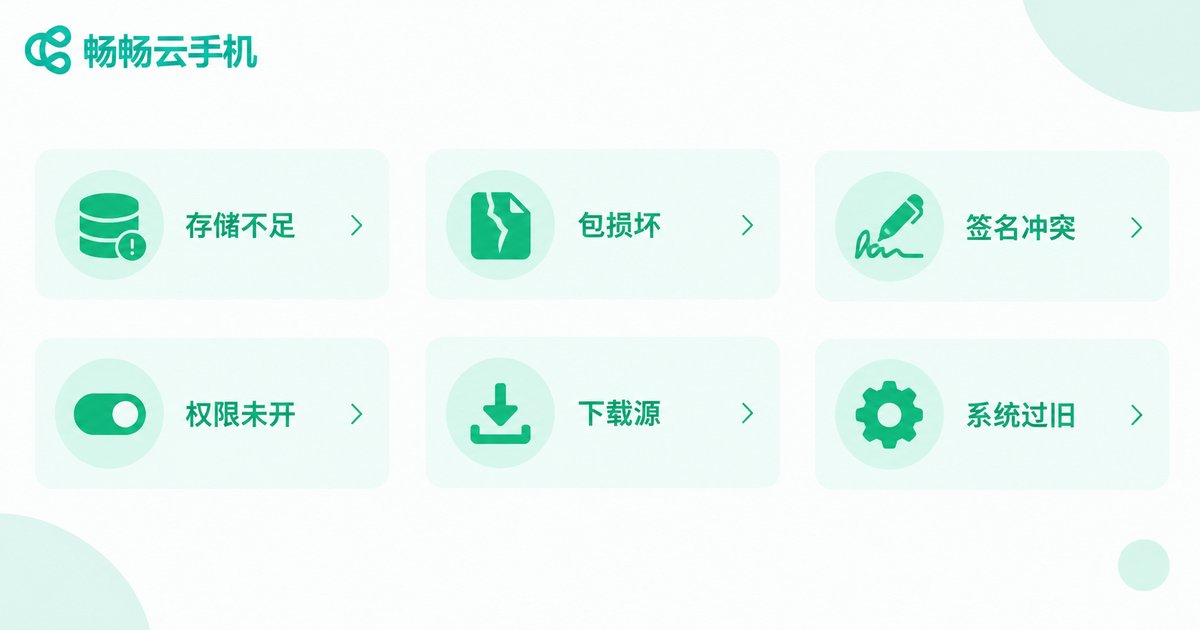
| Insufficient storage | Not enough storage message | Clear caches, remove unused apps, then retry |
| Corrupted APK file | Problem parsing the package | Delete and re-download the full package from an official source |
| Signature conflict | An app with the same name already exists | Uninstall the old version first, then install the new one |
| Unknown sources disabled | No response when tapping install, or blocked | Allow installs from unknown sources in system settings |
| Unreliable download source | Abnormal speed, file size clearly too small | Switch networks or use an official download source |
| Outdated system image | Multiple new apps all fail to install | Switch to a cloud phone device with a newer system version |
Read the Error Message: A Quick Reference Table
The message shown at failure is often the best diagnostic clue. Here is how the most common errors map to likely causes:
| Error Message | Most Likely Cause | Android Version Related? |
|---|---|---|
| App not installed | Version requirement unmet, or signature conflict | Very likely |
| Problem parsing the package | Corrupted or incomplete APK | Usually not |
| Not compatible with your device | System version or CPU architecture mismatch | Directly related |
| Insufficient storage | Cloud disk is full | No |
How to Check Your Cloud Phone's Android Version in Three Steps
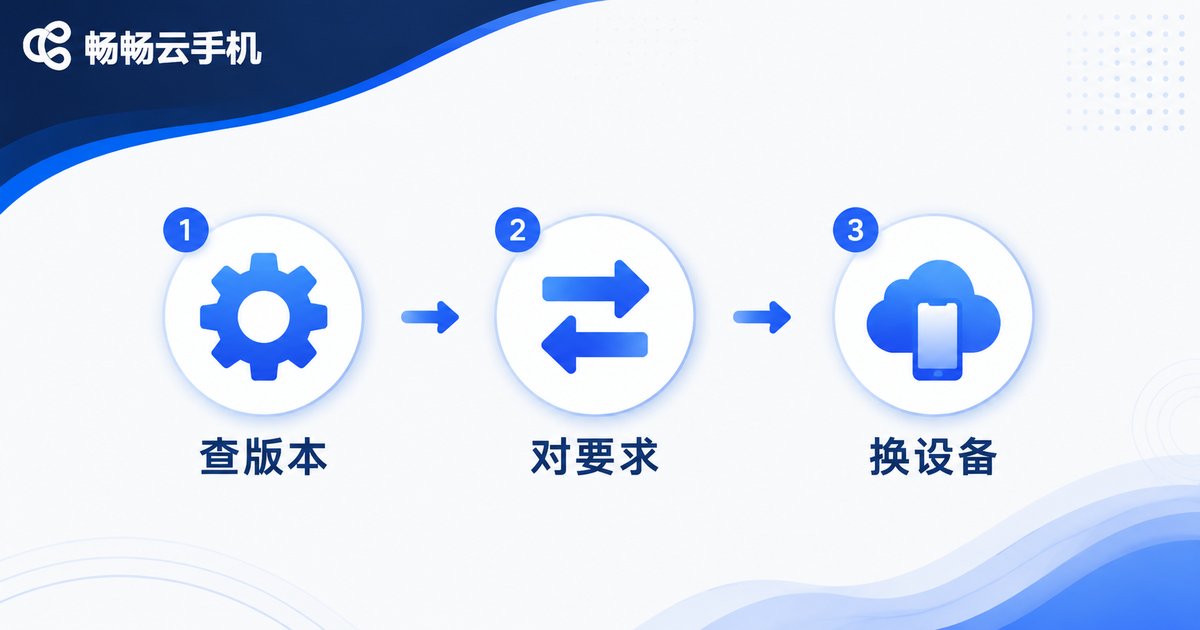
Step 1: Open 'Settings' inside the cloud phone, go to 'About phone', and note the number next to 'Android version'.
Step 2: Check the app's store page or official description for its stated minimum Android version. Most mainstream apps released in recent years require Android 8.0 or higher.
Step 3: Compare the two. If the cloud phone version is lower than the app requires, the most direct fix is to switch to a cloud phone device with a newer system version instead of retrying the installation endlessly.
Choose the Right Cloud Phone to Prevent Installation Failures at the Source
Rather than fighting an outdated system, start with a cloud phone service that keeps its system images updated and runs a newer Android version. Taking ccloudphone as an example, check the Android version listed in the device specifications before you sign up, compare it with the minimum requirements of the apps you use daily, and confirm the match in advance to avoid installation headaches from the start.
ccloudphone lets you download and install apps inside your cloud device just as you would on a regular phone. If an installation fails, work through the checklist above first; if a system version limitation is confirmed, visit the official website to review the system version of each device type or contact customer support, then pick a device compatible with your target apps.
FAQ
Q: If an app won't install on a cloud phone, is it always because the Android version is too low?
Not always. An outdated version is a frequent culprit, but insufficient storage, corrupted APK files, signature conflicts, and disabled unknown-source permissions are just as common. Work through the checklist above.
Q: How can I quickly tell whether it is a version issue?
Watch for two signals: the error reads 'App not installed' or 'not compatible with your device', and the same app installs fine on other, newer phones. When both hold true, the Android version is the likely cause.
Q: Can I upgrade the Android version on my cloud phone myself?
Cloud phone system images are maintained by the provider, so users generally cannot flash or upgrade them manually. The safer route is choosing a device with a newer system version; check the Android version of each device type on the ccloudphone official website before deciding.
Q: The app installed but keeps crashing. Is that also version related?
It can be. Some apps manage to install on older systems but only run stably on newer ones. If crashes are frequent, switching to a cloud phone device with a higher Android version is advisable.


