

Cloud Phone APK Download & Installation Guide: Full Setup for Android and iOS
What Is a Cloud Phone APK and Why You Need It First
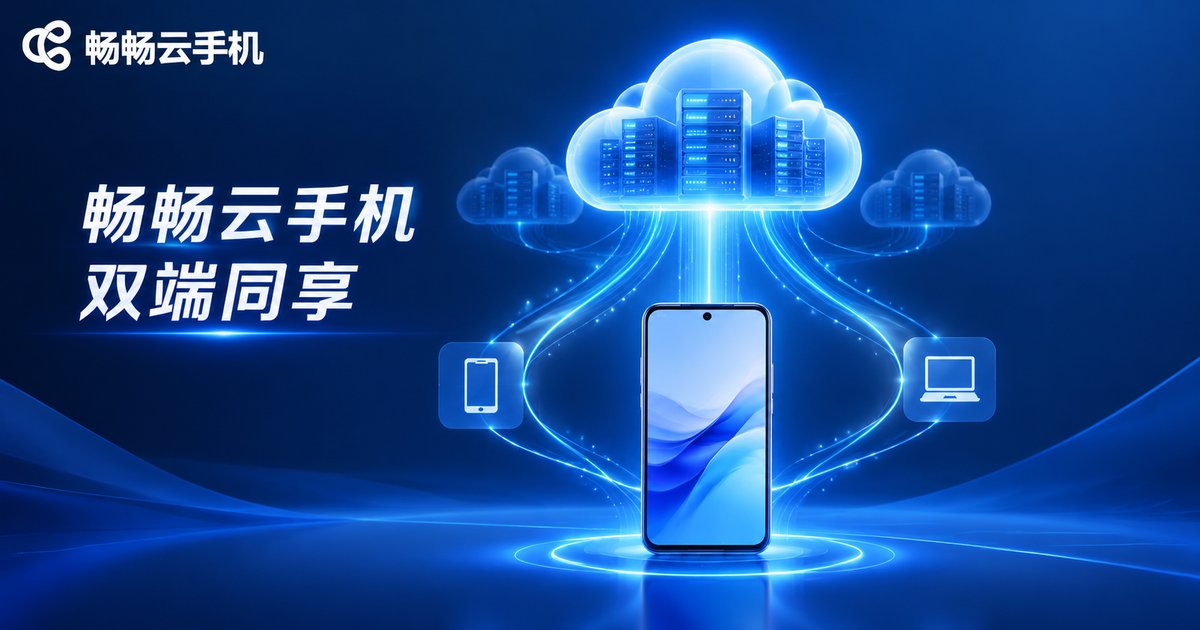
A cloud phone is a virtual Android device running on remote cloud servers — its apps and data live in the cloud and consume none of your phone's local storage or computing power. To use a cloud phone on a phone or computer, the first step is installing its client app, commonly known as the cloud phone APK. Once installed, you can connect to one or more cloud Android devices anytime to keep apps running, manage multiple accounts, or test new apps.
One thing to clarify up front: APK is the installation package format for Android, so 'downloading the APK' mainly applies to Android devices. iOS devices cannot install APK files directly, but you can get the same app from the App Store — sign in with the same account and you get the identical cloud phone service. Let's walk through each platform step by step.
Four Things to Prepare Before Installation
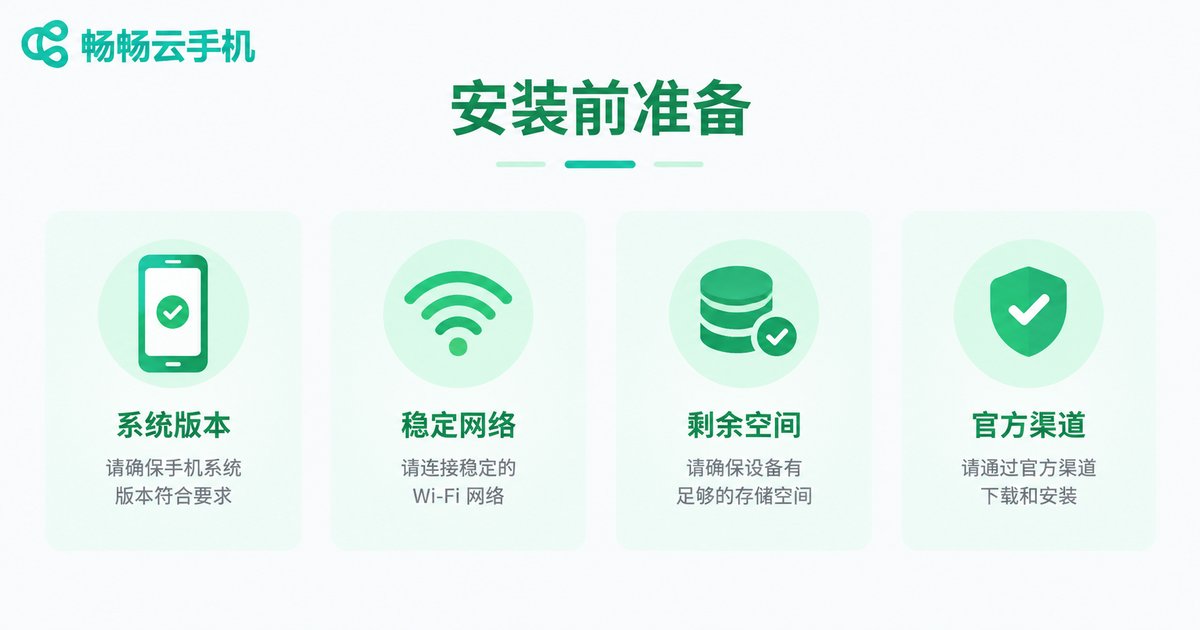
Spending one minute on the following checks will make the whole process much smoother:
1. Check your system version: Android 7.0 or above is recommended for Android devices, and iOS 12 or above for iPhone and iPad. Outdated systems may stop the app from running properly.
2. Secure a stable network: All cloud phone visuals and data travel over the network, so download and install over Wi-Fi or a reliable mobile connection.
3. Free up storage: The client package is small, but keeping at least 200MB of free space is still a good habit.
4. Stick to official channels: Download only from the official ChangChang Cloud Phone (ccloudphone) website or legitimate app stores, and avoid unknown download sites whose packages may be repackaged with risky code.
How to Download and Install on Android
Android users can choose either of two mainstream methods.
Method 1: Install from an app store (easiest)
Open your phone's built-in app store, search for 'ChangChang Cloud Phone', verify the developer information, and tap 'Install'. This is the simplest route, and future updates arrive automatically.
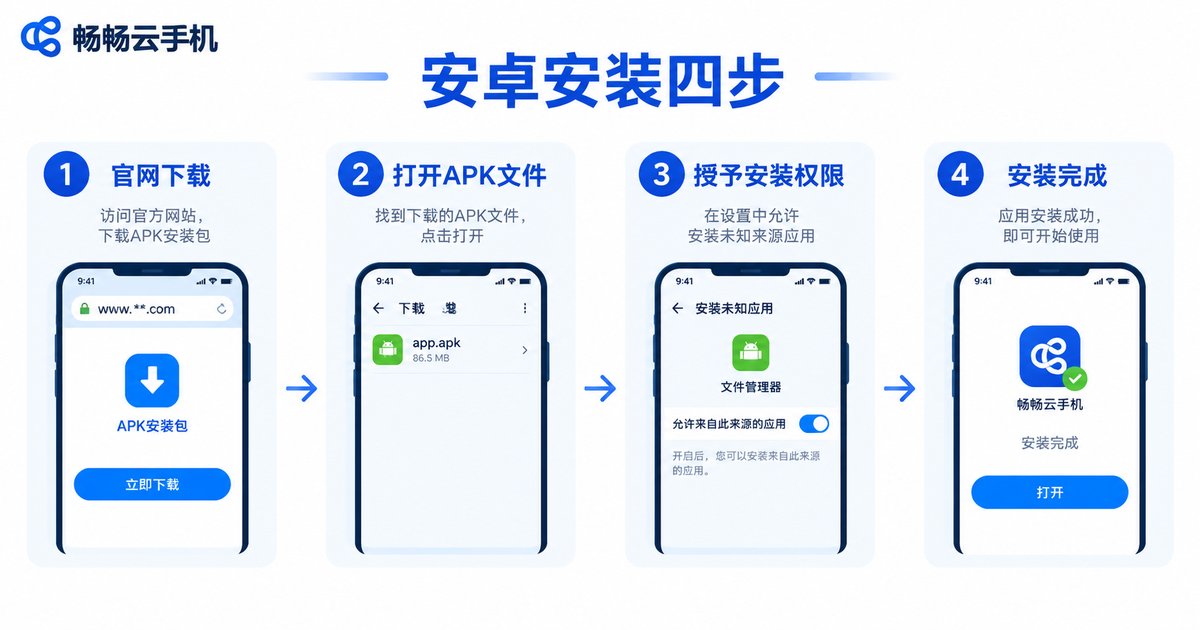
Method 2: Download the APK from the official website
Step 1: Visit the official ChangChang Cloud Phone website in your mobile browser and tap 'Download for Android' to get the APK file;
Step 2: When the download finishes, tap the package in the notification panel or find it in your file manager;
Step 3: If the system asks to 'allow installation from unknown sources', grant the permission once as prompted;
Step 4: Tap 'Install' — when the progress bar completes and the icon appears on your home screen, installation succeeded.
Tip: A 'parse error' during installation usually means the file was corrupted while downloading. Delete it and download again.
How to Download and Install on iOS
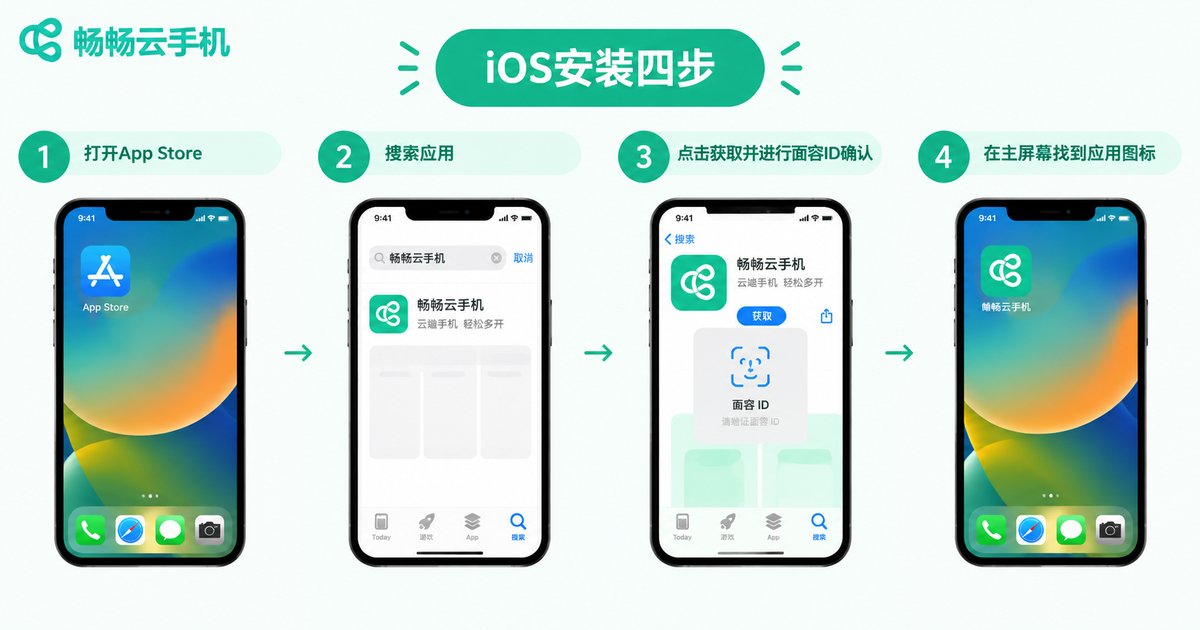
iOS cannot install APK files directly, but ChangChang Cloud Phone offers a native iOS app whose features and experience match the Android version.
Step 1: Open the App Store on your iPhone or iPad;
Step 2: Type 'ChangChang Cloud Phone' or 'ccloudphone' into the search bar;
Step 3: Locate the official app in the results, tap 'Get', and confirm with Face ID or Touch ID;
Step 4: Once installed, return to the home screen and tap the icon to launch.
Can't find it in the App Store? Visit the official website and use its iOS download entry to jump straight to the correct App Store page, so you never install a counterfeit copy.
First Login and Basic Configuration
On both Android and iOS, the setup steps after installation are identical:
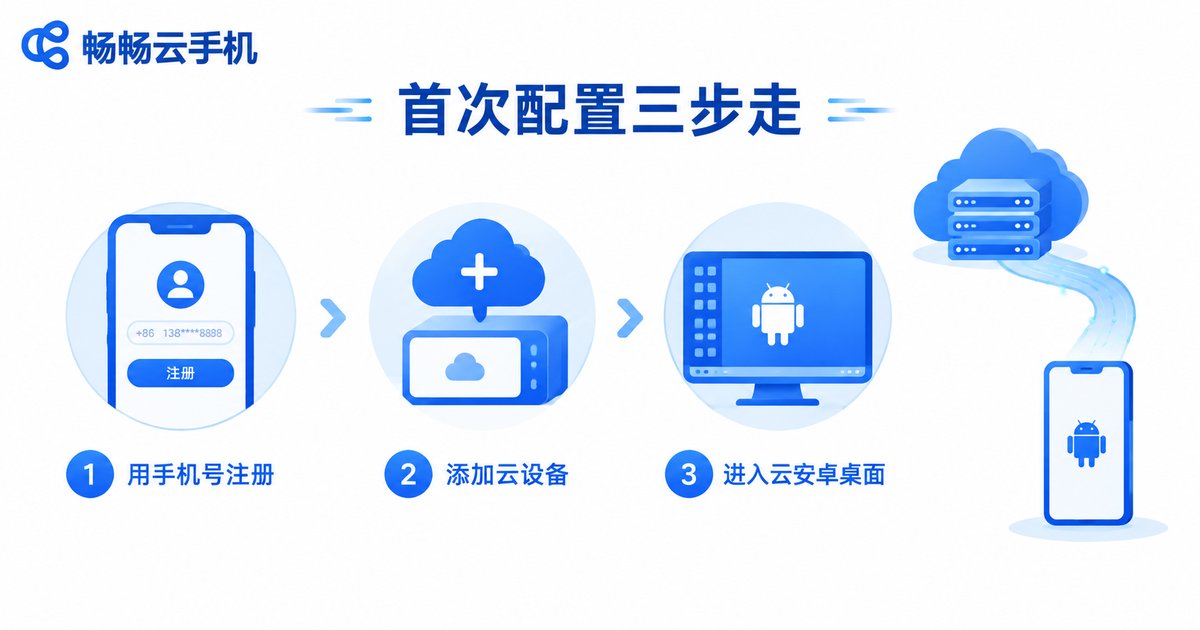
Step 1: Register and sign in. Open the app and register with a mobile number verification code. Keep your credentials safe — cloud devices are bound to your account, so your data follows you even when you switch devices.
Step 2: Add a cloud device. New users are guided through adding a cloud device; just pick a suitable configuration.
Step 3: Enter the cloud desktop. Tap the device card to open the cloud Android desktop. It behaves like a real Android phone: install apps, sign in to accounts, and keep tasks running in the background.
Step 4: Tune quality and network. If the stream stutters, lower the resolution in settings and switch back to HD once the network improves.
Android vs iOS: Feature Comparison
Core features are identical on both platforms, with only minor differences:
| Item | Android | iOS |
|---|---|---|
| Installation | App store or official APK | App Store download |
| Cloud device control | Fully supported | Fully supported |
| Multi-device management | Supported | Supported |
| File upload | Supported | Supported |
| Background keep-alive | More flexible | More restricted by the system |
Overall, everyday use feels nearly the same on both platforms — the choice mostly depends on the device in your hand.
Troubleshooting Common Installation Issues
The install button does not respond?
Check whether the 'install unknown apps' permission has been granted; some phone brands require enabling it separately in system settings.
The package downloads slowly?
Switch to Wi-Fi, or fetch the latest package again from the official website.
iOS says the app is unavailable?
Make sure your App Store account is set to the China mainland region, or use the official website's download entry.
The app crashes right after opening?
This usually means an outdated system or an incomplete package — update the system and reinstall the latest official version.
FAQ
Q: Is the cloud phone APK safe? Could it contain viruses?
Yes, it is safe as long as you download the official package from the ChangChang Cloud Phone website or a legitimate app store. Never use unverified third-party download sites.
Q: Can Android and iOS share the same account?
Yes. Cloud devices are bound to the account, so signing in on either platform gives you full control of your cloud phones with data synced in real time.
Q: I only have a computer — can I still install it?
Yes. ChangChang Cloud Phone also provides a desktop client; sign in with the same account to operate your cloud phone on a large screen, ideal for long-running background tasks.
Q: Does cloud phone data take up my phone's storage?
No. Apps and data live on cloud servers and your device only streams the screen, so uninstalling the client never deletes cloud data.
Q: Can several people use one cloud phone at the same time?
Each cloud device maps to one account. Sharing an account among multiple people is not recommended, as operations may conflict.


