
Cloud Phone System Guide: Android Versions, Compatibility and App Installation
What Exactly Is a Cloud Phone?
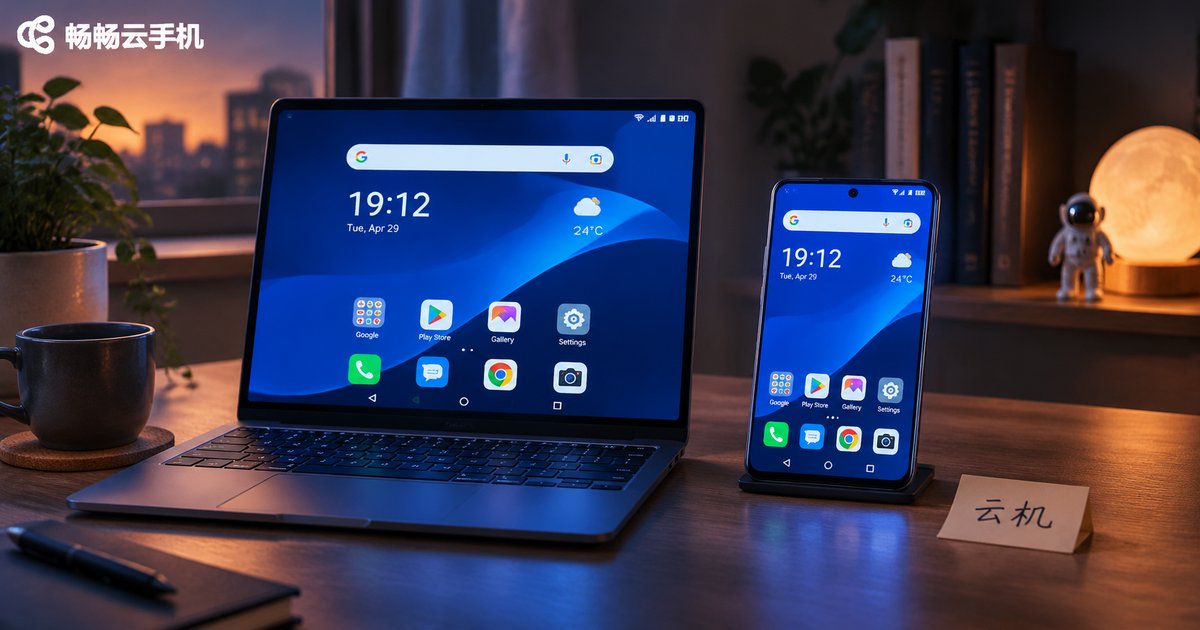
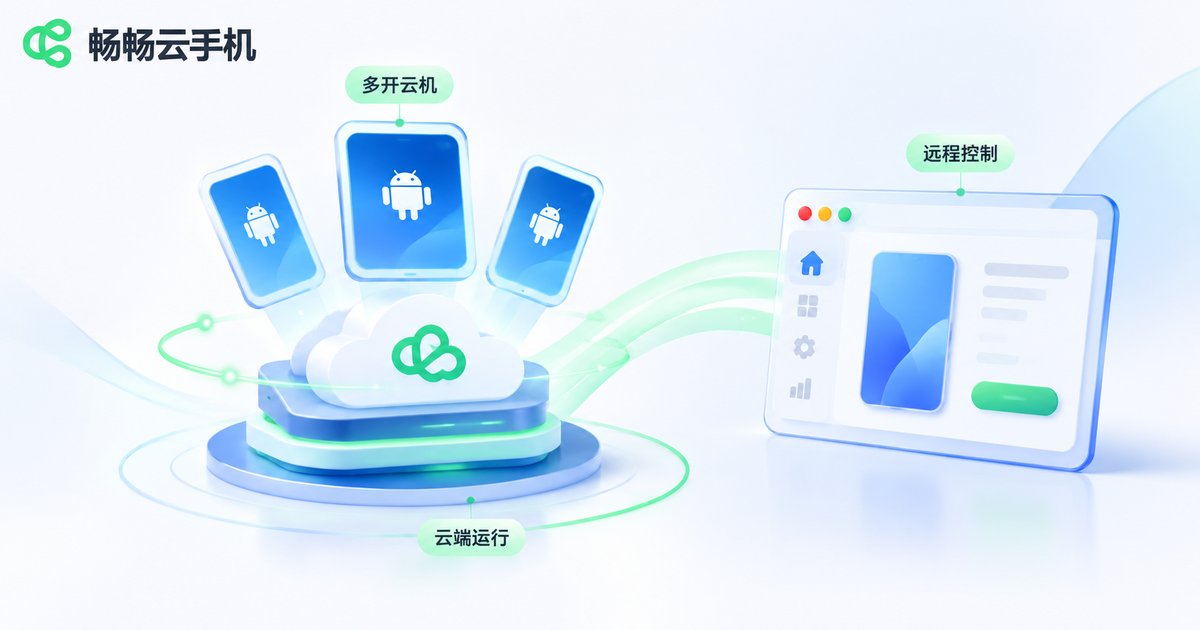
A cloud phone is not a device you hold in your hand. It is a virtual Android phone running on a server in the cloud. All you need locally is an entry point — a mobile app, a desktop client or a web browser — to operate that phone remotely. The screen is streamed back to you in real time, and your taps, swipes and typing are sent back to the cloud instantly.
Because the system runs in the cloud, whether a cloud phone can install a particular app or run a particular game depends on three things: the Android version, the compatibility configuration and the way apps are installed. This article explains all three clearly.
1. The Android Version: The Foundation of the System
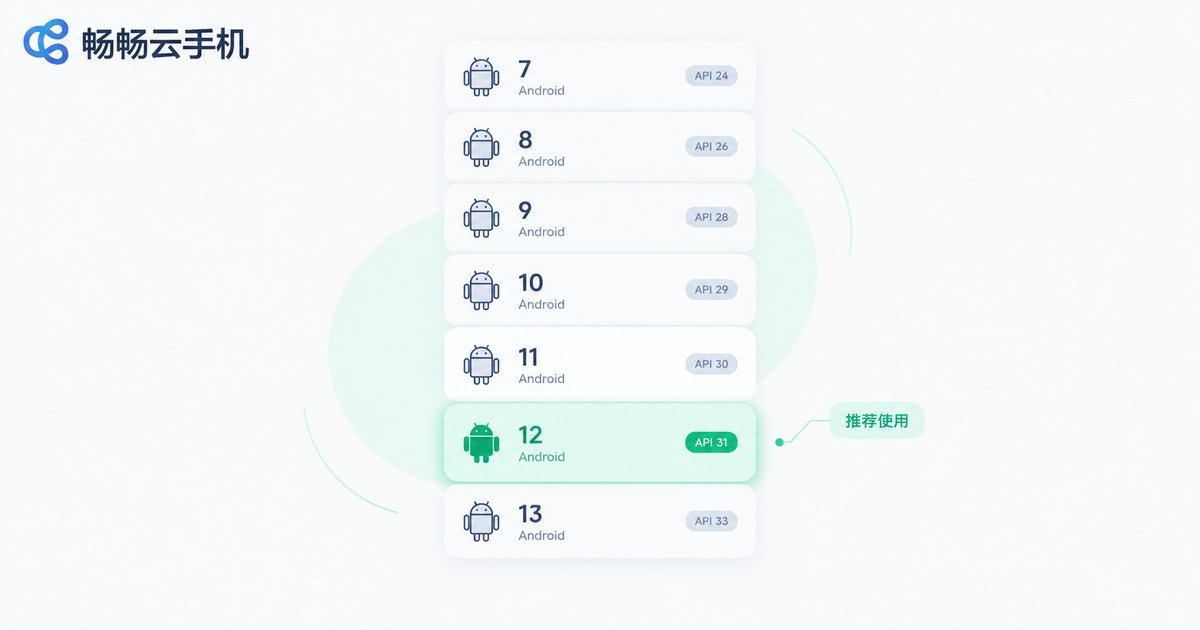
Every cloud phone ships with an Android system image — commonly Android 7.1, 9, 10, 11, 12 or 13. Behind each version number is an API Level, which defines what interfaces the system can expose to apps. If an app calls an API, it requires the system to reach at least the corresponding level.
| Android Version | API Level | Real-World Behavior |
|---|---|---|
| Android 7.1 | 25 | Very friendly to legacy apps and games, but limited support for newly released apps |
| Android 9 | 28 | A well-balanced choice; most everyday apps run normally |
| Android 10 | 29 | Tighter file storage permissions; some apps require re-authorization |
| Android 11 / 12 | 30 / 31 | Stricter permission management; most new apps require this range |
| Android 13 | 33 | Supports the newest app features; a few older apps may crash |
How do you know whether your cloud phone is sufficient? The simplest way is to check the app's store page, which usually states “requires Android X.X or above.” If the cloud phone version is lower, installation will fail with an incompatibility message.
As a rule of thumb: lower versions have weaker support for new apps, while higher versions have weaker support for legacy apps. For long-running, stable workloads, a mainstream stable version is easier to live with; if you need the latest features of a new app, choose a higher system image.
2. Compatibility: The Five Factors That Really Matter
Many people assume that once the version matches, everything will run. In reality compatibility is a combined problem, and you need to check at least five points.
1. Android version and API Level. This is the first gate. If the version is too low, installation is blocked; if it is too high, older apps may crash because the legacy interfaces they expect are missing.
2. CPU architecture. Apps built natively for ARM run most smoothly in an ARM environment. If a cloud phone is x86-based and runs ARM apps through a translation layer, both performance and stability suffer, and some apps will simply crash.
3. Google Mobile Services (GMS). Some overseas apps require GMS to launch. If your apps depend on it, choose a system image with GMS pre-installed rather than trying to work around it later.
4. Root access and multi-instance capability. Some apps detect Root status and refuse to run, so those scenarios need Root disabled. Conversely, environments that require device spoofing or multiple instances depend on Root and independent device parameters.
5. Resolution, DPI and graphics rendering. Games or apps that are sensitive to screen ratio may show black bars, misaligned interfaces or rendering glitches at non-standard resolutions. Adjusting resolution and DPI often fixes this.
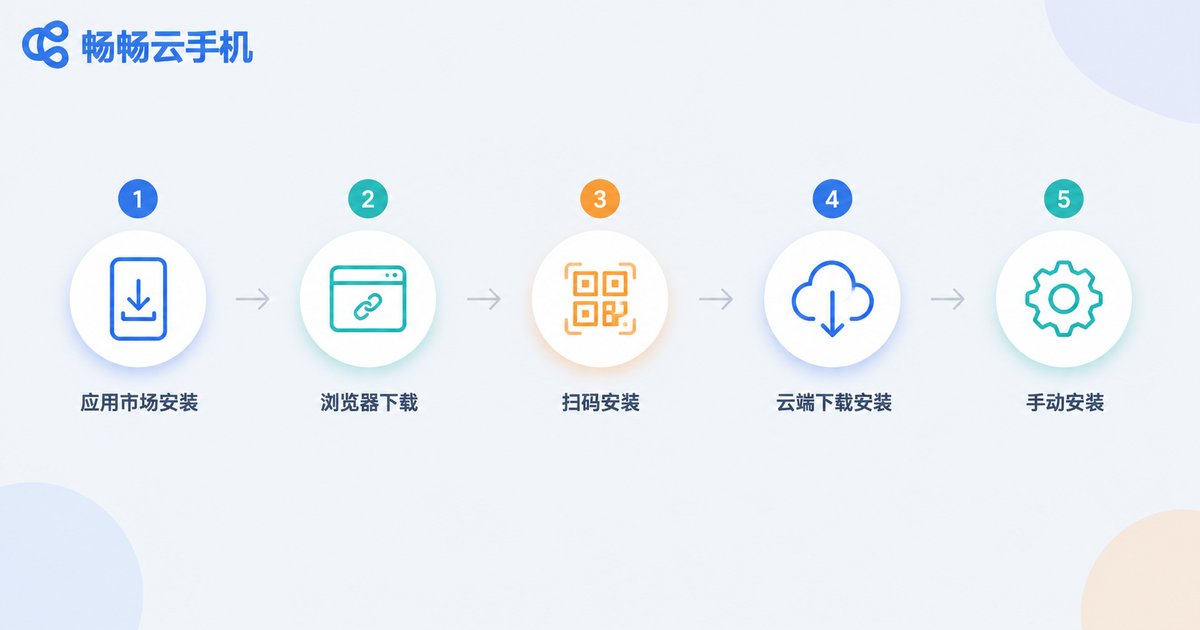
3. Five Common Ways to Install Apps
Method 1: Built-in app market. Most cloud phones include an app store. Search for the app and tap install — the easiest route for everyday users. The downside is that not every app is listed.
Method 2: Upload a local APK. Choose “upload and install” in the client, send an APK from your computer or phone, and the cloud side completes the installation automatically. This is the go-to method for enterprise apps and titles that are not in the store.
Method 3: Batch installation. When you need a dozen apps at once, package the APKs into a group and upload them together, or push install tasks to several cloud phones at the same time to avoid repetitive work.
Method 4: ADB installation. The most convenient option for command-line users — a single command does the job, which makes it ideal for scripting and automation.
adb connect CLOUD_PHONE_IP:PORT
adb install app.apk
adb shell pm list packages
Method 5: Cloud drive or built-in file manager. Store the APK in a cloud drive first, then open it from the file manager inside the cloud phone. This works well when uploading large files directly is inconvenient.
4. Failed Installs, Crashes and Lag? Work Through This Checklist
| Symptom | Likely Cause | What to Do |
|---|---|---|
| “App not installed” or “Error parsing the package” | Corrupted or incomplete APK, or architecture mismatch | Re-download the full package, confirm it is the ARM build and check the system architecture |
| “Your device is not compatible with this version” | Android version is below the app's minimum API Level | Switch to a higher Android image and reinstall |
| Installs fine but crashes on launch | Missing GMS, Root detected, or system version too high | Use a GMS-enabled image, disable Root or lower the system version |
| Misaligned interface, buttons cannot be tapped | Resolution or DPI differs from what the app expects | Adjust resolution and DPI, switch to a common phone aspect ratio |
| Laggy performance, delayed screen | Instance specification too low or local network instability | Upgrade the instance specification, check local network and quality settings |
Follow the order of version first, then architecture, then Root and GMS, and finally resolution — the vast majority of problems can be pinpointed this way.
5. What to Look For in a Hassle-Free Cloud Phone
If you are new to cloud phones, pay attention to four dimensions first: whether multiple Android version images are available, whether APK upload and batch installation are supported, whether multi-instance operation with independent device parameters is possible, and whether the cloud instance stays online reliably.
ccloudphone is designed around these practical requirements: it offers a choice of Android system images so you can switch versions to match app requirements, supports uploading local APKs for installation, and supports multi-instance management. Instances keep running in the cloud, so tasks continue even if your local device is offline or powered off. You simply log in through the client or a browser to view and operate your cloud phone at any time. For the specific versions and features available, refer to the official ccloudphone website.
In other words, a cloud phone solves the two most annoying problems — version selection and installation method — up front, so all that is left is choosing the right system image for your apps.
Frequently Asked Questions
Q: Can I choose the Android version of my cloud phone?
A: Most cloud phone services provide multiple system images and let you pick a version when creating an instance. If an app reports that the version is unsupported, switch the image and reinstall the app.
Q: Why does an app install on my local phone but not on a cloud phone?
A: The most common cause is an Android version below the app's requirement, followed by a CPU architecture mismatch or an incomplete APK download. Check the minimum system requirement on the app store page first.
Q: Can I install APK files downloaded locally on a cloud phone?
A: Yes. Use the upload-and-install feature in the client to send the APK to the cloud and complete the installation. For batch scenarios you can upload several packages at once.
Q: Does an app crash mean the cloud phone is broken?
A: In most cases it is a compatibility issue — missing Google Mobile Services, an app detecting Root, or a system version mismatch. Switching images or adjusting permission settings usually resolves it.
Q: Do I need to keep my local device on for the cloud phone to work?
A: No. The cloud phone runs on cloud servers, so the instance keeps running after your local device is turned off. Log in again and you can pick up where you left off.


