

Can Cloud Phones Run All Android Apps? Compatibility Checklist for Social, Office & Utility Apps
How Do Cloud Phones Run Android Apps?
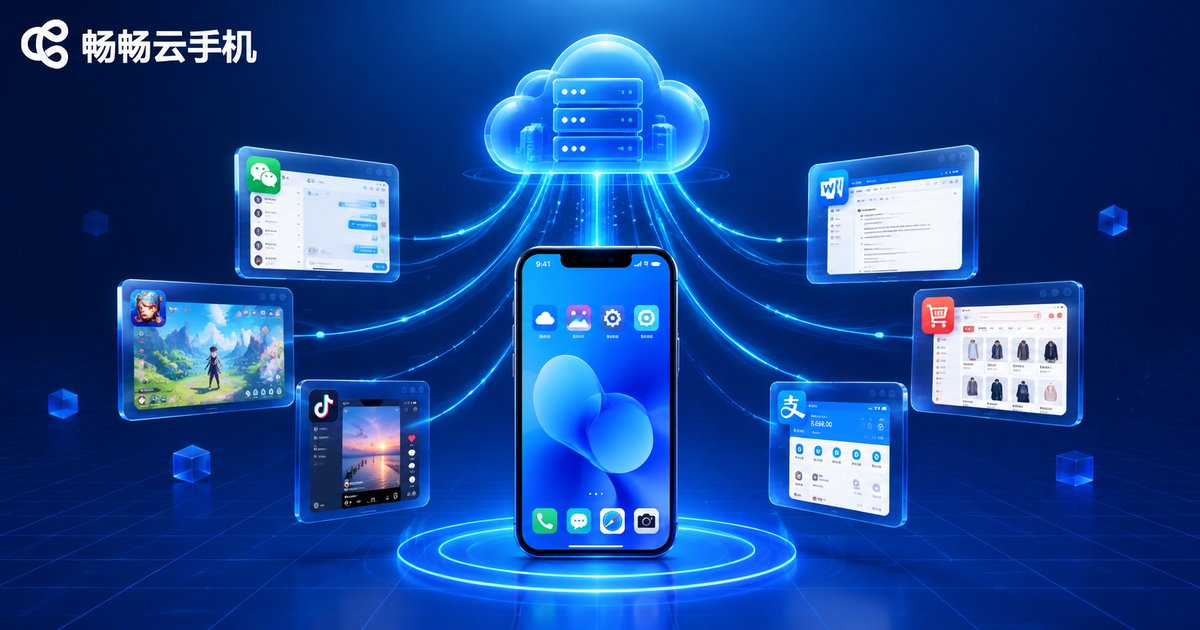
When people first hear about cloud phones, a common question pops up: is it an "emulator" or a "real phone"? The answer is the latter. A cloud phone is a real Android system running in a data center — the screen you see is streamed live over the network, and your taps are sent back to the cloud. Because the underlying environment is a complete Android system, the vast majority of Android apps install, log in and run just like they do on a physical device.
That said, "the vast majority" is not "all". A few features that depend on special hardware (such as NFC or fingerprint sensors) and some strictly risk-controlled financial apps may have limitations. Below is a practical compatibility checklist organized into three categories: social, office and utility apps.
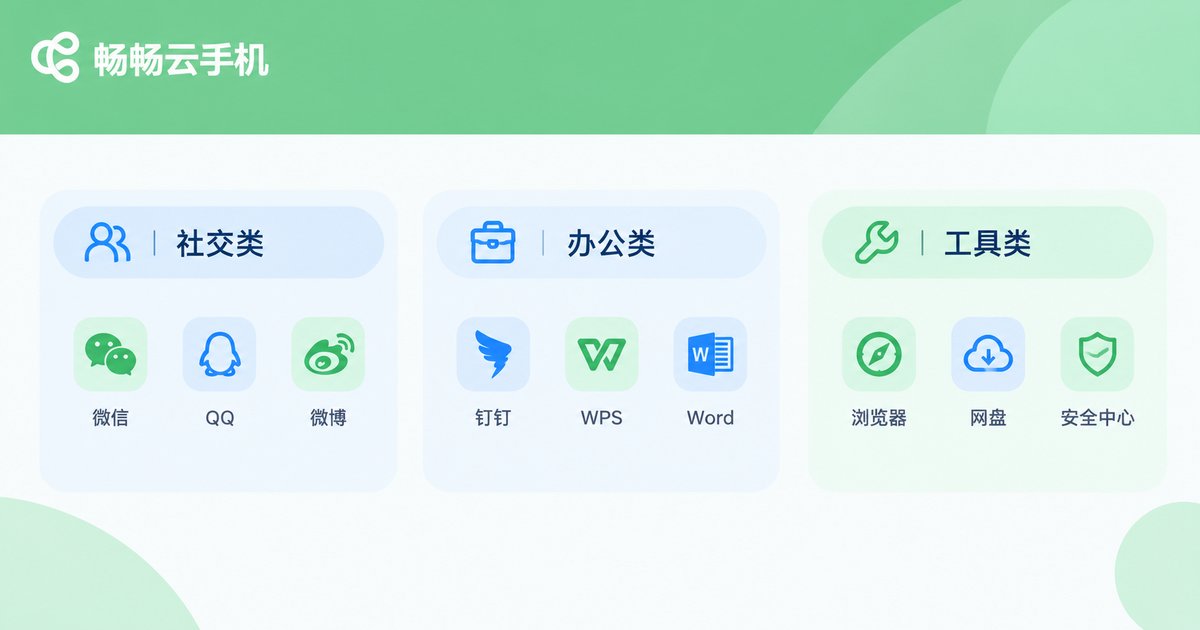
Social Apps: The Most Mature Compatibility Scenario
Social apps are among the most common workloads on cloud phones, and mainstream apps behave remarkably stably, whether for daily messaging or multi-account operations.
| App | Compatibility | Tips |
|---|---|---|
| ✅ Fully compatible | Complete the new-device verification on first login; device info stays stable afterwards | |
| ✅ Fully compatible | Messaging, file transfer and voice all work normally | |
| Weibo / Xiaohongshu (RED) | ✅ Fully compatible | Great for content publishing and multi-account management |
| Douyin / Kuaishou | ✅ Fully compatible | Scrolling, liking and commenting run smoothly; livestreaming depends on network quality |
| Telegram / WhatsApp | ✅ Fully compatible | A common choice for international communication |
Key tip: most social apps have a "new device verification" mechanism. A cloud phone's device parameters stay fixed once generated, so after one successful verification you will not repeatedly trigger risk checks — a major difference from ordinary emulators.
Office Apps: An Always-On Mobile Workspace
Office scenarios care most about stability and uptime — exactly where cloud phones shine. Your cloud device stays online 24/7, so message push and file sync continue even when your physical phone is powered off.
| App | Compatibility | Tips |
|---|---|---|
| DingTalk / WeCom | ✅ Fully compatible | Attendance check-in relies on location permission — check authorization settings |
| Feishu (Lark) | ✅ Fully compatible | Document collaboration and approval flows work normally |
| WPS Office | ✅ Fully compatible | Smooth document editing and PDF handling |
| Tencent Docs / Shimo | ✅ Fully compatible | Real-time multi-user editing without pressure |
| Email apps | ✅ Fully compatible | Background sync keeps important emails within reach |
For users juggling a work account and a personal one, the multi-instance management capability is especially useful: each cloud phone is an independent Android environment with isolated app data, letting one screen manage several identities.
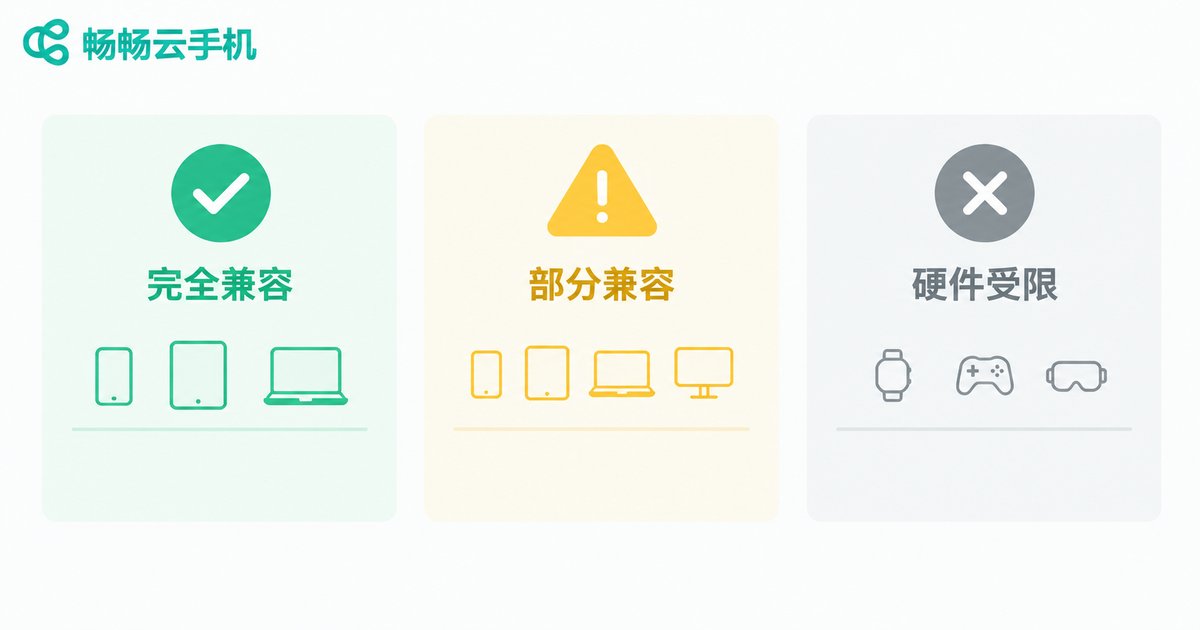
Utility Apps: From Cloud Drives to Download Managers
| Category | Examples | Compatibility | Notes |
|---|---|---|---|
| Browsers | Chrome, Quark, Edge | ✅ Fully compatible | Browsing and extensions work normally |
| Cloud storage | Baidu Netdisk, Aliyun Drive | ✅ Fully compatible | Offline downloads run in the cloud, saving local bandwidth |
| Keyboards | Sogou, Baidu IME | ✅ Fully compatible | Dictionary sync works fine |
| Download tools | Thunder and similar | ✅ Fully compatible | A popular way to keep downloads running unattended |
| Banking / payments | Major bank apps | ⚠️ Partially compatible | Strict risk controls — test each app individually |
| Hardware-dependent features | NFC access cards, fingerprint pay | ❌ Not supported | Requires physical phone hardware |
When Might Compatibility Fall Short?
Cloud phone compatibility is strong, but keep the following in mind:
1. Hardware-dependent features: NFC card emulation, fingerprint recognition and SMS codes tied to a physical SIM require real hardware that a cloud phone cannot replace. Some platforms support cloud SMS syncing — verify with a real test.
2. Strictly risk-controlled financial apps: banking apps inspect the running environment closely, and a few may show "abnormal environment" warnings or limit certain functions. Try them on a small scale first and confirm core features work before daily use.
3. Sensor-heavy games: games relying on gyroscope or motion controls depend on the platform's virtual sensor support. Competitive players should test before committing.
Verify Your Apps in Three Steps
Rather than relying only on someone else's list, spend a few minutes testing yourself. Taking ccloudphone as an example:
Step 1: Register an account and create a cloud phone — the Android system boots quickly.
Step 2: Install your most-used apps from the built-in app store or an APK file.
Step 3: Walk through the full flow — login, daily operations, message push — and watch for any warnings.
ccloudphone runs on real cloud devices with a complete Android environment, delivering stable compatibility for mainstream social, office and utility apps. If a particular app misbehaves, you can reach out to customer support for confirmation. Unlike tinkering with emulators on a local PC, a cloud phone consumes none of your local hardware, and your apps and data remain intact when you switch phones or computers — one reason more and more users treat it as a second phone.
FAQ
Q: How is a cloud phone different from a PC emulator?
A cloud phone is a real Android device in a data center: it uses none of your local computer's performance, stays online 24/7, and keeps your data when you switch devices. An emulator runs on your local machine, so performance is capped by your hardware and long sessions put a strain on your PC.
Q: Will using WeChat on a cloud phone get my account banned?
Normal use generally will not. A cloud phone is a real Android environment with fixed, stable device parameters. Avoid rapidly switching large numbers of accounts on one device and avoid abnormal marketing behavior, and choose a provider with stable device environments such as ccloudphone.
Q: Do banking apps work on a cloud phone?
Some do, but banking apps apply strict risk controls, and NFC payment and fingerprint verification depend on local hardware. Test each app individually and confirm core features such as balance inquiry and transfers before daily use.
Q: Can I install apps that are not in the app store?
Yes. Cloud phones support sideloading via APK files, just like a regular Android phone.
Q: How is mobile gaming on a cloud phone?
Most mainstream mobile games run smoothly; image quality and frame rate depend on your cloud phone's configuration and network conditions. For motion-sensor games, test first before committing.


