

2026 Cloud Phone After-Sales Issues: A Troubleshooting and Repair Guide
Why Cloud Phone After-Sales Issues Are Worth Understanding Early
In 2026, cloud phones have gone from a novelty to a daily tool for many mobile gamers, e-commerce operators, and studio teams. Anything a physical phone can do, a cloud phone can do in the cloud—no charging, no overheating, and easy batch management. But the more they are used, the more problems show up: connection failures, lag, dropped sessions, out-of-sync data... Without a clear starting point, it is easy to waste time.
This article turns the cloud phone after-sales issues most often reported in 2026 into a troubleshooting and repair-request guide, so you can locate problems quickly and avoid unnecessary detours.
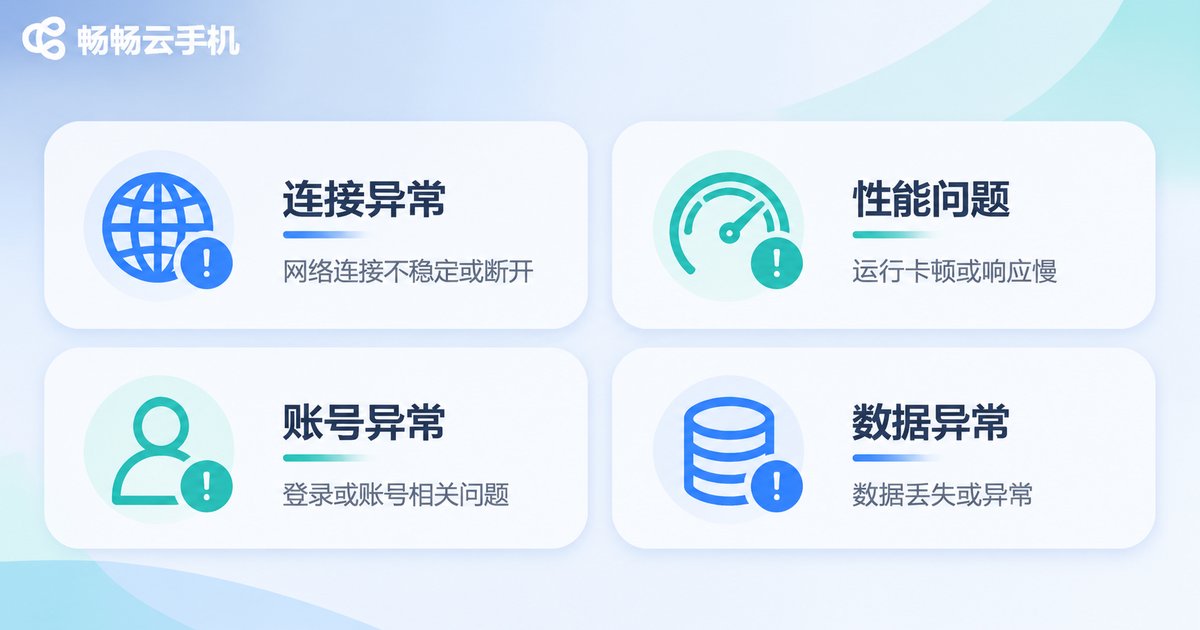
The Four Main Types of Faults
Sorting cloud phone problems into categories makes troubleshooting much easier. The vast majority of after-sales reports fall into these four types:
| Fault Type | Typical Symptoms | First Things to Check |
|---|---|---|
| Connection | Client shows connection failed, endless loading, black screen | Network conditions, client version, account status |
| Performance | Laggy operation, high screen delay, app crashes | Instance configuration, number of background apps |
| Account | Login errors, device list not loading, permission errors | Account credentials, security settings |
| Data | Lost files, app data out of sync, screenshot issues | Sync settings, storage space |
First identify which category your issue belongs to, then work through the checks below—far more effective than blindly restarting.
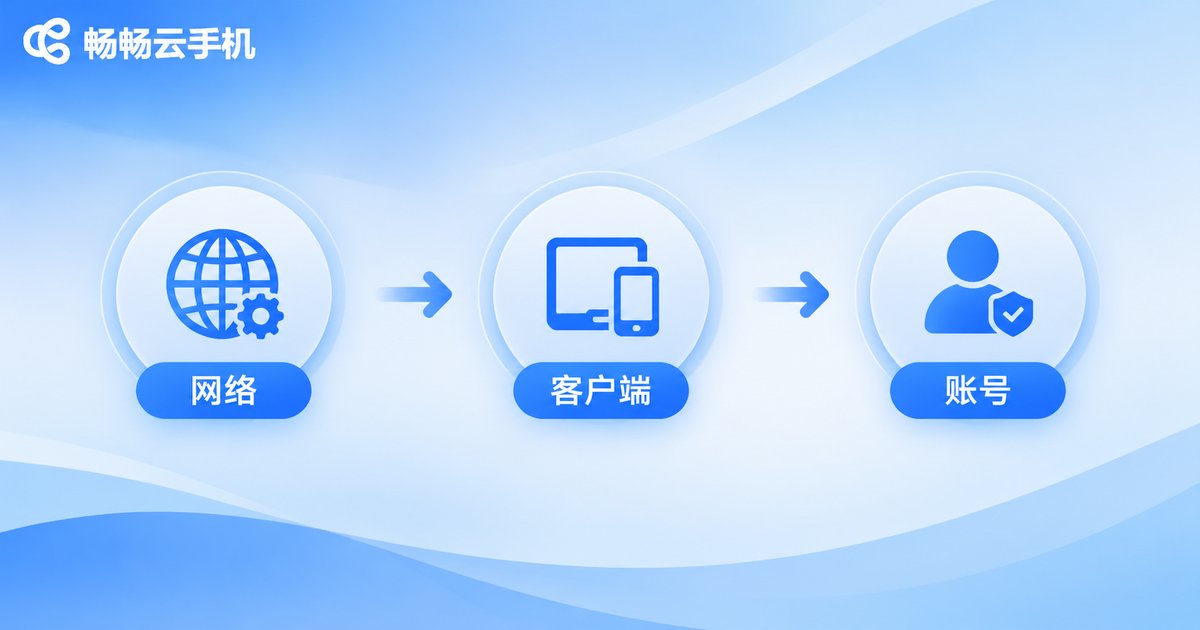
Troubleshooting Connection Faults
Step one: check the network. Cloud phone screens are streamed in real time, so unstable or lossy networks are the most common cause of connection failures. Switch between Wi-Fi and mobile data, or run a speed and stability test to see how solid your connection really is.
Step two: check the client. Outdated client versions can occasionally cause compatibility problems—update to the latest version and try again. If that does not help, log out and sign back in.
Step three: check the account. Confirm there are no abnormal logins or restrictions, and that the device list loads normally. If even the list will not load, it is likely an account or server-side issue, and it is time to contact support.
Handling Performance Faults
Lag, delay, and crashes are the three hallmarks of performance faults. The core idea is to lighten the load on your instance:
- Close unused background apps and reduce the number of programs running at once;
- Check whether the current instance configuration is sufficient—running large games or multiple instances demands more resources;
- Clear caches and temporary files so storage space is not maxed out.
If lag persists after lightening the load, note down when it happens and which app you were using, and include this information in your repair request—it helps support locate the issue much faster.

How to File a Repair Request That Gets Faster Help
Many people simply say my cloud phone does not work, forcing support to ask follow-up questions one by one—which wastes time on both sides. To speed things up, include the following details:
| Information | Why It Helps |
|---|---|
| Fault symptoms | Black screen, lag, or login failure—the more specific, the better |
| Time of occurrence | Lets support cross-check server logs |
| Steps to reproduce | Shows whether the issue is intermittent or consistent |
| Screenshots or recordings | The most direct evidence, more effective than text alone |
| Instance ID | Quickly identifies the specific cloud phone |
Explaining all of this in one go can often cut resolution time significantly.
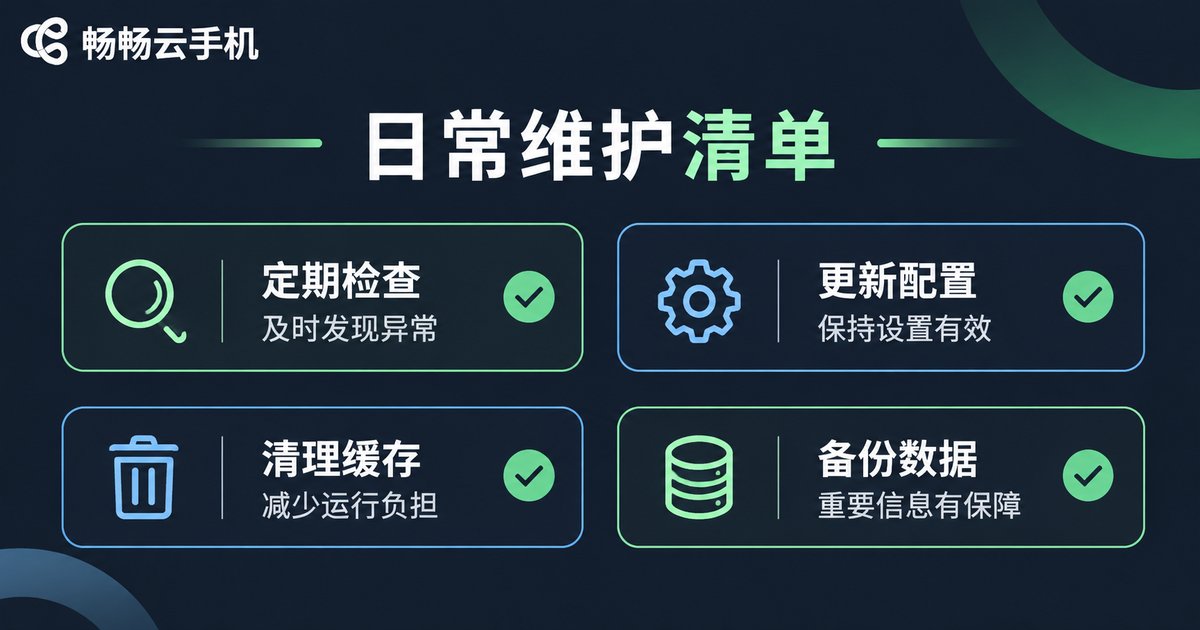
Good Daily Maintenance Prevents Half of After-Sales Issues
Rather than firefighting problems after they appear, prevent them in advance:
- Update the client regularly—new versions usually fix known issues;
- Do not overload your instance with too many apps—keep it lean;
- Back up important data promptly—do not put everything on a single instance;
- Record anomalies before acting—preserving the scene makes troubleshooting easier.
Choosing a Stable Cloud Phone Platform Matters
The number of after-sales issues you face largely depends on the platform's own stability. When evaluating a cloud phone service, focus on three things: whether the service is stable, whether support responds promptly, and whether the fault-handling process is clear.
Changchang Cloud Phone (ccloudphone) provides cloud-based Android instances that users can operate remotely through a client, suitable for mobile gaming, e-commerce, office work, and many other scenarios. If you run into problems, contact support through official channels and provide the fault details described above—it helps the team locate and resolve issues faster.
Frequently Asked Questions
Q: If my cloud phone will not connect, is it always the platform's fault?
Not necessarily. Unstable local networks, outdated clients, and abnormal account status can all cause connection failures. Check network, client, and account in that order.
Q: Will restarting fix lag?
Restarting can sometimes help temporarily, but the more fundamental fix is reducing background apps, clearing caches, and confirming your instance configuration meets your needs.
Q: Can I file a repair request with just a text description?
Yes, but including screenshots, recordings, and the instance ID can significantly speed up diagnosis.
Q: How can I reduce the chance of cloud phone problems?
Keep the client updated, control instance load, and back up data promptly—these are the three most practical habits.
Q: Who is Changchang Cloud Phone suitable for?
Mobile gamers, e-commerce operators, office users, and multi-account management scenarios can all consider it. Specific configurations and features are available on the official website.


