
How to Add New Devices to a Cloud Phone: A Complete Guide to Multi-Device Management
Why Add Multiple Cloud Phones Under One Account?
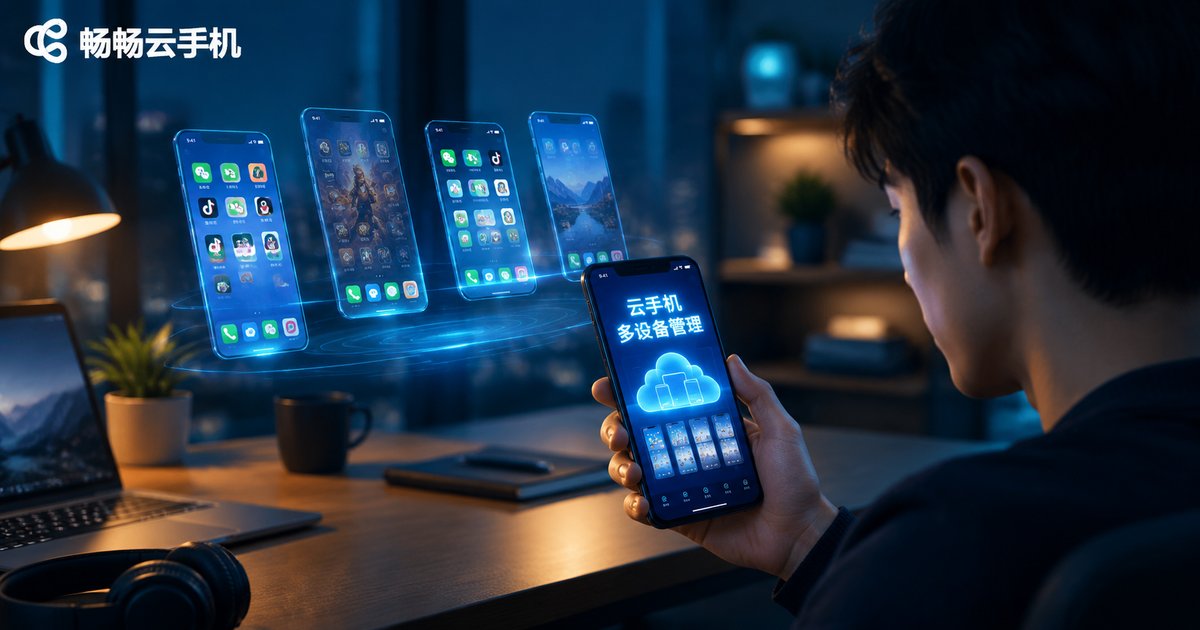
A cloud phone is a virtual smartphone that runs on cloud servers instead of your physical hardware. As long as you can log in, you can access it anytime, anywhere. That is exactly why most users never stop at just one device: marketers running account matrices need dozens of devices for different accounts, mobile gamers want multiple alt accounts farming at the same time, and QA teams need many isolated environments running tasks in parallel. Adding multiple cloud phones under one account and managing them together is the most fundamental — and most important — skill to master.
What to Prepare Before Adding a New Device
Before you start, check these three things to avoid getting stuck halfway:
1. Check your account and device quota: Log in to ccloudphone and review how many devices you currently have and how many more your plan allows.
2. Define the purpose of each device: AFK farming, multi-account operation, or app testing? Different purposes call for different configurations and quantities, so plan ahead to avoid waste.
3. Ensure a stable network: Adding a device and using it afterwards both require an internet connection, so a stable Wi-Fi environment is recommended.
Step-by-Step: How to Add a New Cloud Phone Device
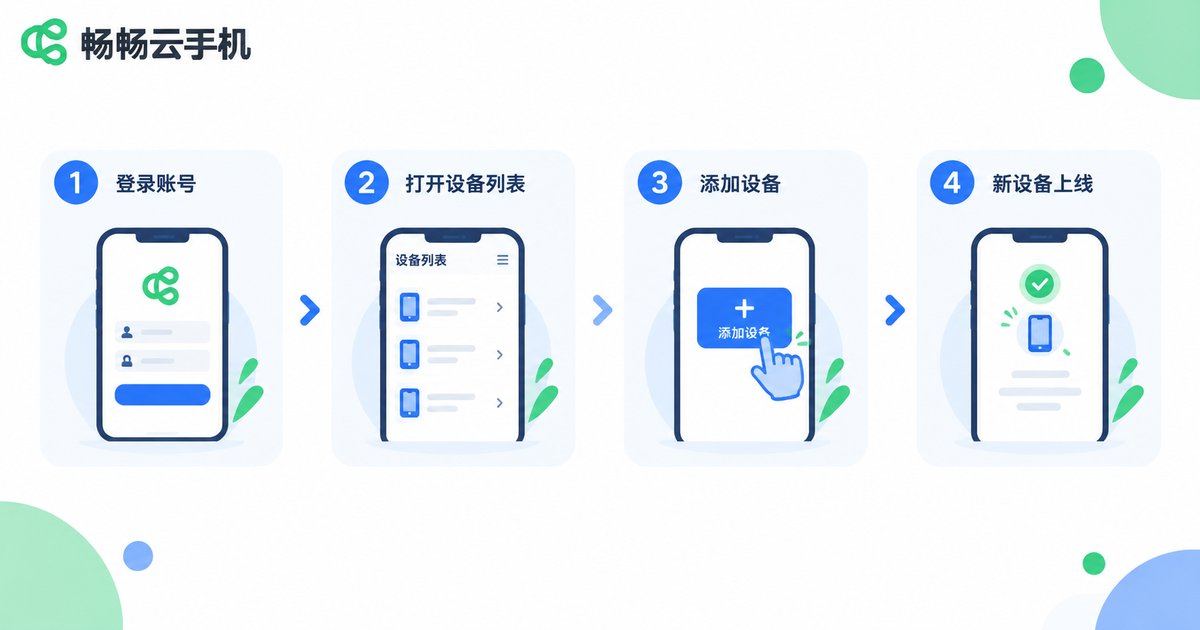
Taking ccloudphone as an example, adding a new device usually takes only a few minutes:
Step 1: Log in. Open the ccloudphone app or visit the official website, sign in with your account, and go to the device list.
Step 2: Find the add button. Tap 'Add Device' in the device list to enter the device selection page.
Step 3: Choose configuration and quantity. Pick the right configuration and duration for your needs, confirm the order, and complete the payment.
Step 4: Wait for activation. After payment, the system activates your new device automatically — it usually appears in the device list within seconds.
Step 5: Initialize the device. Open the new device, install apps, sign in to your accounts, and finish the basic setup, just like setting up a brand-new phone. Now it is ready to work.
The whole process requires no image downloads and takes up no storage on your local phone — everything lives in the cloud.
Multi-Device Management Methods Explained
Once you have many devices, the real challenge begins: how do you take care of dozens of cloud phones without chaos? These are the most common methods for daily management.
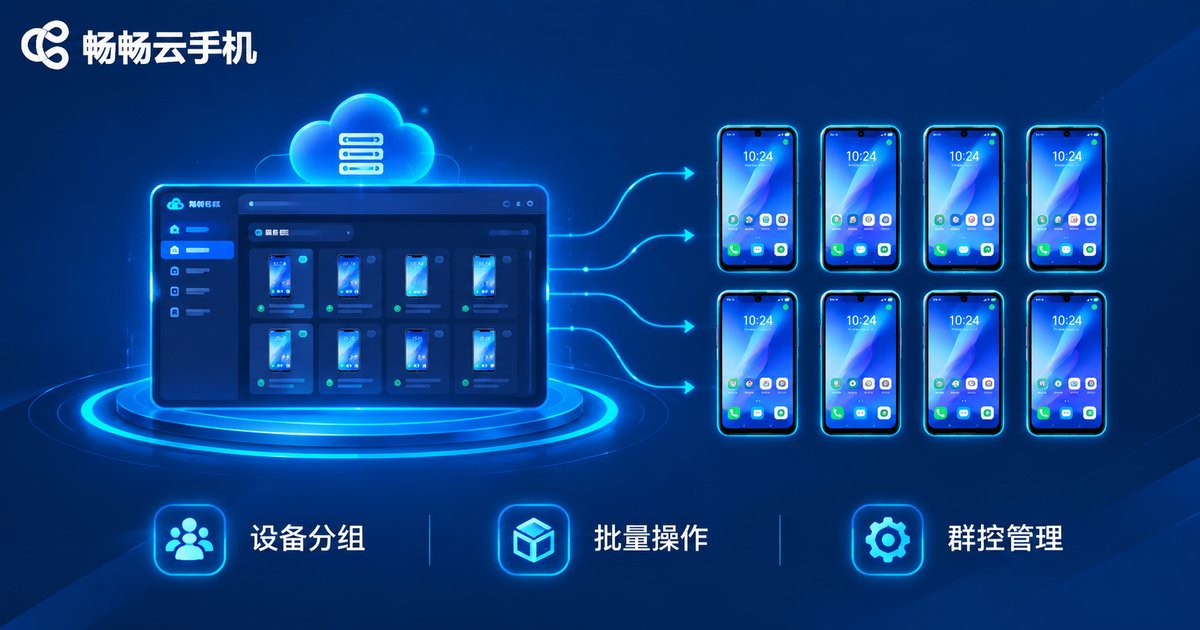
1. Device grouping: Group devices by purpose, such as 'Gaming', 'Operations', or 'Testing'. When you need to work on one type of device, just enter the corresponding group instead of scrolling through a long list.
2. Batch operations: Select multiple devices and install apps, launch tasks, or run the same actions in bulk — repetitive work across dozens of devices gets done in one go.
3. Group control: View and control multiple devices from a single dashboard, and sync actions from one main device to the others, dramatically reducing repetitive work.
4. Status monitoring: Regularly check the online status and running state of each device, and handle disconnects or anomalies promptly so AFK tasks never stop.
| Method | Best For | Key Benefit |
|---|---|---|
| Device grouping | Many devices with clear purposes | Find target devices fast |
| Batch operations | Repetitive tasks like bulk app installs | One action, many devices |
| Group control | Synced multi-account operation | Control everything from one screen |
| Status monitoring | Long-term AFK scenarios | Catch issues early |
Practical Tips for Managing Multiple Devices
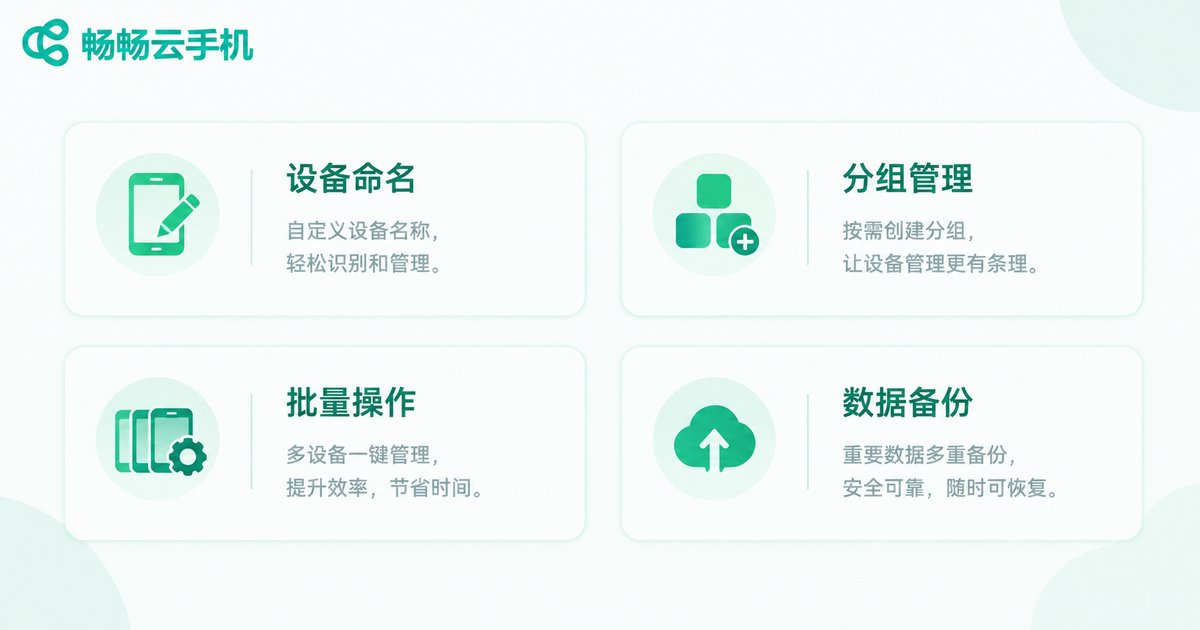
Name your devices well: Follow a 'purpose-number' naming rule, such as 'Game-01' or 'Ops-02', so you can tell what each device does at a glance.
Operate in small batches: For bulk tasks, run a small batch first to verify everything works, then scale up to all devices to avoid a single mistake affecting everything.
Release idle devices: Free up devices you no longer use and save the resources for tasks that truly need them — your device list stays clean, too.
Back up important data: Although cloud phone data lives in the cloud, it is still a good habit to regularly export important account files as backups.
If you are looking for a cloud phone with solid multi-device management, ccloudphone is worth considering. It supports unified management of multiple devices that stay online 24/7 in the cloud — your local phone can be powered off without interrupting tasks — and with grouping and batch operations, multi-account operation and game AFK farming become effortless. Visit the official ccloudphone website for more details.
FAQ
Q: Does adding a new device cost extra?
Cloud phones are generally billed by device count and duration. Adding a device means paying for an additional device; see the official ccloudphone website for current pricing.
Q: How many devices can one account have?
It depends on your plan. You can check the device limit of your current plan inside ccloudphone and add devices as needed.
Q: Is data shared between new and old devices?
Each cloud phone is an isolated environment with its own apps and data. To migrate data, use the built-in backup or file transfer features manually.
Q: Can I manage my devices from a new phone?
Yes. Cloud phones run in the cloud and are independent of your local phone. Log in with the same account on any new phone and all your devices will still be there, online and ready.
Q: Can I change a device's configuration after adding it?
The configuration is fixed when the device is activated. If you need higher specs, choose a suitable device at purchase time; check the official ccloudphone website for available options.


