
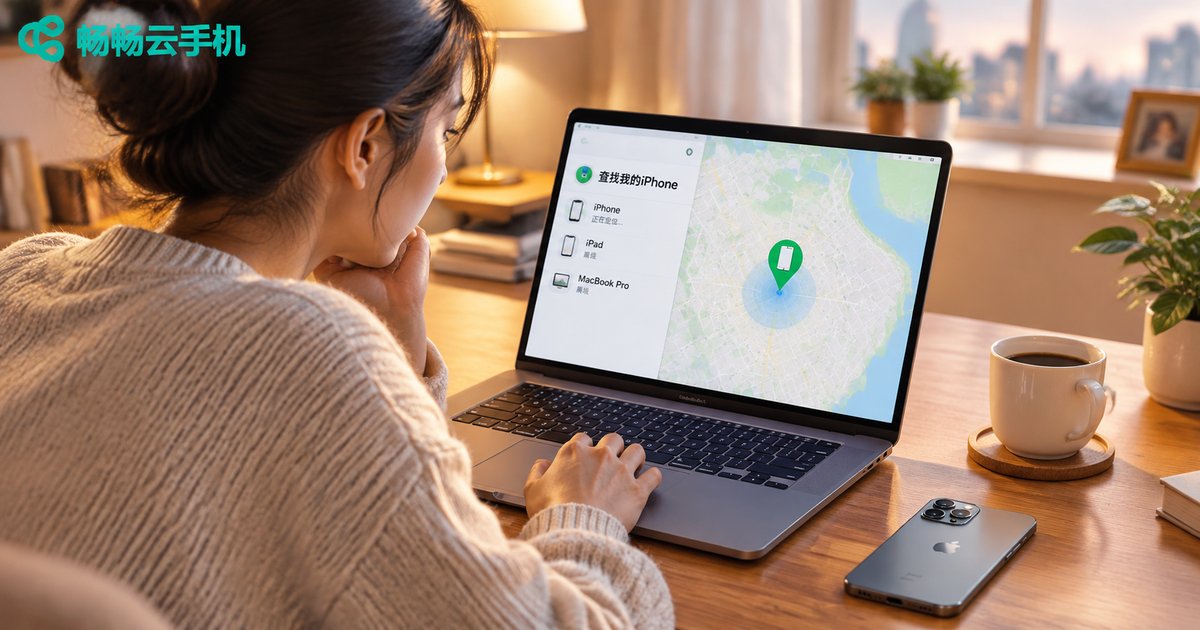
How to Use Apple's Find My iPhone: Cloud Location Step-by-Step Tutorial
What Is Apple's Find My Feature?
Find My is a free cloud service built into every Apple device, combining the earlier “Find My iPhone” and “Find My Friends” into one. As long as your iPhone is signed in to your Apple ID with Find My enabled, you can view the device's real-time location on a map through iCloud, and remotely play a sound, lock the device, or even erase its data.
The most important thing: this feature must be turned on before your phone goes missing. If Find My was not enabled when the phone was lost, remote location via iCloud is impossible. So whether or not your phone is in your hand right now, spend one minute following the tutorial below to double-check your settings.
Step 1: Turn On Find My on Your iPhone
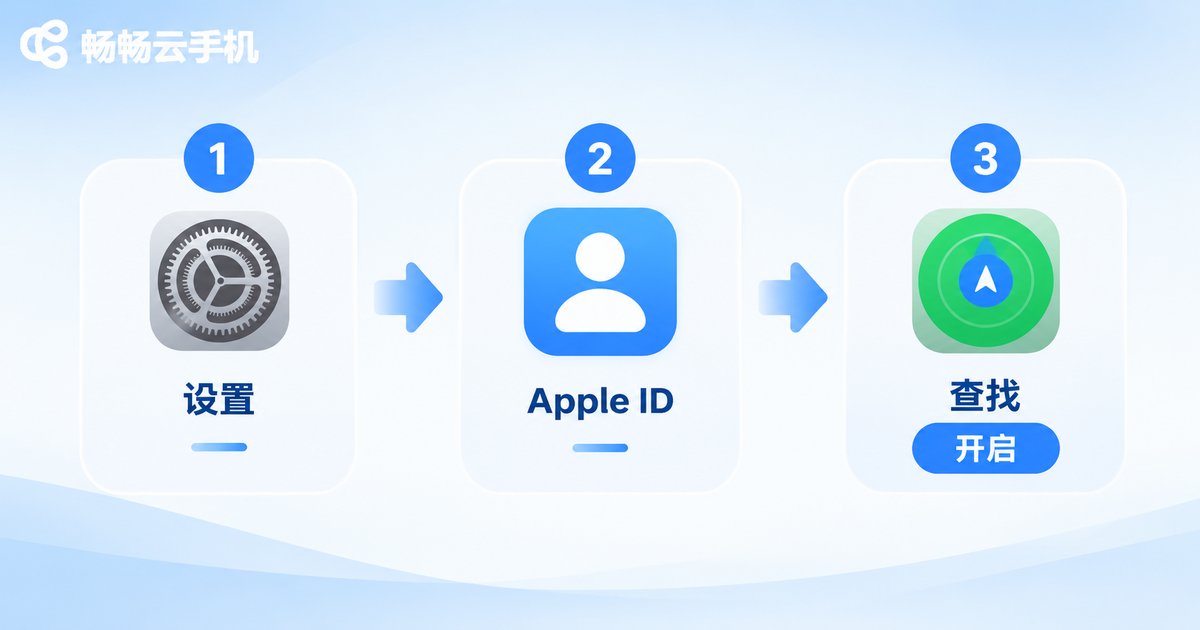
New iPhones usually have Find My enabled by default during activation, but it is worth confirming manually. Here is the path:
Open Settings, tap your name (Apple ID) at the top, tap Find My, then tap Find My iPhone and toggle on Find My iPhone.
On the same page, two more switches are strongly recommended:
1. Find My network: even when your iPhone is offline or powered off, it can anonymously relay its location via the Bluetooth signals of nearby Apple devices, greatly increasing the chances of recovery.
2. Send Last Location: when the battery is about to die, the phone automatically sends its final location to iCloud, so a dead battery does not mean losing the trail completely.
Step 2: Locate Your Lost Phone with the Cloud Service
Once you realize your phone is missing, do not panic — any internet-connected device will do. There are two common methods:
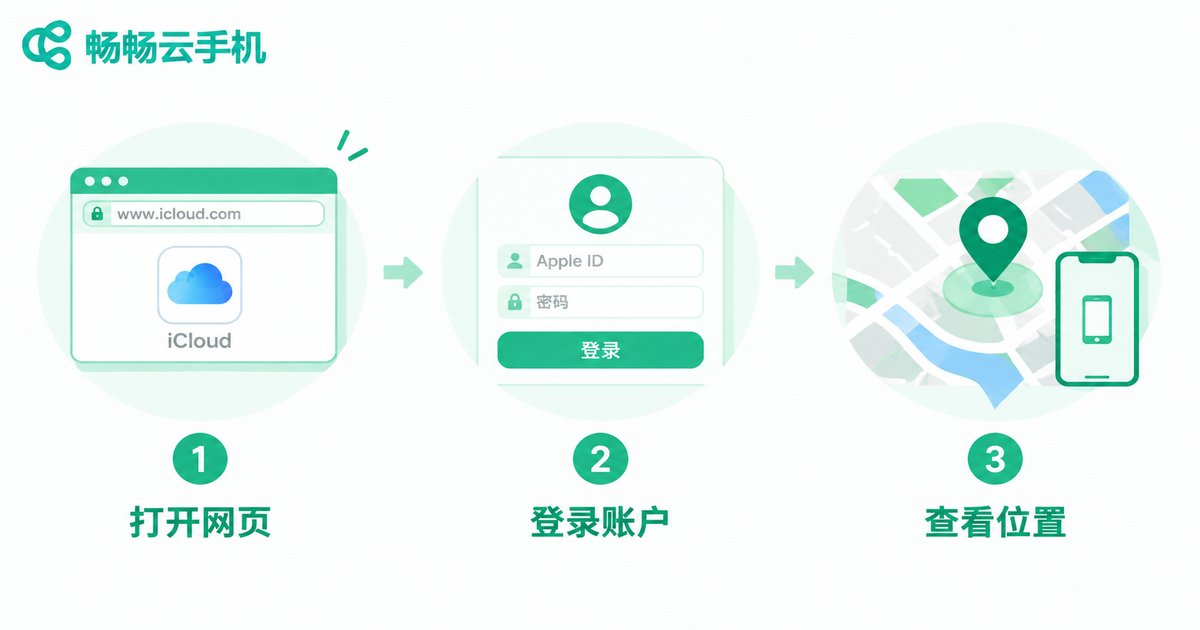
Method 1: the Find My app on another Apple device. Open the Find My app on an iPad, another iPhone, or a Mac, sign in with your Apple ID, select the missing phone under the Devices tab, and its location will appear on the map.
Method 2: sign in to iCloud on the web. Visit icloud.com/find, enter your Apple ID and password, and select the device to see its location. In other words, a computer, tablet, or Android phone can all serve as your locating tool — even a cloud phone such as ChangChang Cloud Phone (ccloudphone). Since it runs in the cloud, you can open a clean browser session and sign in to iCloud anytime without leaving your account on a physical device.
| Method | Device needed | Best for |
|---|---|---|
| Find My app | Another Apple device | Households with multiple Apple devices |
| iCloud on the web | Any internet-connected device | Only a computer or Android phone at hand |
Three Key Buttons After You Locate the Phone
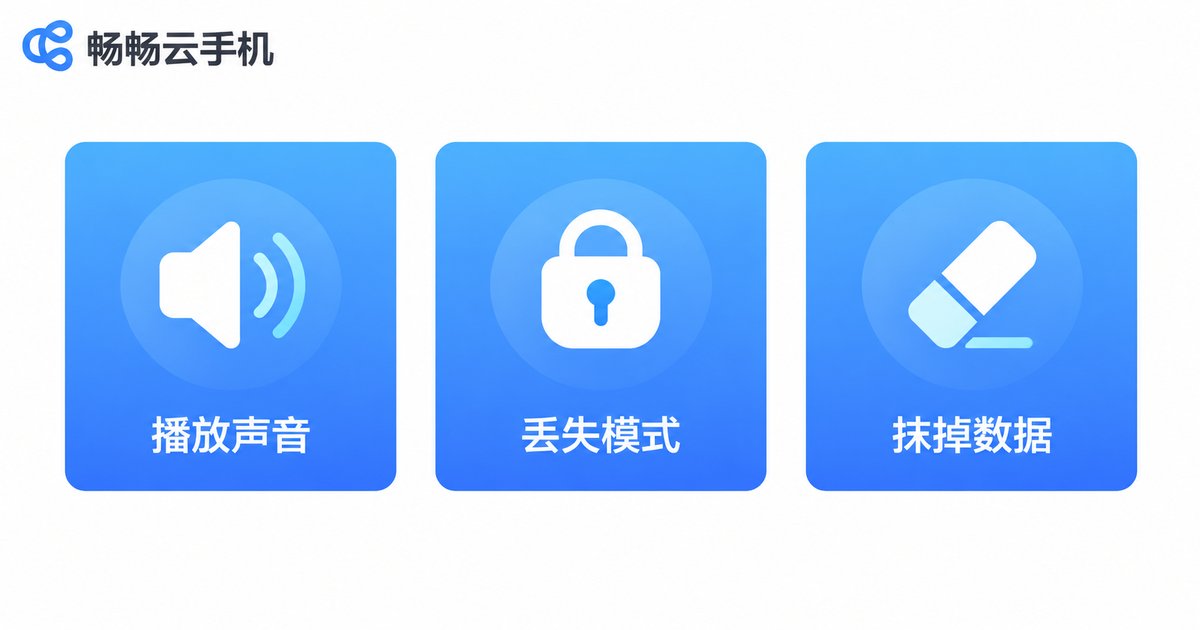
Once the device is selected on the map, you will see several remote actions, each designed for a different situation:
| Feature | What it does | Best for |
|---|---|---|
| Play Sound | Rings at full volume even in silent mode | The phone slipped between sofa cushions or under bedding |
| Lost Mode | Remotely locks the phone and shows your message and contact number on screen | The phone was left in a public place and you await its return |
| Erase iPhone | Remotely wipes all data to protect your privacy | Recovery seems impossible and you must secure your information |
Tip: once Lost Mode is on, you will receive an email notification the moment the phone reconnects, and whoever finds it can only see your message without using the device. Even after a remote erase, Activation Lock remains in effect — the device stays in your Find My list and cannot be reactivated without your Apple ID password.
Can You Locate a Phone That Is Off or Out of Battery?
This is one of the most frequently asked questions, and the answer depends on the situation:
1. The phone is simply offline (no signal or Airplane Mode): if the Find My network is enabled, the phone can anonymously report its position through the Bluetooth network of nearby Apple devices, so the map may still show its current or last known location.
2. The phone is powered off or completely dead: on iOS 15 and later, an iPhone that has been turned off can still show its location via the Find My network for a period of time (usually up to about 24 hours). If Send Last Location was enabled beforehand, iCloud also keeps the final location recorded before the battery died.
If the map shows Offline, do not give up: turn on Lost Mode and leave your contact information. The moment the device reconnects, you will receive a location update notification.
FAQ
Q: I never turned on Find My before losing my phone — can I still locate it?
Remote location via iCloud is not possible. Change your Apple ID password immediately, freeze your payment accounts, ask your carrier to suspend the SIM card, and report the loss to the police with your proof of purchase.
Q: What does Offline on the map mean?
It means the phone is currently powered off, out of battery, or has no internet connection. The map will show its last known location. Turn on Lost Mode and wait — the system will notify you automatically once the device comes back online.
Q: Will locating my phone on someone else's device expose my account?
When signing in at icloud.com/find, do not check Keep me signed in, and remember to sign out afterward. You can also tap Help a Friend on the Me tab of the Find My app on their device, which opens the web version without saving your credentials.
Q: Can a thief bypass Lost Mode by flashing the phone?
No. As long as Find My is enabled, Activation Lock ties the device to your Apple ID. Even after a firmware flash, activation still requires your Apple ID and password.
Q: Can I locate a family member's phone?
Yes. With Family Sharing and the other person's consent, you can view the location of family devices in the Find My app, so a lost phone belonging to a child or elderly parent can be recovered right away.


