
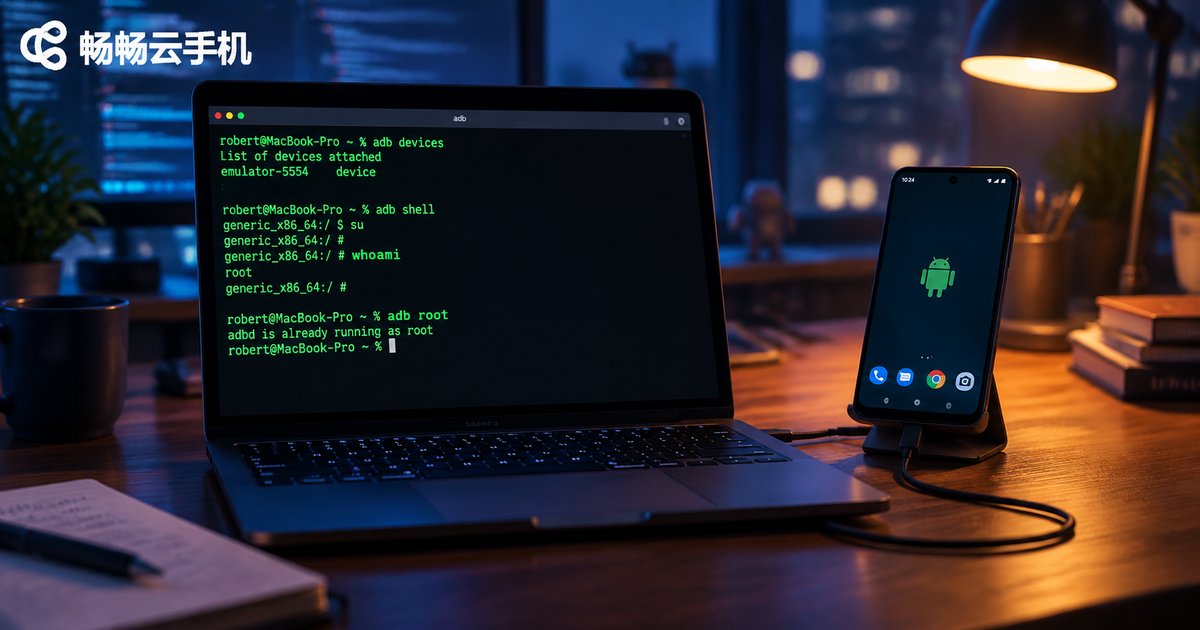
Does a Cloud Phone Have Root Access After ADB Connection? setenforce and remount Explained
The Short Answer: Does ADB Connection Give You Root?
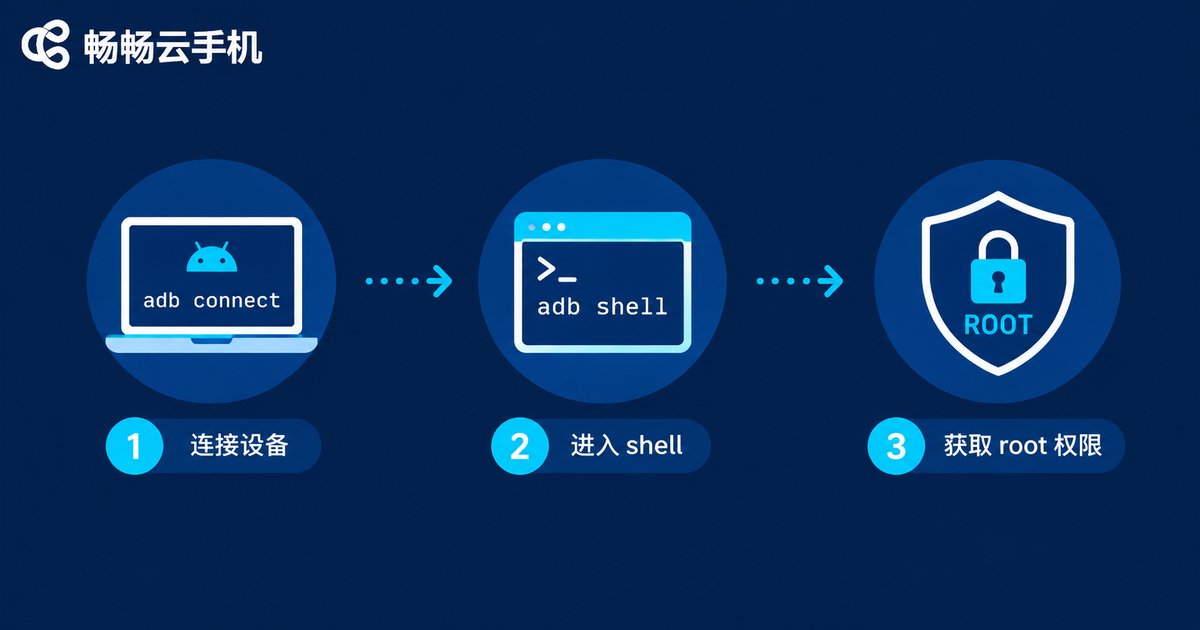
The answer: it depends on the system environment your cloud phone provider offers. ADB (Android Debug Bridge) is only a debugging bridge that establishes a communication channel between your computer and the cloud phone. How much privilege you get after connecting depends entirely on whether the provider ships a regular user image or a root-enabled debug image.
Take ChangChang Cloud Phone (ccloudphone) as an example: the platform offers a cloud phone environment with ADB debugging support for developers, allowing shell commands and system-level debugging after connection. If your work involves modifying system partitions, removing pre-installed apps, or debugging framework-level tools, two key operations are essential: setenforce and remount.
Why Root Permission Matters
Regular users who play games or run tasks on a cloud phone never need root. But for the following groups, root is practically a must-have:
Automation test engineers need to hook system functions and inject low-level events; reverse engineering and security researchers need to observe app logic and system behavior; developers of batch-management tools need silent installs, system configuration changes, and pre-installed app cleanup. Without root, any privileged command in the adb shell simply returns permission denied.
setenforce Explained: The Master Switch of SELinux
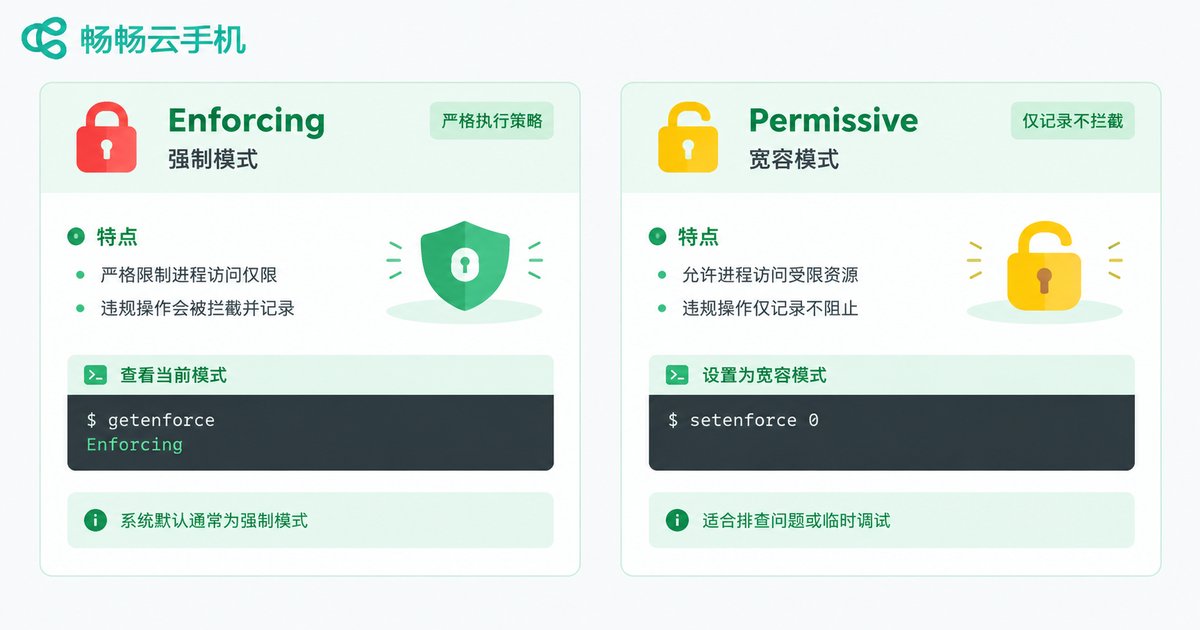
Many people successfully escalate to root, yet remount still fails with Operation not permitted. The culprit is usually SELinux. SELinux is Android's mandatory access control mechanism — even as root, you can still be restricted. It has two working modes:
| Mode | Command | Behavior |
|---|---|---|
| Enforcing | setenforce 1 | Strictly enforces security policies and rejects unauthorized operations |
| Permissive | setenforce 0 | Only logs violations without blocking operations |
Use getenforce to check the current mode and setenforce 0 to temporarily switch to permissive mode. Note: setenforce changes are temporary and revert after a reboot. Making it permanent requires editing config files in the system partition — which in turn requires remount. The two operations go hand in hand.
remount Explained: Making the System Partition Writable
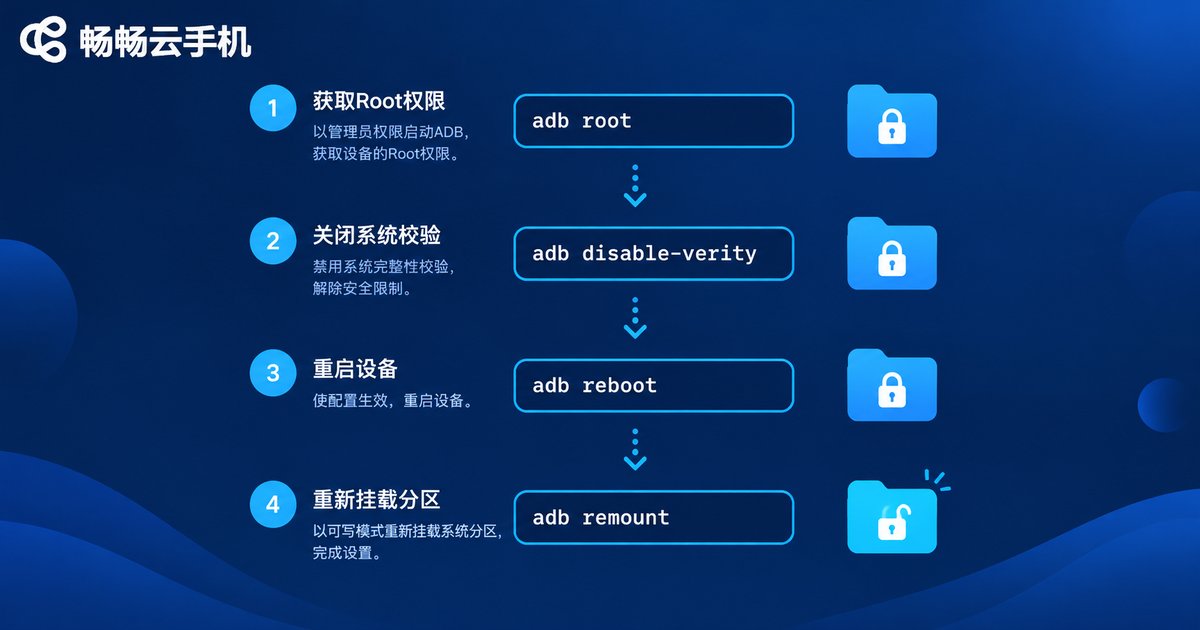
The Android /system partition is mounted read-only by default to protect system files from accidental damage. To replace system apps or modify build.prop, you must first remount it as writable. The standard workflow has four steps:
# 1. Escalate to root
adb root

# 2. Disable dm-verity partition verification
adb disable-verity

# 3. Reboot to apply
adb reboot

# 4. Reconnect and remount
adb connect server-address:port
adb remount
If adb remount does not work, enter the shell and mount manually:
mount -o rw,remount /systemAfter mounting, run touch /system/test to verify — if the file is created, remount succeeded. When finished, run mount -o ro,remount /system to restore read-only mode and reduce the risk of accidental changes.
Full Walkthrough: From Connection to a Writable System Partition
Putting it all together, here is a complete workflow:
# Connect to the cloud phone
adb connect server-address:port

# Confirm the device is online
adb devices

# Enter the shell and check identity
adb shell
whoami        # root means you already have root
su            # if not root, try escalating with su
getenforce    # check the current SELinux mode

# Temporarily disable SELinux enforcing mode
setenforce 0

# Remount the system partition as writable
mount -o rw,remount /system

# Verify write access
touch /system/test_file && echo OK
Each step has a clear verification method, so when something fails you can quickly pinpoint which link broke.
Common Errors and Troubleshooting
| Error Message | Common Cause | Solution |
|---|---|---|
| adbd cannot run as root in production builds | The image does not support adb root | Use su instead, or confirm root support with your provider |
| remount failed: Operation not permitted | Not rooted, or SELinux is enforcing | Run adb root first, then setenforce 0 |
| Read-only file system | Partition still mounted read-only | Run mount -o rw,remount /system |
| disable-verity not supported | System version or partition format unsupported | Use manual mount instead |
The troubleshooting mindset is layer-by-layer verification: confirm identity with whoami, check SELinux with getenforce, then check mount status. Once all three pass, system partition operations rarely fail again.
ChangChang Cloud Phone: Built for Developers
Not every cloud phone opens up ADB and root. Many consumer-oriented products lock these features down. If you need system-level debugging, automated testing, or batch management, check three things before choosing a provider: whether ADB is available, whether the image supports root escalation, and whether the system partition can be remounted.
ChangChang Cloud Phone (ccloudphone) provides ADB debugging support for developer scenarios. Combined with the setenforce and remount techniques in this article, you can smoothly complete system-level customization. For environment details and connection methods, visit the official website at ccloudphone.
FAQ
Q: Is a cloud phone rooted by default after ADB connection?
Not necessarily. A successful connection only means the channel is established; root access depends on the provider's system image. Verify with adb root, or use whoami and su inside the shell.
Q: Does setenforce 0 survive a reboot?
No. setenforce only affects the current runtime and reverts after reboot. Making it permanent requires editing SELinux config files in the system partition, which requires remount first.
Q: adb remount reports Operation not permitted — what now?
Check in order: whether you have root, whether SELinux is Enforcing (check with getenforce), and whether you ran adb disable-verity followed by a reboot.
Q: Is modifying the system partition risky?
Yes. Deleting critical system files may prevent the instance from booting. Record the original state before changes, touch only what is necessary, and restore read-only mounting afterward.
Q: Do remount changes persist after reboot?
Files written to persistent storage survive reboots. However, the setenforce mode and dm-verity state may revert to defaults, so reapply them as needed.


