
How to Use Your Cloud Phone After Purchase? Activation and Initial Setup Guide
What to Do First After Buying a Cloud Phone?
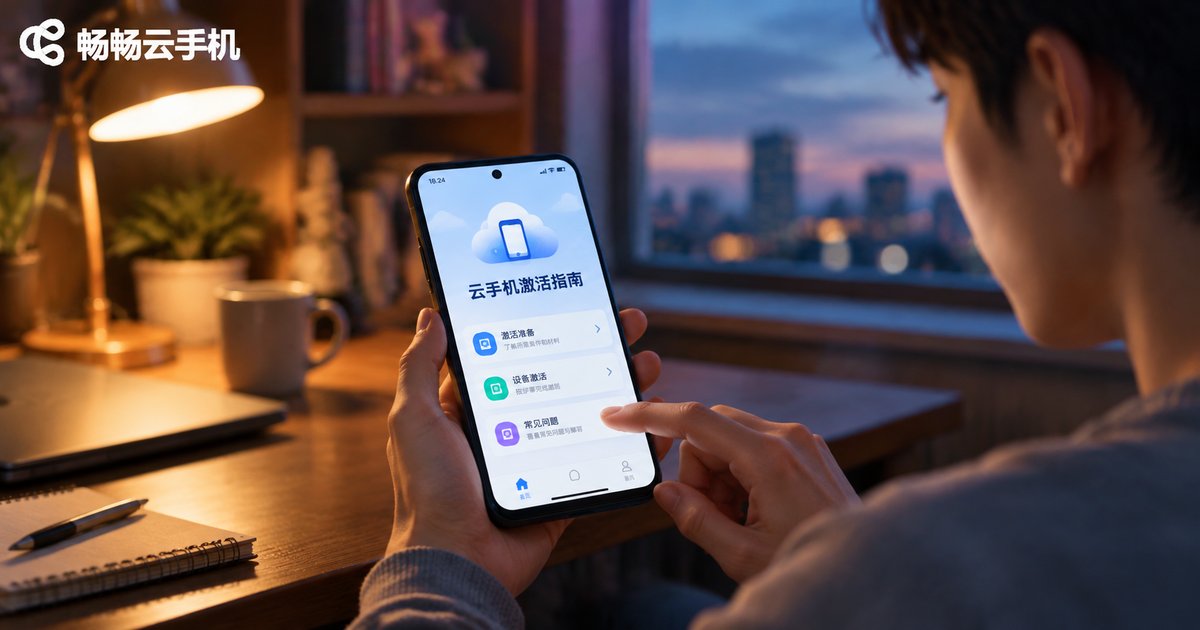
Many beginners feel a bit lost after completing a purchase: unlike a physical phone, a cloud phone runs in a remote data center. You first need to activate it under your account and finish a few basic settings before normal use. The process is simple — follow the steps below and you will be fully set up in about five to ten minutes.
Step 1: Log In and Open the Device Dashboard
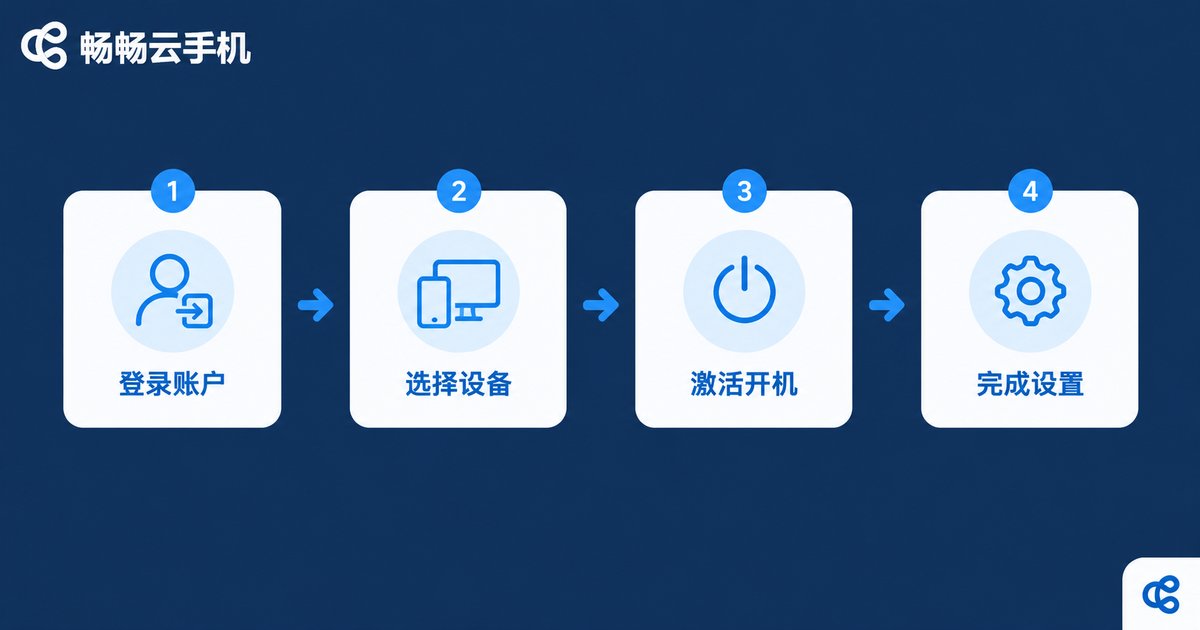
Open the CCloudPhone website (ccloudphone) or the mobile app and sign in with the account you used at purchase, then go to the device dashboard. If you have just paid, the device may show a “pending activation” status — this is normal.
Tip: if the new device does not appear right away, pull down to refresh, or log out and sign in again. Syncing usually completes within seconds.
Step 2: Select Your Device and Activate It
Find the cloud phone you purchased in the device list and tap Activate or Power On. The system will assign you a virtual Android phone running in the cloud, and within seconds you will see a familiar Android home screen.
If you purchased multiple devices or a multi-instance plan, it is a good idea to rename each device here — for example “Work” or “Game Alt” — so they are easier to manage later.
Step 3: Complete the First-Boot Basic Settings
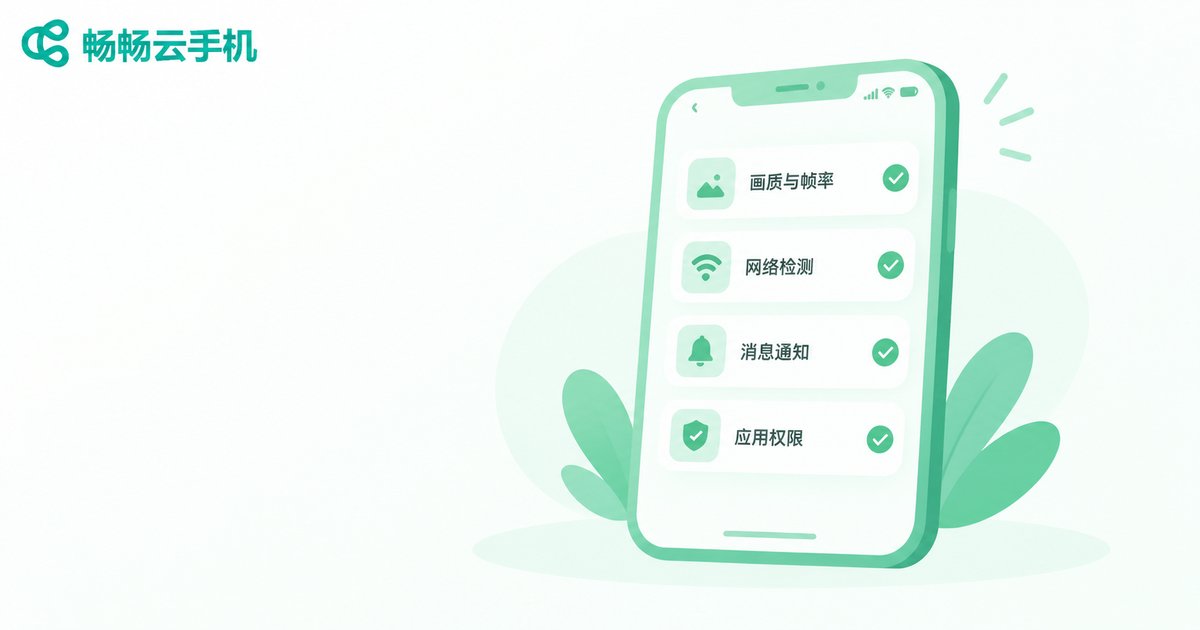
The first time you enter the cloud phone desktop, go through this quick checklist. It will make daily use much smoother:
| Setting | Suggested Action | Purpose |
|---|---|---|
| Resolution & frame rate | Choose smooth or HD based on your network | Clear picture, lag-free control |
| Network check | Run the built-in network test once | Confirm a stable connection |
| Notifications | Enable app notifications as needed | Never miss important messages |
| App permissions | Enable as required | Needed by some utility apps |
All of these can be changed later in the cloud phone settings menu, so there is no need to get everything perfect on the first try.
Step 4: Install Apps and Sync Your Digital Life
The cloud phone desktop works almost exactly like a regular Android phone: open the built-in app store to search and install the apps you need, or upload an installation package to the cloud phone and install it directly. Once you sign in to your accounts, game progress, chat history and other data are stored in the cloud — switching devices or networks will not lose anything.
Step 5: Learn the Key Features and Work More Efficiently
After the basic setup, spend two more minutes exploring these high-frequency features:
Always on in the cloud: the cloud phone runs around the clock in the data center. Even if your local phone is powered off or offline, your cloud device keeps running tasks.
File transfer: upload images, installation packages and documents to the cloud phone — as easy as using a cloud drive.
One-tap reset: if a device becomes sluggish over time or you need a fresh environment, you can rebuild it quickly; just back up important data first.
Why Choose CCloudPhone?
If you are still comparing options or planning to add more devices, we recommend trying CCloudPhone (ccloudphone): a stable and smooth cloud Android environment, multi-device management, long-time online operation, and direct access from both web and mobile — friendly even for beginners. Visit the official website ccloudphone to view device plans and complete your purchase.
Frequently Asked Questions (Q&A)
Q: How soon after purchase can I activate and use it?
The system assigns a device automatically after payment. It usually appears in your device list within seconds to a few minutes — just tap Activate, no waiting on anyone.
Q: Activation says the device does not exist or is not synced. What should I do?
First make sure you are signed in with the same account used for the purchase, then refresh or re-login. If it still does not show up, contact the online support on the CCloudPhone website.
Q: Can I sign in to the same cloud phone from several local devices?
Generally the same account can be used on both the web console and the mobile app. The cloud phone itself runs in the cloud; your local device is only the control window. See the official site for details.
Q: I am a complete beginner — where can I get help?
The CCloudPhone website offers a beginner guide and a help center, and online support is available whenever you have questions.
Q: Is my data on the cloud phone safe?
Data is stored in the cloud data center, independent of your local device — losing your phone does not affect cloud data. Still, back up important files regularly to cloud storage or your local device.


