
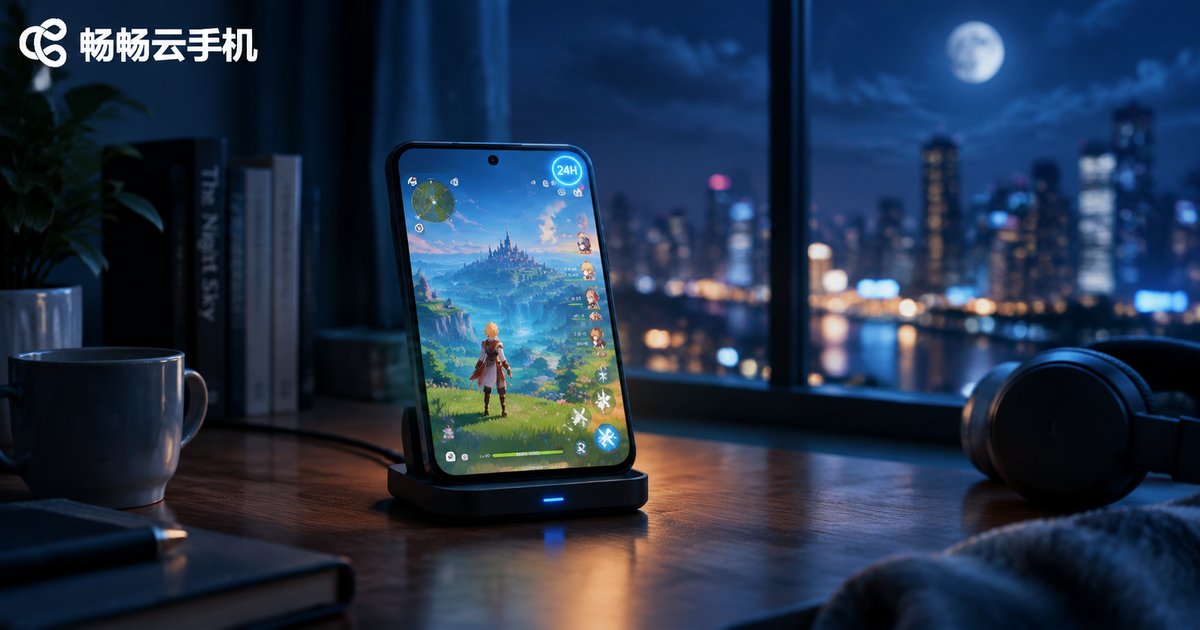
How to Achieve 24-Hour AFK Running on a Cloud Phone: Setup Tips for Zero Disconnection
What Is 24-Hour AFK Running on a Cloud Phone?
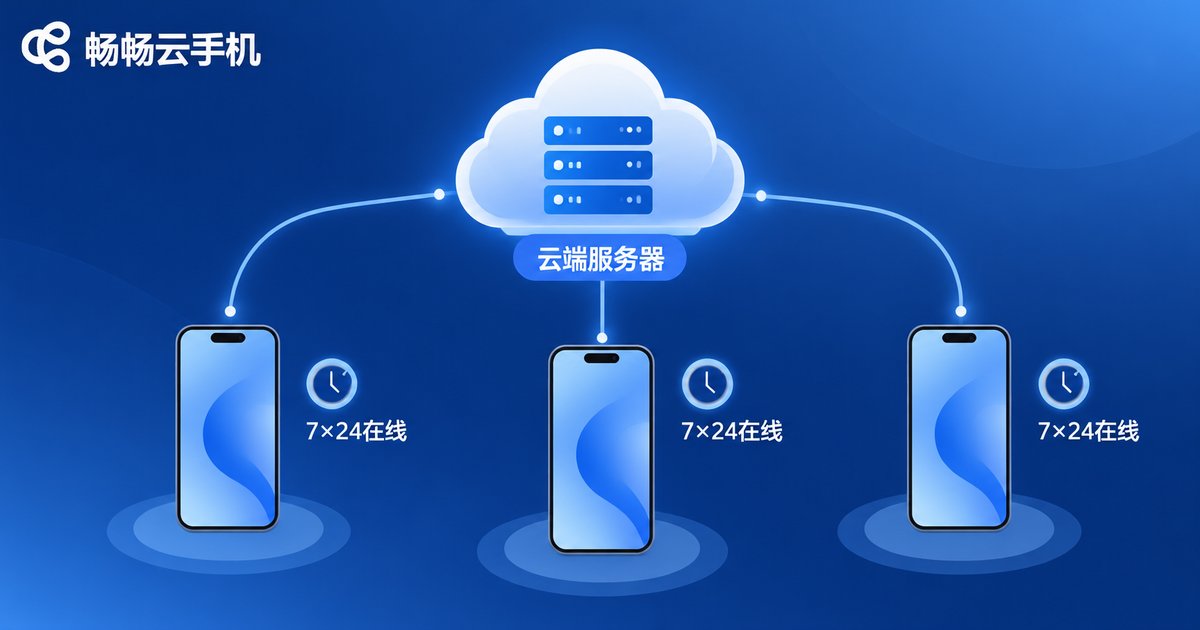
Simply put, 24-hour AFK running means keeping an app or game running on autopilot with no one watching—idle monster farming, automated quests, long-duration live streams, or scripted tasks. Traditional phones struggle with overheating, battery drain, and screen-lock disconnections. A cloud phone moves the entire Android system onto remote servers, turning your local device into just a "remote control." Turn off your screen—or power off your phone entirely—and the cloud keeps working.
Why Cloud Phones Are Built for Long AFK Sessions
A cloud phone is essentially a virtual Android device running on cloud servers, and that gives it three natural advantages:
- No dependence on local hardware: your phone dies or powers off, the cloud instance keeps running;
- Data-center-grade networking: servers live in professional data centers with far better stability than home broadband;
- Zero heat and zero battery drain locally: all computing happens in the cloud, so your own device carries no burden.
That said, "capable of running" is not the same as "running stably." Poor configuration can still cause app crashes, interrupted tasks, and dropped connections. Here is how to set up a truly stable 24-hour AFK environment.
Three Pre-Flight Checks Before You Start
Before any long AFK session, complete these three checks to prevent 80% of disconnection issues:
- Confirm your instance specs: idle apps need little power, but multi-instance or streaming tasks call for higher-performance specs to avoid lag-induced failures;
- Test network latency: run a speed test inside the cloud phone—stable latency under 50ms is ideal;
- Observe app compatibility: run the app manually for two hours first and confirm it doesn't crash repeatedly before going AFK.
Five Core Settings for a Never-Disconnect Setup
This is the heart of the guide—check each item against your own cloud phone:
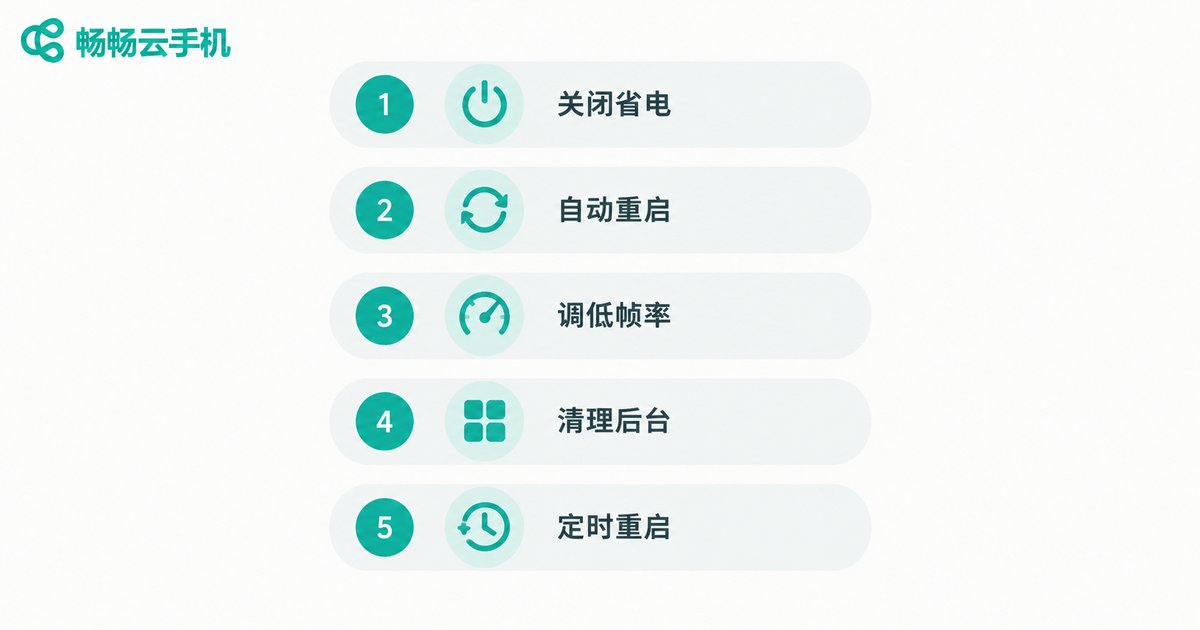
Tip 1: Disable Power-Saving Mode and Background Cleanup
Some cloud phones offer background cleanup or scheduled sleep features. Before going AFK, make sure you turn off every sleep, power-saving, and scheduled-cleanup option, or the system may reclaim your instance in the middle of the night and kill the task.
Tip 2: Enable Auto-Restart for Crashed Apps
Even the most stable apps crash occasionally. With auto-restart or auto-reconnect enabled, the cloud phone relaunches the app automatically after an unexpected exit, so your task continues seamlessly.
Tip 3: Right-Size Resolution and Frame Rate
AFK tasks don't need high graphics. Setting resolution and frame rate to low or medium reduces server load and network pressure, which actually makes long-term operation more stable.
Tip 4: Remove Unnecessary Background Apps
Fewer installed apps mean lower memory usage and a smaller chance of the system killing your main AFK app. Keep only the apps your task requires and uninstall or disable the rest.
Tip 5: Schedule a Daily Restart
Long runtimes accumulate memory fragmentation. Schedule one automatic restart per day during the low-activity window (e.g., 4:00 AM) so the system returns to peak condition, with the AFK task resuming automatically afterward.
Recommended Settings for Common AFK Scenarios
Different scenarios demand very different configurations. Use this table to find the right parameters quickly:
| AFK Scenario | Recommended Config | Notes |
|---|---|---|
| Idle game farming | Low-medium resolution + 30fps | Enable in-game auto-battle, disable power saving |
| Live streaming | High resolution + 60fps | Choose high-performance specs, test stream stability first |
| Scripted automation | Standard config | Confirm the script supports resuming from checkpoints |
| App check-ins / account nurturing | Low resolution + 24fps | Schedule a daily restart to free up resources |
Why We Recommend ChangChang Cloud Phone for AFK Running
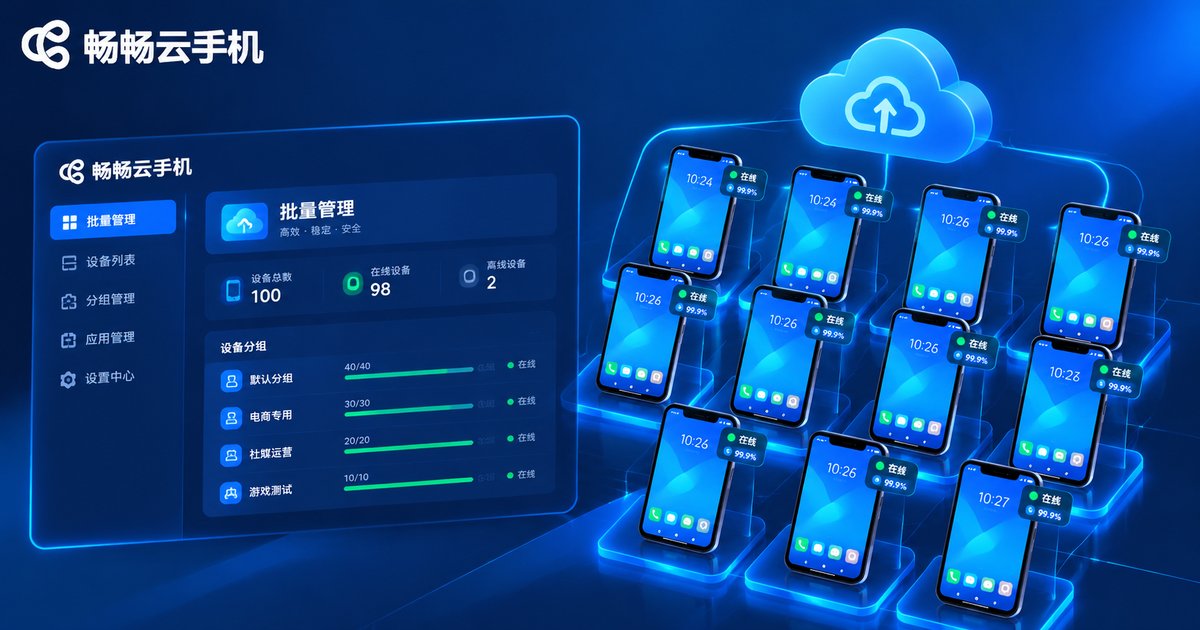
When it comes to AFK stability, ChangChang Cloud Phone offers several targeted optimizations: instances support 7×24 continuous running in the cloud, so you never worry about the background being reclaimed; a built-in auto-reconnect mechanism recovers quickly after network hiccups; and the console provides scheduled restarts and batch management, so even dozens of AFK cloud phones can be supervised from a single panel. For long-running tasks, these details save hours of babysitting.
FAQ
Q: Does my computer or phone need to stay on while the cloud phone runs AFK?
No. The cloud phone runs on remote servers. Your local device can be powered off; just reconnect to the console whenever you want to check in.
Q: Will AFK running all night consume a lot of local data?
No. All computing happens in the cloud. Your device only receives the screen feed when you open the viewer, so idle time uses almost zero local data.
Q: Can AFK running get my account banned?
The cloud phone itself is a legitimate cloud device. Whether usage breaks the rules depends on the app's own policies—read the target app's terms of use and stay compliant.
Q: What should I do if the cloud phone lags during AFK?
Check network latency first, then try lowering resolution and frame rate. If lag comes from running multiple instances, reduce the number of active instances or upgrade your specs.
Q: If my local power or internet goes out, will the AFK task be lost?
No. The cloud phone keeps running in the cloud regardless of your local connection. Reconnect to the console once your network is back to see the progress.


