
How to Use App Cloning Software? Dual-Space Tools vs Cloud Phones
What Is App Cloning Software?
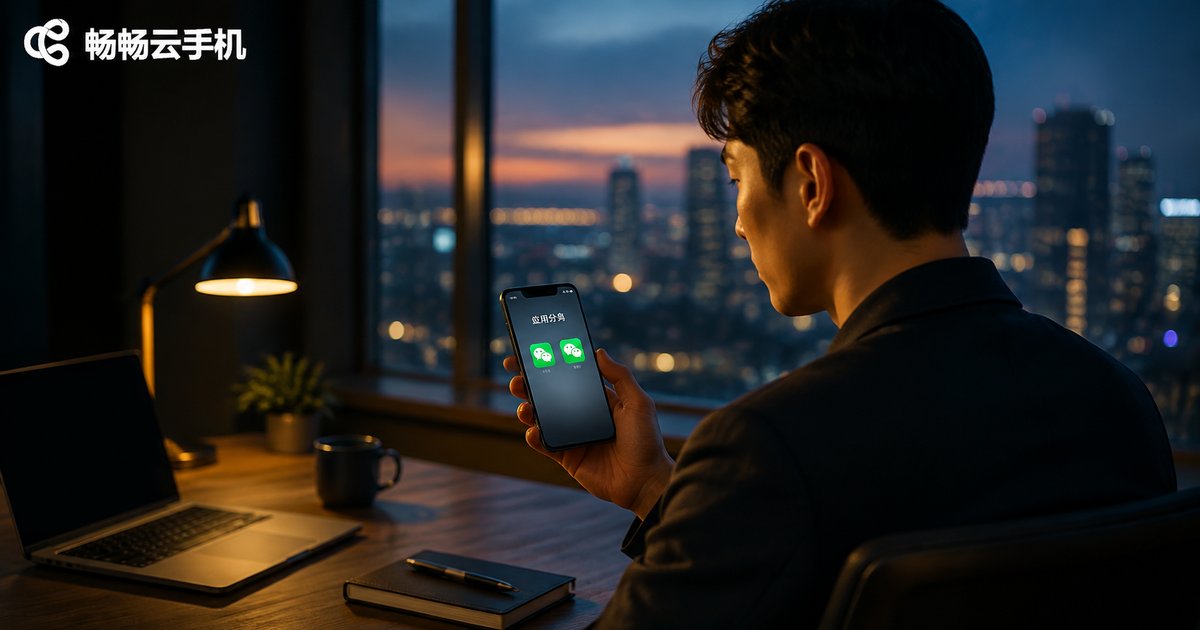
App cloning software—often called a dual-space tool or app twin tool—lets you run two instances of the same app on a single phone. For example, you can log into two WeChat accounts or two game accounts at the same time, keeping work and personal life separate.
It works by creating a 'virtual space' locally on your phone, where a copy of the app runs. The learning curve is low, making it suitable for everyday light multi-account needs.
How to Use App Cloning Software? Three Simple Steps
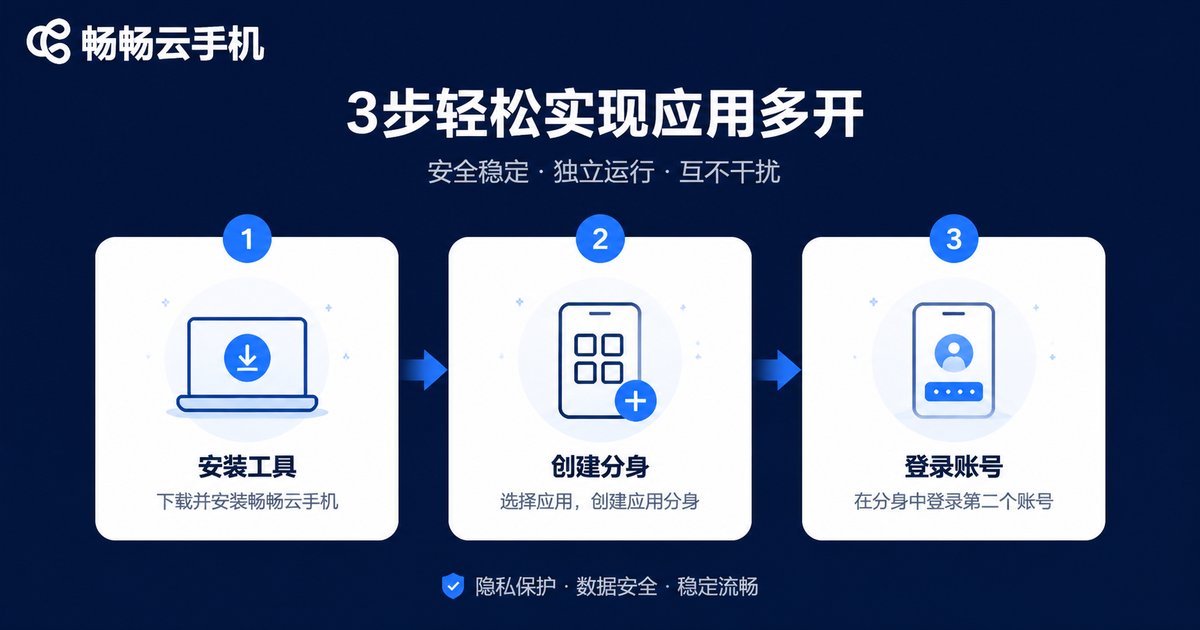
Using app cloning software is straightforward and usually takes just three steps:
Step 1: Install the tool. Find the built-in 'App Twin' feature in your phone's settings, or download a cloning tool from the app store.
Step 2: Create the clone. Open the tool, select the app you want to duplicate (such as WeChat or QQ), tap 'Create Clone,' and wait for it to finish.
Step 3: Log in with your second account. Sign in to the newly created clone with another account, and you will have two accounts online on one phone.
Keep in mind that each clone consumes extra memory and storage on your device. The more clones you run, the more likely your phone will lag, overheat, or even get flagged by apps that detect multi-instance environments.
What Is a Cloud Phone?
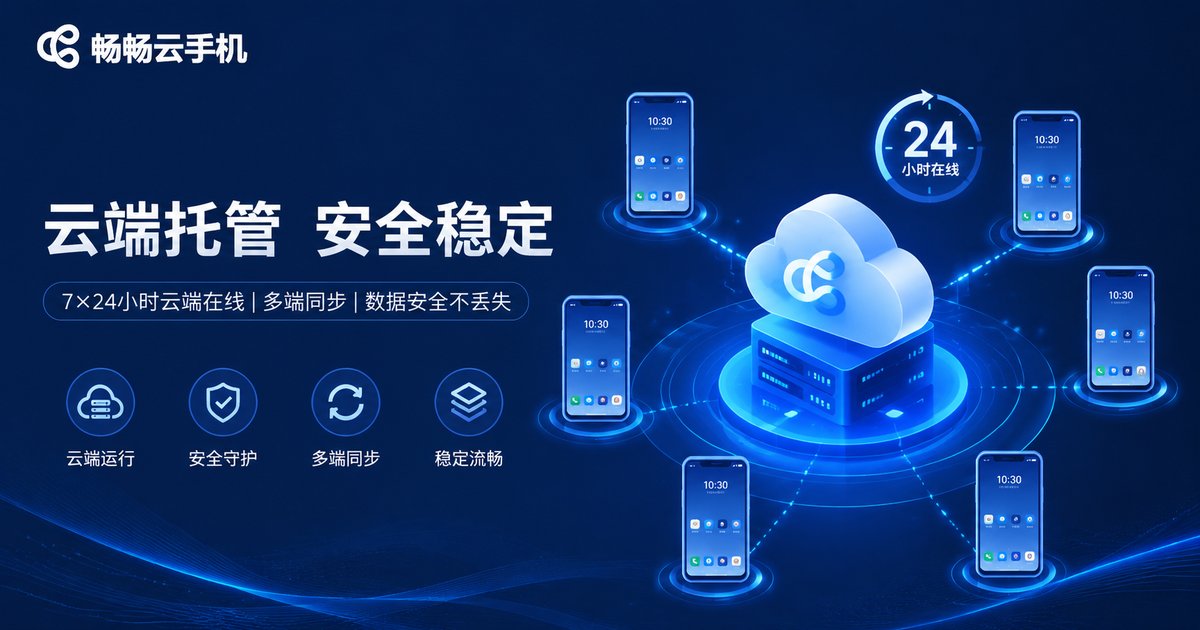
A cloud phone is a real Android device running on remote cloud servers. Your phone acts as a 'remote control,' connecting to the cloud-based Android system. All apps run in the cloud, with the screen streamed to your local display in real time.
Simply put: a dual-space tool squeezes room out of your phone, while a cloud phone gives you an entirely new, invisible device in the cloud.
Key Differences Between Dual-Space Tools and Cloud Phones
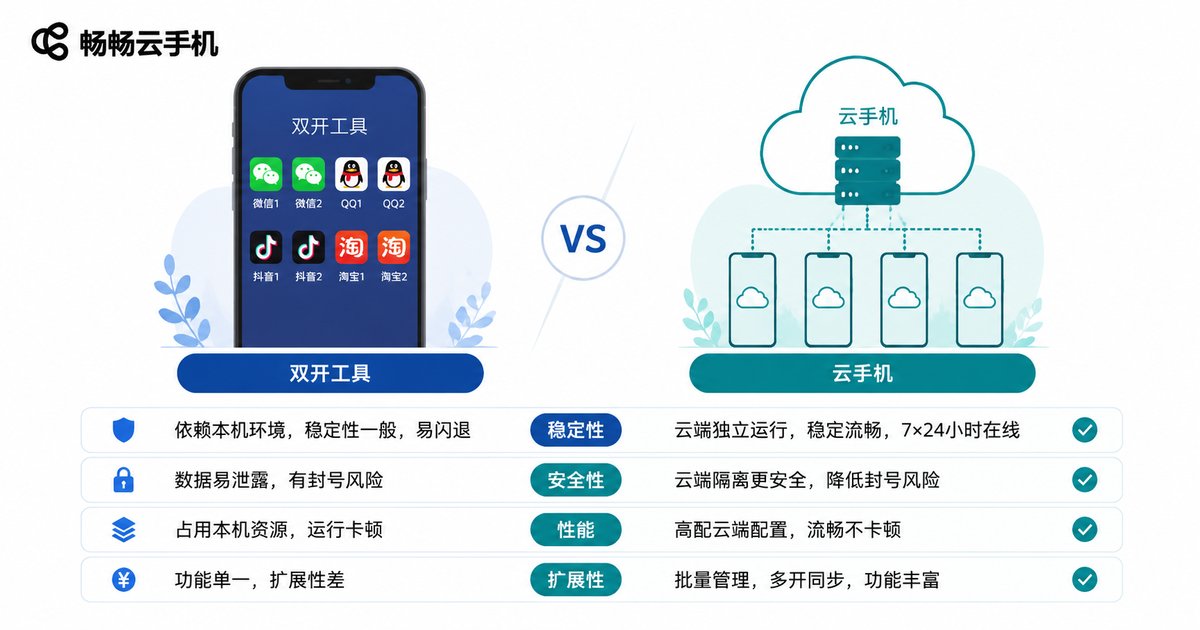
Both approaches enable multiple accounts, but their underlying logic is completely different. This comparison table shows the differences at a glance:
| Dimension | Dual-Space Tool | Cloud Phone |
|---|---|---|
| How it runs | Local virtual space | Real Android device in the cloud |
| Resource usage | Consumes local memory and storage | Zero local resource usage |
| Number of instances | Limited by device performance | Manage multiple cloud phones at once |
| Device environment | Same fingerprint as your phone | Independent device parameters each |
| Offline operation | Not supported; disconnects on exit | 24/7 online in the cloud |
| Impact on your phone | Lag and overheating with multiple clones | Zero burden on your device |
Which One Should You Choose?
Light needs, choose a dual-space tool: If you just want two social accounts on one phone with occasional switching, your phone's built-in app twin feature or a lightweight cloning tool is enough.
Heavy needs, choose a cloud phone: If you manage multiple accounts in bulk, need 24/7 game idling, or want each account running in an independent device environment, a cloud phone is the more professional choice.
For mobile gamers and multi-account operators especially, the cloud phone's ability to stay online even after closing the local app is something dual-space tools simply cannot match.
Why We Recommend ccloudphone
Among cloud phone products, ccloudphone is a top choice to consider:
Real cloud devices: Each cloud phone is an independent cloud Android environment, ensuring more stable app performance.
24/7 online: Even if your local phone is off or offline, cloud apps keep running—perfect for idling and leveling up.
Multi-device management: Manage multiple cloud phones simultaneously for higher multi-account efficiency.
Connect anytime, anywhere: Phones and tablets can all connect to your cloud device, with no data migration needed when switching devices.
FAQ
Q: Can app cloning get my account banned?
Some apps detect multi-instance environments, which carries a certain risk. Each cloud phone is an independent device environment, which is relatively safer and more stable.
Q: Can I use a dual-space tool and a cloud phone together?
Yes. The dual-space tool handles two accounts on your local phone, while the cloud phone covers multi-account and idling needs—they do not conflict.
Q: Does a cloud phone use a lot of data?
Cloud phones stream the screen, so daily data usage is moderate. For long idling sessions, a Wi-Fi connection is recommended.
Q: Do I need to keep the local app open all the time?
No. Once configured, your cloud device keeps running 24/7 even if you close the local app.


