
How to Use Cloud Phone Web Version: Open Cloud Phone Directly in Browser
What Is the Cloud Phone Web Version?
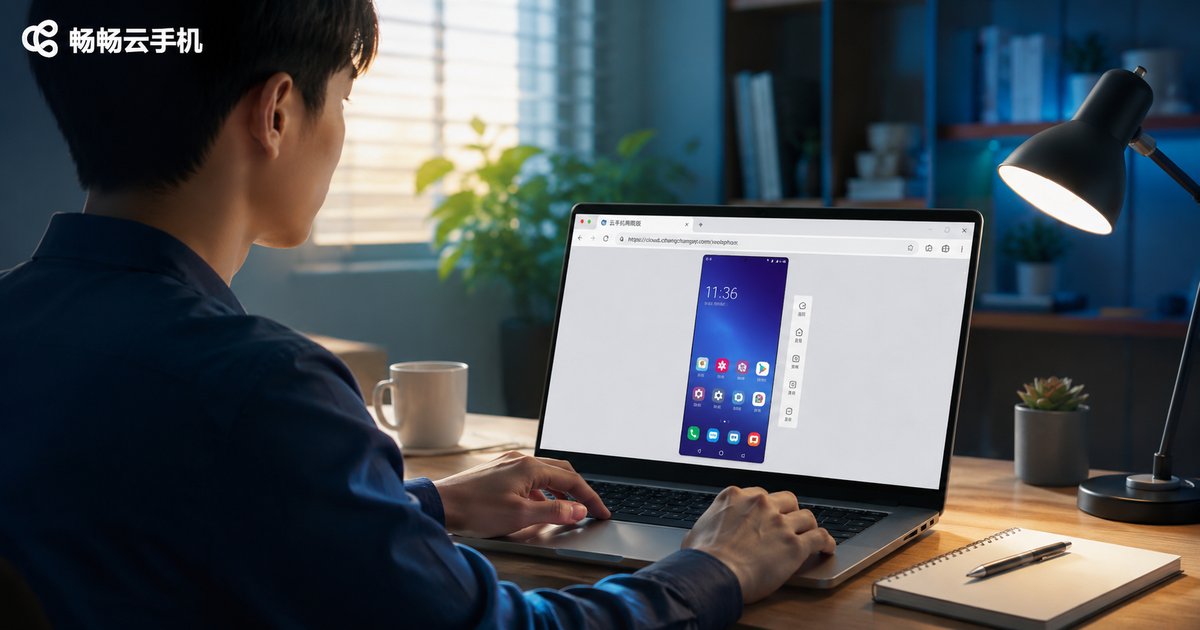
The cloud phone web version puts a full Android phone running on cloud servers right inside your browser window. No client software to download or install—just open your browser, log in to your account, and a complete phone screen appears. You can tap, swipe, and type using your mouse and keyboard.
For people who work at a computer all day, need a second phone temporarily, or use a work computer that doesn't allow installing software, the web version is the easiest solution—open a browser tab to use it, close the tab when done, and leave no trace on the computer.
Four Key Advantages of the Web Version
1. Zero installation, instant access. No need to download a large installer. Open the official website in your browser, log in, and you're in the cloud phone desktop—perfect for public computers, internet cafés, or office PCs.
2. Cross-platform, no OS restrictions. Windows, Mac, Linux, and even tablet browsers all work. As long as you can get online, any device becomes your "second phone."
3. Minimal local resource usage. All computing and storage happen on cloud servers; your computer only displays the screen. Even a decade-old PC can run it smoothly.
4. Stays online even when you close the browser. The cloud phone runs 24/7 in the cloud. After you close the webpage, your apps, games, and accounts keep running—just pick up where you left off next time.
ccloudphone Web Version Tutorial (5 Steps)
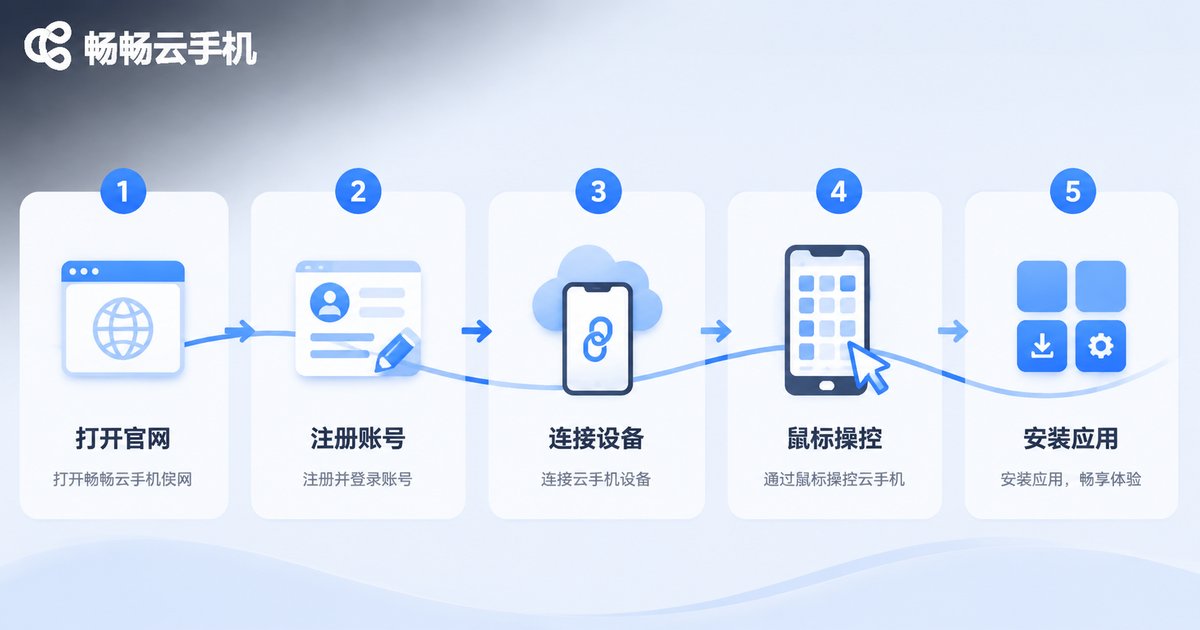
Here's a step-by-step guide using ccloudphone to open a cloud phone directly in your browser.
Step 1: Open the official website. Type the ccloudphone official website URL into your browser's address bar. We recommend using an up-to-date version of Chrome, Edge, or another mainstream browser for the smoothest experience.
Step 2: Register an account. Click the sign-up button, register with your phone number or email, and log in to the user center.
Step 3: Connect to your cloud phone. Find your cloud phone device in the console and click the "Connect" button.
Step 4: Start controlling. After a few seconds, a complete Android phone screen appears in your browser. Mouse clicks replace finger touches, your keyboard handles text input, and the floating toolbar on the edge of the screen offers shortcuts like Back, Home, volume, screenshot, and file upload.
Step 5: Install apps and let it run. Install the apps you need in the cloud phone and log in. Even after you close the browser, the cloud phone stays online in the cloud—app idling and message receiving continue without interruption.
Web Version vs. Desktop Client vs. Physical Phone
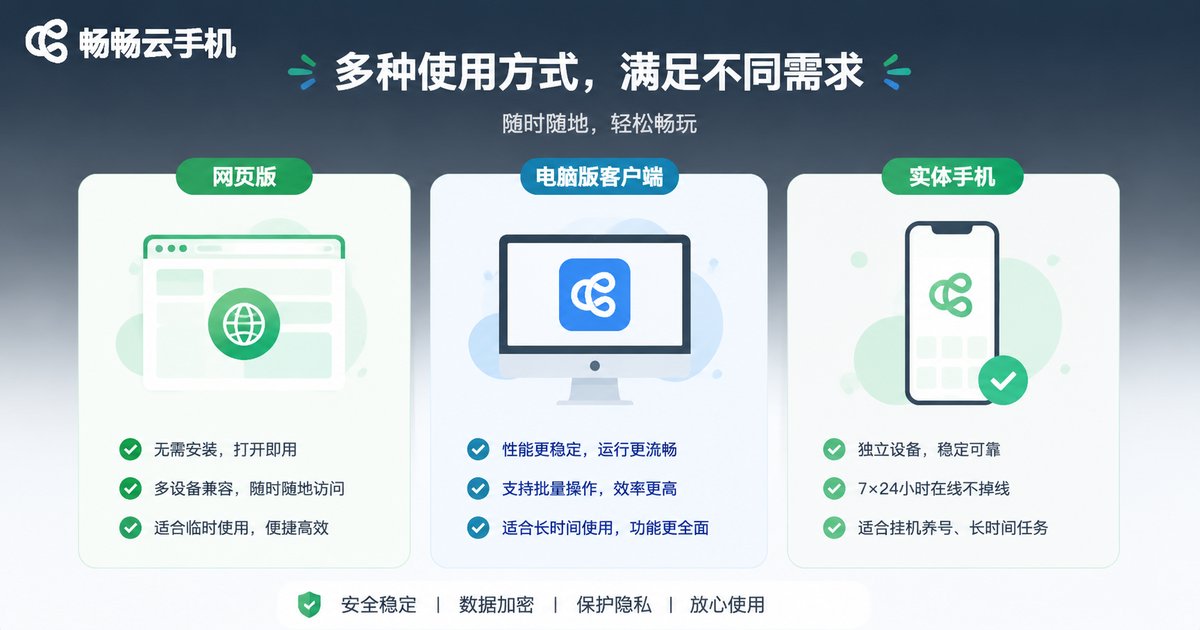
| Feature | Cloud Phone Web | Desktop Client | Physical Phone |
|---|---|---|---|
| Installation required | No | Yes | — |
| Cross-platform support | All modern browsers | Windows / Mac | Must carry it |
| Local resource usage | Minimal | Low | High |
| Power/network outage | Keeps running in cloud | Keeps running in cloud | Shuts down |
| Data storage | Cloud servers | Cloud servers | Local |
As the table shows, the web version excels in convenience, while the desktop client offers slightly better fluency and richer features. If you value convenience above all, the web version is more than enough; for heavy long-term use, you can combine both.
Who Is the Web Version For?
Office workers: When you can't install software on a work computer, a browser tab handles phone tasks easily.
Mobile gamers: Let the cloud phone idle in the cloud while you check progress anytime in your computer's browser—one PC can manage multiple cloud phones.
E-commerce and operations staff: Manage multiple accounts and stores; the web version with multiple browser windows doubles your efficiency.
Temporary users: On business trips, at internet cafés, or on borrowed computers—no installation needed, just log in and go.
Three Tips for a Better Web Experience
Tip 1: Use full-screen mode. Press F11 to make the browser full-screen for a larger, more immersive cloud phone display.
Tip 2: Prefer wired or 5G Wi-Fi. The cloud phone screen is streamed in real time—a stable network means smoother visuals and lower latency.
Tip 3: Use the file upload feature. Want to move photos or documents into your cloud phone? Use the file upload button on the toolbar—it's easier than a data cable.

FAQ
Q: Is the cloud phone web version safe? Will it leak my privacy?
Cloud phone data is stored on cloud servers with encrypted transmission, and no usage traces are left on your computer. Use your own account and remember to log out when using a public computer.
Q: After I close the browser, do apps in the cloud phone keep running?
Yes. The cloud phone itself runs on cloud servers—closing the browser only closes your "viewing window." Apps and games inside continue running in the cloud.
Q: Are the web version and client identical in features?
Core features (controlling the cloud phone, installing apps, uploading files) are basically the same. The client offers better fluency and richer batch-management tools. For daily use, the web version is completely sufficient.
Q: What if the web version lags?
First check whether your network is stable—try switching to a wired connection or faster Wi-Fi. Then close other resource-heavy browser tabs. Finally, make sure your browser is up to date; the latest Chrome or Edge is recommended.
Q: Can I open the web version on a phone browser?
Yes, but the small screen limits the control experience. A computer browser is recommended for more precise mouse-and-keyboard operation.


