
How to Use Phone Interconnection? A Cross-Device Connection Setup Guide
What Is Phone Interconnection and Why Do You Need It
Phone interconnection simply means letting your phone collaborate seamlessly with other devices (PC, tablet, or another phone). You can mirror your phone screen to a computer, continue working on a tablet from where you left off on your phone, or remotely access your phone apps from any device.
In daily life and work, cross-device connectivity is becoming increasingly common: you need to present from your phone on a big screen in a meeting, you want to watch videos on a larger display at home, or you need to handle phone messages from your laptop while traveling. Phone interconnection is the core tool that solves all these scenarios.
This guide covers three mainstream cross-device connection methods and provides step-by-step setup instructions so you can get connected in just a few minutes.
Three Mainstream Cross-Device Connection Methods
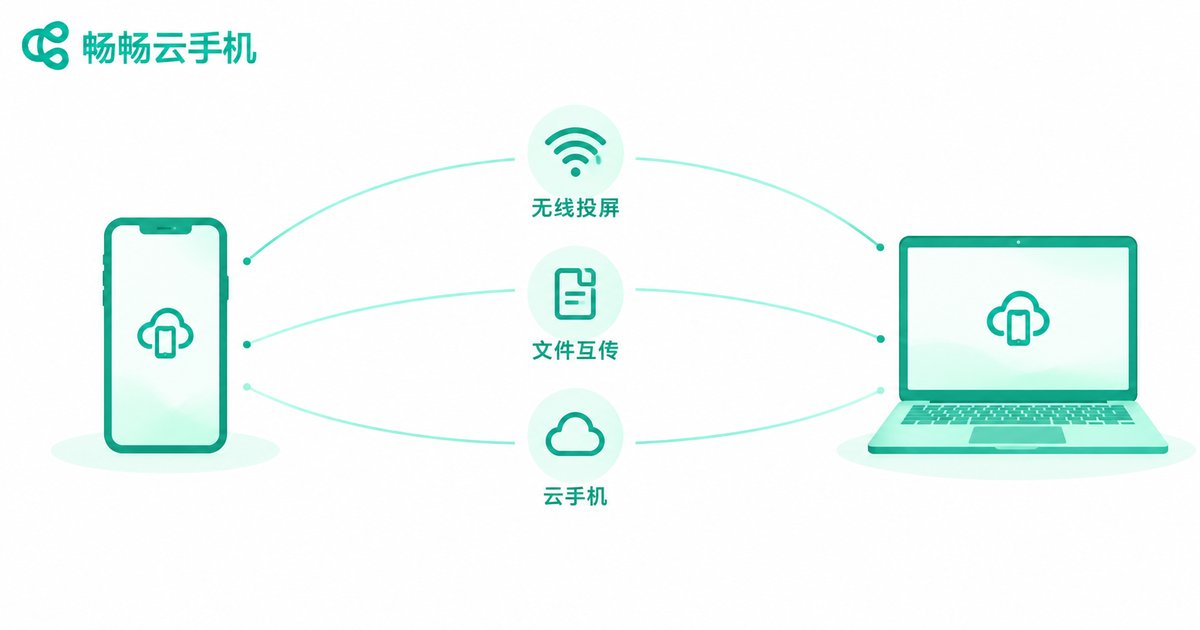
Phone interconnection today mainly relies on the following three technical approaches, each suited to different scenarios:
| Method | Typical Use Case | Advantage | Limitation |
|---|---|---|---|
| Wireless Mirroring / Casting | Meetings, watching videos on a big screen | Intuitive, low latency | Requires the same local network, limited range |
| File Transfer / Clipboard Sync | Cross-device copy-paste, sharing photos and docs | Wireless, fast | Usually limited to the same brand ecosystem |
| Cloud Phone Remote Control | Access phone apps from anywhere, anytime | No location restriction, multi-device access | Requires a stable network connection |
If you only occasionally need to cast your screen, the first two methods are sufficient. But if you need your phone environment to be online 24/7 and accessible from any device at any time, cloud phone remote control is the most flexible solution.
Phone Interconnection Setup Guide (Step by Step)
Method 1: Wireless Mirroring / Casting
Android phone to PC:
1. Make sure your phone and PC are connected to the same Wi-Fi network.
2. On the phone: go to Settings → Connections & Sharing → Wireless Projection (the exact path varies by brand; you can also find the Cast or Mirroring toggle in the quick settings panel).
3. On the PC: enable the built-in projection receiver (on Windows 10/11, go to Settings → System → Project to this PC), or install a compatible casting receiver app.
4. Search for available devices on the phone, tap the PC name, and wait for the connection to complete.
iPhone casting: Use AirPlay. Make sure your Mac or Apple TV is on the same network, then swipe down from the top-right corner to open Control Center and tap Screen Mirroring.
Method 2: File Transfer & Clipboard Sync
Most major phone brands have built-in cross-device file transfer:
1. Sign in with the same account on both your phone and PC.
2. On the phone, go to Settings → Multi-Device Collaboration / Super Device (the name varies by brand).
3. Enable options such as File Transfer, Clipboard Sync, and Notification Sharing.
4. After that, text you copy on your phone or photos you take will be instantly available on the PC.
If your phone and PC are from different brands, you can use cross-brand transfer tools provided by the manufacturers, or relay files through a cloud storage service.
Method 3: Cloud Phone Remote Control (Recommended: CCloudPhone)
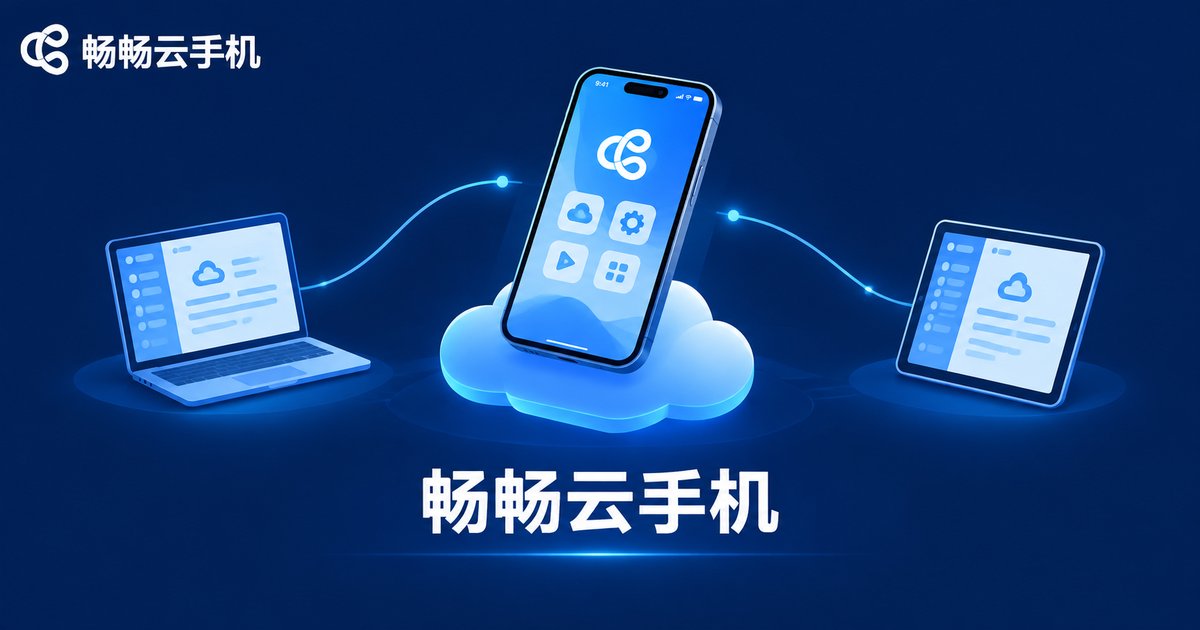
If you want to break free from physical device limitations and access your phone environment from a PC, tablet, or even another phone at any time, a cloud phone is the best choice.
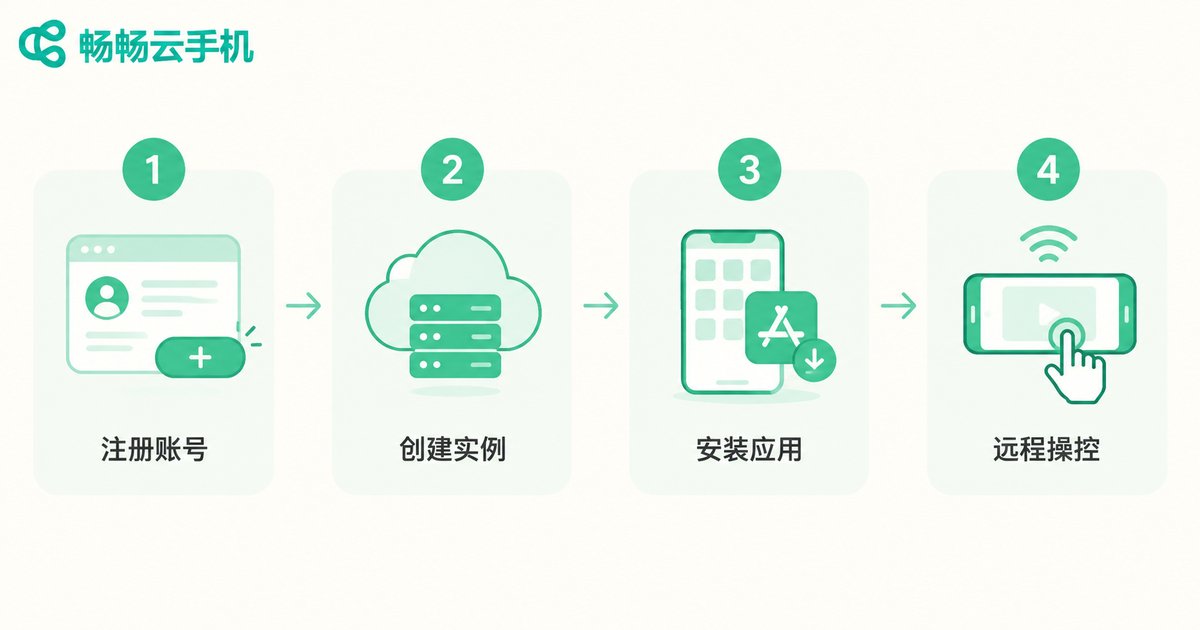
CCloudPhone (ccloudphone) provides a cloud-based virtual Android phone. You can control it directly in a browser or client app without keeping your physical phone nearby. Here is the setup:
1. Visit the CCloudPhone official website, register, and log in.
2. Create a cloud phone instance in the console and select a configuration that fits your needs.
3. Install the Android apps you need (social, gaming, productivity, etc.).
4. Open the CCloudPhone console in a browser on any device and click Connect to start remote control.
5. Mouse and keyboard control, file upload/download, and clipboard sharing are all supported, giving an experience close to a local phone.
The biggest advantage of this approach: your cloud phone stays online 24/7. Whether you are on a business trip, traveling, or switching devices, simply open your browser to pick up right where you left off.
Troubleshooting Cross-Device Connection Issues
When a connection fails, work through this checklist to resolve 90% of problems:
1. Network Check
Confirm all devices are on the same Wi-Fi (2.4 GHz or 5 GHz is fine, but they must be on the same subnet). If your router has AP Isolation enabled, turn it off.
2. Permissions & Toggles
On the phone, make sure Wireless Projection, File Transfer, and related toggles are on. On the PC, check that the firewall is not blocking the casting port.
3. System Version
Some interconnection features require a relatively recent OS or app version. Check for system updates on both devices.
4. The Restart Trick
If everything looks correct but the connection still fails, restart both your phone and PC, then search for devices again. This resolves the issue in most cases.
Frequently Asked Questions (Q&A)
Q: Do I need to buy extra hardware for phone interconnection?
Wireless mirroring and file transfer usually require no extra hardware as long as your devices support the features. A cloud phone solution also needs no dedicated hardware; a browser is all you need.
Q: Can I interconnect a phone and PC from different brands?
Wireless casting (Miracast / AirPlay) is a cross-brand universal protocol and works in most cases. File transfer and clipboard sync are typically limited to the same brand ecosystem. For cross-brand scenarios, use a cloud storage service or a cloud phone as a relay.
Q: What is the difference between a cloud phone and mirroring a physical phone?
Physical phone mirroring maps the screen of the phone in your hand to another display; the phone must be powered on and connected. A cloud phone is a virtual phone running independently in the cloud, not dependent on your physical device. Turning off or replacing your phone has no impact, making it ideal for scenarios that require persistent online presence.
Q: Do I need a very fast network for CCloudPhone?
For everyday tasks (chatting, browsing, light gaming), a standard home broadband connection or 4G/5G is more than enough. For latency-sensitive scenarios (e.g., competitive gaming), a stable wired or Wi-Fi connection is recommended.
Q: Is phone interconnection secure? Could my data leak?
Local-network mirroring and file transfer do not route data through third-party servers, so security is generally high. When using a cloud phone, choose a reputable provider with encrypted data transmission. CCloudPhone uses encryption for both data in transit and at rest to protect your accounts and personal data.


