
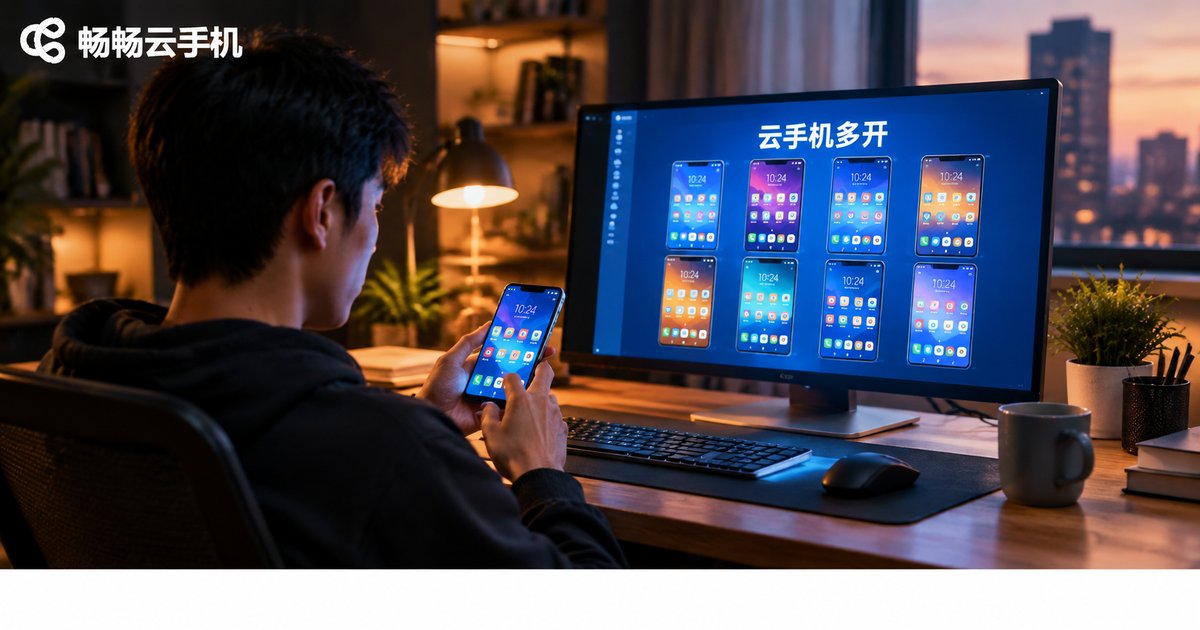
How to Run Multiple Cloud Phones on One Device
Want to run several accounts on the same device without running out of memory or watching apps crash? What you need is not stronger hardware — it is cloud phone multi-instancing. Cloud phones run on remote servers, while your local device only displays the screen and sends commands. That means one ordinary phone or computer can manage many fully independent phone environments at the same time. This guide explains how to run multiple cloud phones: how it works, the exact setup steps, how it compares with emulator multi-opening, and the scenarios it fits best.
What Does Multi-Open Mean for Cloud Phones?
A cloud phone is a complete Android system running in a remote data center, with its own system environment, apps, and data — in daily use it feels no different from the physical phone in your hand. Multi-opening simply means running several of these Android instances at once: instance A signs in to game account one, instance B to account two, instance C handles daily tasks. Each instance is fully isolated from the others.
For your local device, it makes almost no difference whether you keep 10 or 50 cloud phones open — it is only streaming video and relaying input. That is the core difference between cloud phone multi-opening and traditional local multi-opening.
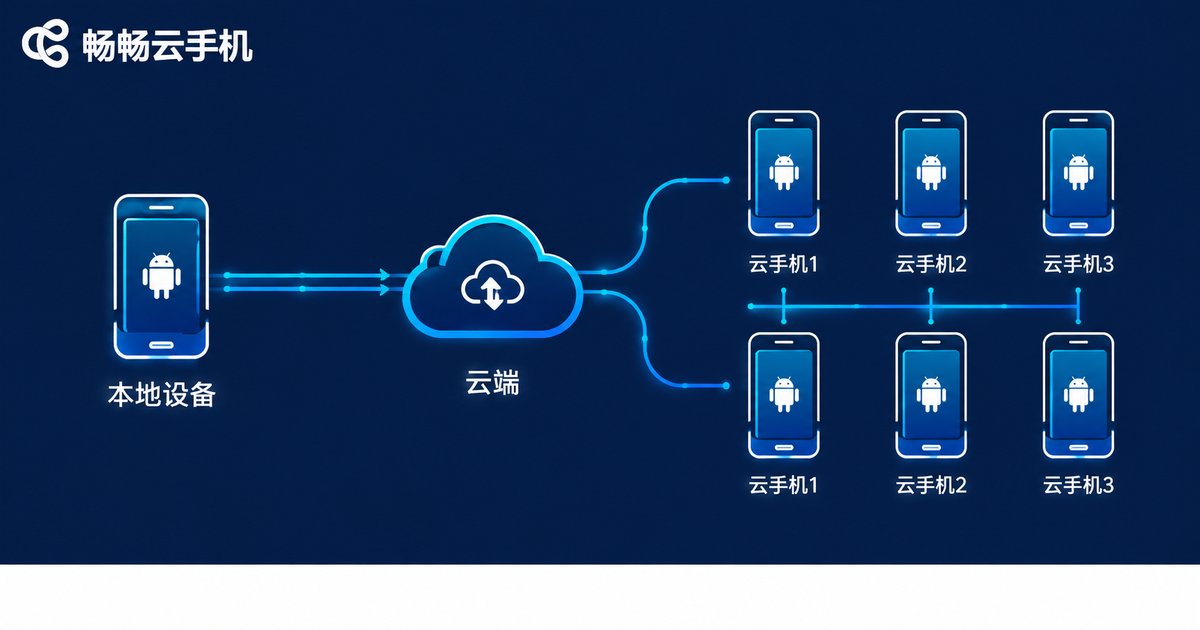
Why Can One Device Run So Many Cloud Phones?
The answer fits in one sentence: the computing power lives in the cloud, not on your device.
With a local emulator, every extra instance consumes more of your own CPU and RAM, so things slow down, overheat, or crash once your configuration runs out. Cloud phones run on server clusters, so how many you can open at once depends on how many cloud instances you have provisioned — not on your local hardware. An aging phone or a basic office laptop can smoothly manage a large fleet of cloud phones with almost no local heat, battery drain, or memory usage.
How to Open Multiple Cloud Phones: 5 Steps
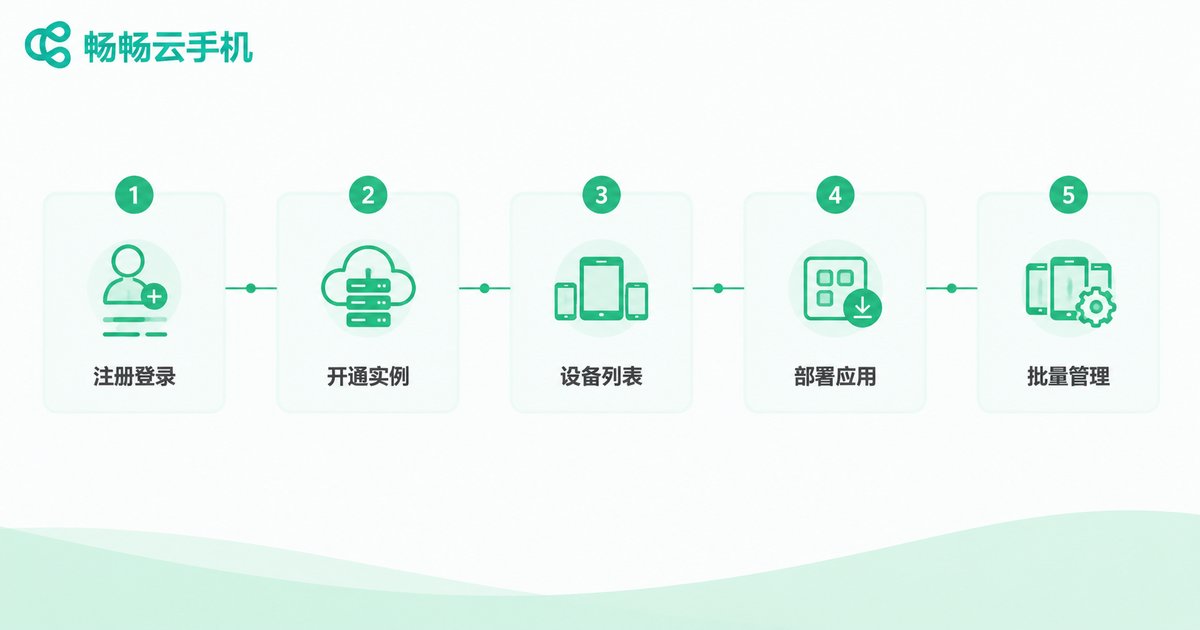
Using Changchang Cloud Phone (ccloudphone) as an example, the whole process comes down to five steps:
Step 1: Register and log in. Open the ccloudphone official website, create an account, and enter the console.
Step 2: Provision cloud phone instances. Activate cloud phones as needed — every instance you add is one more independent Android environment.
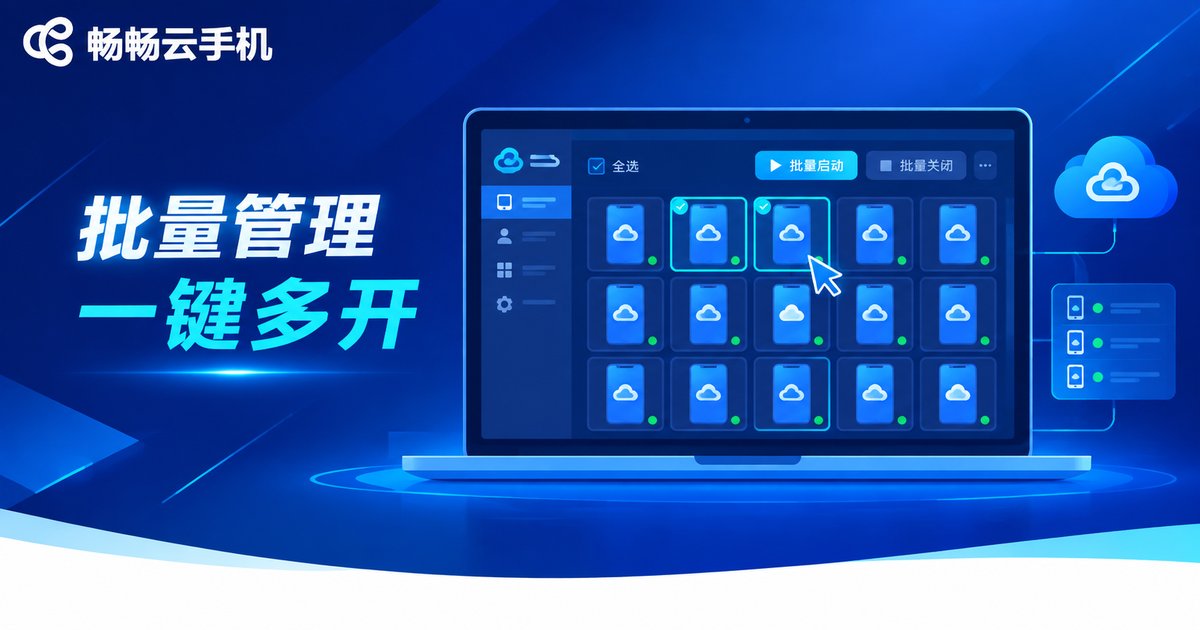
Step 3: Open the device list. All of your cloud phones appear in a single device list, where you can launch them one by one or select several at once.
Step 4: Set up each instance. Install the apps and sign in to the accounts you need on each cloud phone, exactly as you would on a real device.
Step 5: Manage in batch. For repetitive actions, use batch management to send install or launch commands to many cloud phones at the same time — daily maintenance of dozens of instances takes only minutes.
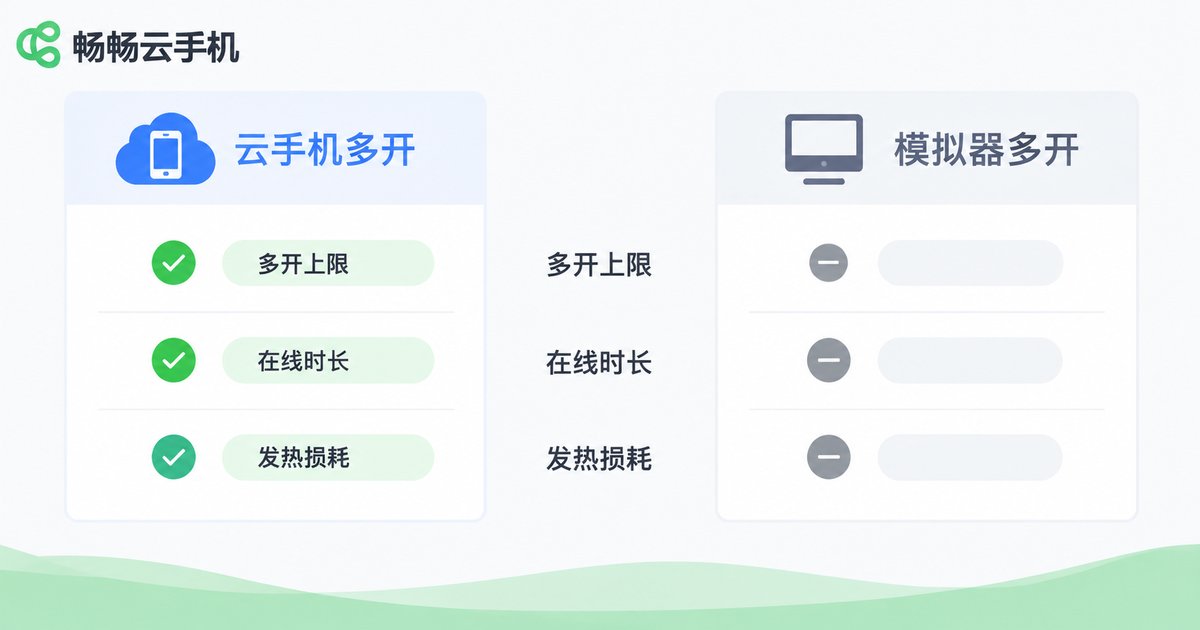
Cloud Phone Multi-Open vs. Local Emulator Multi-Open
| Aspect | Cloud Phone Multi-Open | Local Emulator Multi-Open |
|---|---|---|
| Hardware demand | Local device only streams the screen; low requirements | Consumes local CPU and RAM |
| Instance limit | Depends on cloud instances you provision | Hard-capped by local specs |
| Uptime | Runs around the clock; local shutdown changes nothing | Everything stops when the PC shuts down |
| Heat and wear | Nearly zero local load | Obvious heat under long, heavy load |
| Stability | Data-center power and network | Fluctuates with your home computer |
Who Should Run Multiple Cloud Phones?
AFK gaming and multi-account progression: pair each account with its own cloud phone that stays online around the clock while your real devices stay free.
Short-video matrix operations: keep every account in its own isolated instance so daily upkeep never interferes, and batch actions save hours.
E-commerce multi-store coverage: separate stores and support accounts stay organized, with faster response times.
App and game testing: verify compatibility across many environments in parallel without a pile of test devices.
Practical Tips for Multi-Instancing
1. Start small, then scale. Provision a few cloud phones first, make sure your network and workflow feel right, then add more.
2. One instance, one purpose. Treat each cloud phone like a real handset with fixed accounts and apps — environments stay stable and easy to manage.
3. Let batch features do the work. Hand repetitive actions to batch management; that is the biggest efficiency gain of cloud phone multi-opening.
4. Keep your network solid. Smoothness depends mainly on your connection, so manage your fleet over stable Wi-Fi or a wired network.
FAQ
Q: How many cloud phones can one device run?
It mainly depends on how many instances you provision in the cloud; local hardware barely matters. For exact limits, refer to the official ccloudphone website.
Q: Will multi-opening feel laggy?
Smoothness depends on cloud performance and your network, not local specs. With a stable connection, even old devices can manage a large fleet fluidly.
Q: Do cloud tasks keep running when my local device is off?
Yes. Cloud phones live in remote data centers and stay online around the clock; shutting down your local device does not interrupt them.
Q: Can I manage multiple cloud phones from my phone?
Yes. After logging in to the ccloudphone console, you can view, switch between, and batch-manage all instances right from your phone.
Q: Do I have to repeat every action on each instance?
No. Repetitive actions like installing apps or launching programs can be sent to many cloud phones at once through batch management.


