
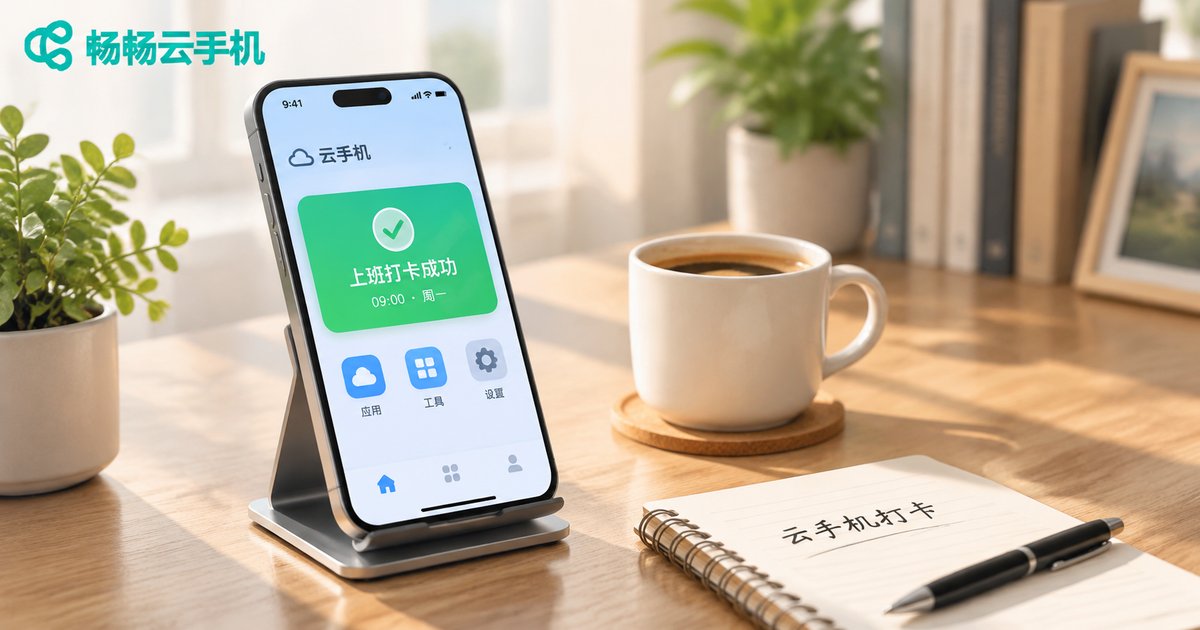
Using DingTalk on a Cloud Phone: Check-in, Meetings & Notification Settings
Why more people are putting DingTalk on a cloud phone
DingTalk stopped being just a chat app a long time ago. You clock in when you arrive, sit through meetings during the day, review approvals, and still answer group messages at night. That is why plenty of office workers have switched their backup phone for a cloud phone — a virtual Android device running in the cloud that you can summon from a local client whenever you need it.
The upside is straightforward: it takes up no local storage, you never watch the battery hit zero, and switching devices does not mean redoing a pile of logins and device verification. But a cloud phone is still a cloud device, so the three parts of DingTalk that lean hardest on system permissions — check-in location, meeting audio and video, and message notifications — need to be configured once before everything feels smooth. Let's take them one at a time.
Step one: install DingTalk on the cloud phone
With ccloudphone, the flow is simple: sign in to the cloud phone console, pick an instance and boot it, open the built-in app store inside the cloud phone, search for DingTalk and install it, then log in with your phone number.
A few details people usually miss:
- If login triggers an SMS code, use a number with a solid signal so you are not retrying in a weak network;
- For a company account, check with IT or HR first that multi-device login is allowed, so your original phone does not get signed out;
- Complete DingTalk's new-device verification right after the first login and you will not be asked again.
Check-in settings: location permission is the whole game
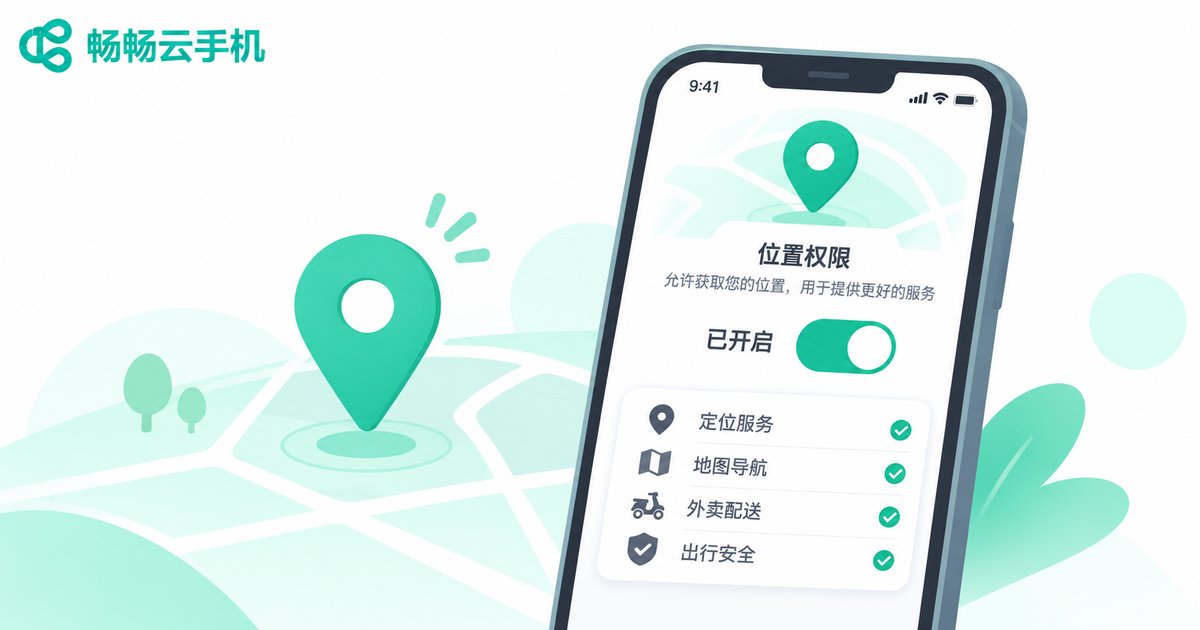
Whether your DingTalk check-in goes through is mostly a question of location. Cloud phone permissions are conservative by default, so you need to open them up manually. Work through this checklist:
| Setting | Recommended value | Why it matters |
|---|---|---|
| Location permission | Always allow | Prevents slow positioning when check-in opens |
| Location mode | High accuracy | Combines network, Wi-Fi and cell tower assistance |
| Background running | Allow auto-start | Keeps DingTalk able to request location after being reclaimed |
| Battery optimization | Unrestricted | Stops the instance from killing the process when idle |
| Network | Wi-Fi preferred | Indoor Wi-Fi positioning is usually steadier than GPS alone |
Two practical tricks: open a map app inside the cloud phone first and confirm the pin has refreshed before tapping check-in; and if your company allows Wi-Fi attendance, connect the cloud phone to the office Wi-Fi for a faster, more reliable match.
Compliance note: a cloud phone suits genuine scenarios like field work, remote work and on-site assignments. Use it honestly according to your company's attendance policy — do not treat it as a way around clocking rules.
Meeting settings: keeping audio and video stable
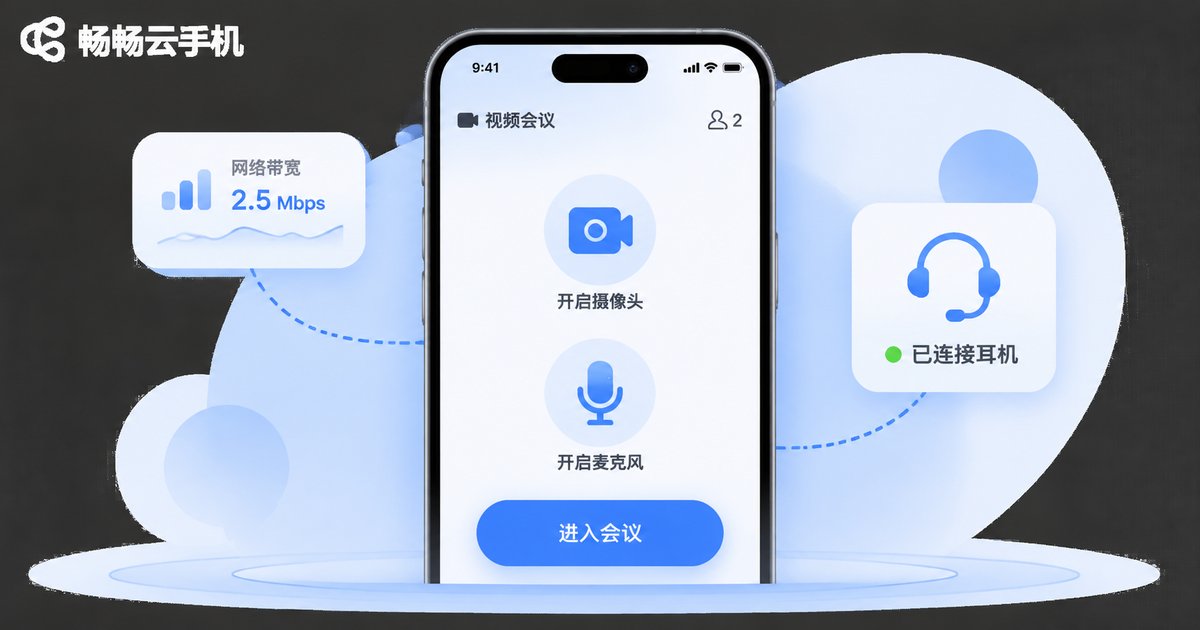
Both audio and video travel through the cloud, so the first time you join a DingTalk meeting you will get a chain of permission prompts for microphone, camera and storage. Allow all of them, or the other side will see a black screen or hear nothing at all.
To get through a meeting without dropping out:
- Turn the camera off if you are only listening — bandwidth pressure drops sharply;
- Use a headset rather than the speaker to cut echo and feedback;
- When the network wobbles, drop the video quality one notch: smoothness beats sharpness;
- Before a long call, confirm the cloud phone instance is set to stay online so it is not reclaimed mid-session.
If you need screen sharing or a speaking slot, join a minute or two early and test the microphone. Better to solve it before the meeting starts than during it.
Notifications: don't let important messages sit in the cloud
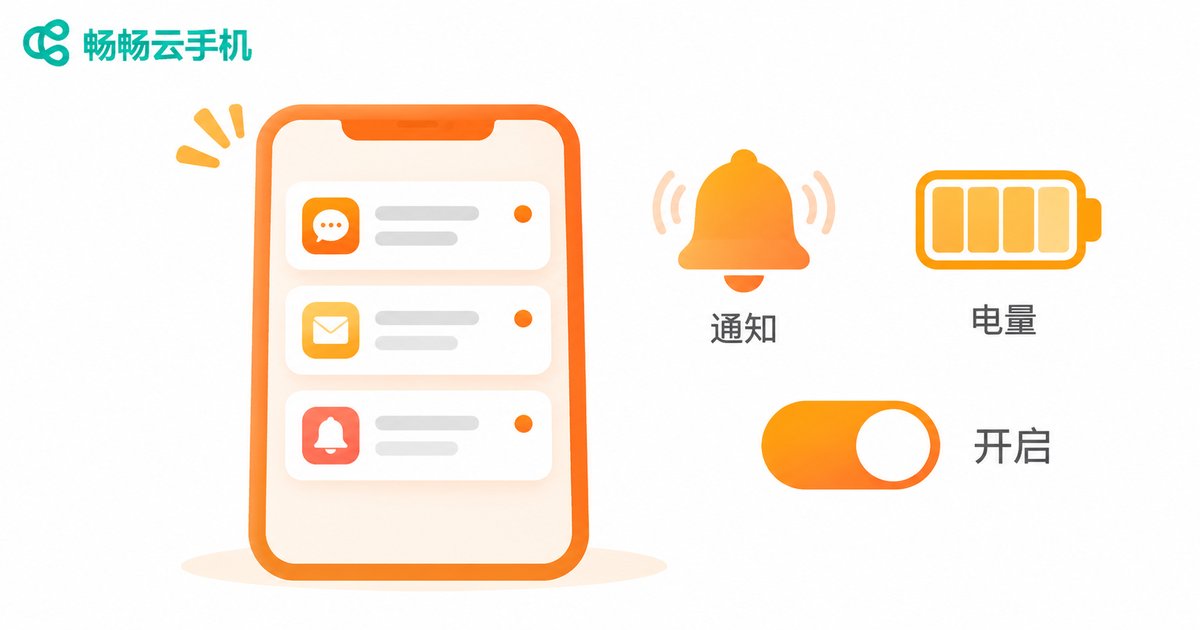
The most common cloud phone trap is simple: a message arrives and you never know. Usually it is a missing notification permission, or the process was cleaned up as an idle app. Check in this order:
- System notification permission: open app management in the cloud phone settings, go into DingTalk and enable everything — banners, lock screen and sound;
- Background keep-alive: turn on auto-start and linked start, and set battery optimization to unrestricted;
- In-app settings: under Me - Settings - Notifications, enable new message alerts and mark important groups as priority;
- Do not disturb: make sure DingTalk's DND window does not overlap your phone's quiet hours, otherwise work messages get silenced too;
- Client-side alerts: some cloud phone clients can mirror cloud notifications to your local device — check what your client actually supports.
Once configured, ask a colleague to send a test message and confirm it lands on both the cloud phone and your local client before you rely on it.
Running mobile work on ccloudphone
ccloudphone provides Android instances that run in the cloud and stay online, reachable from a local client or a browser at any time. That makes it a good home for resource-hungry, battery-draining tasks like keeping DingTalk permanently signed in. You can choose an instance spec that fits your needs in the console, configure the check-in, meeting and notification settings once, and every future login lands in the same environment without redoing permissions.
Keeping work DingTalk on a cloud phone frees up storage and battery on the device in your hand. And when the day ends, you can simply close the client and let work messages wait quietly in the cloud. That kind of physical separation is the real reason many people pick a cloud phone.
FAQ
Q1: Check-in location is inaccurate on the cloud phone. What should I do?
Confirm location permission is set to Always allow and the mode is high accuracy, then open a map app to refresh the position. Indoors, connecting to office Wi-Fi usually locks in faster than GPS alone.
Q2: Will DingTalk meetings be laggy on a cloud phone?
It depends mainly on network and instance spec. Turning off the camera, wearing a headset and lowering video quality all help noticeably. Join early and test your microphone instead of fixing it mid-meeting.
Q3: After I close the cloud phone client, will DingTalk still receive messages?
The instance keeps running in the cloud, so DingTalk continues to receive messages in the background and you can see them when you reconnect. Whether they push to your local device in real time depends on the notification mirroring your client offers.
Q4: Will DingTalk flag a cloud phone as an abnormal device?
A cloud phone is simply a new device to DingTalk — complete the normal login verification. Use your own account and follow your company's device policy; do not share one account across people. For remote logins, just finish the verification prompt.
Q5: Can one cloud phone run multiple DingTalk accounts?
One cloud phone is one system environment, so a single DingTalk account is easier to manage. If you really need multiple identities, spin up several instances in the console and configure each one independently.
Q6: My company does not allow off-site check-in. Can I still use a cloud phone?
Follow your company's attendance policy. A cloud phone reports the location of the cloud instance, which fits genuine remote scenarios such as field work or on-site assignments. If policy does not allow it, do not use a cloud phone in place of normal check-in.


