
Cloud Phone Troubleshooting: Complete Fixes for Disconnection, Lag and Black Screen
Why Do Cloud Phones Disconnect, Lag, or Show a Black Screen?
A cloud phone is essentially an Android device running on a remote server, with the screen streamed to your phone or computer over the network. That means a problem in any of four links — your network, the cloud server, your local device, or the app itself can show up as disconnections, lag, or a black screen. The good news: most issues are minor and can be fixed in minutes with the steps below.
Fixing Disconnections: Why Does the Connection Keep Dropping?
Disconnection is the most common cloud phone issue, and over 90% of cases are related to local network quality.
Common causes:
- Weak Wi-Fi signal, or a router that has not been rebooted for a long time
- ISP network fluctuations, especially during evening peak hours
- Battery saver mode killing the app in the background
- Too many devices on the same network consuming bandwidth
How to fix it:
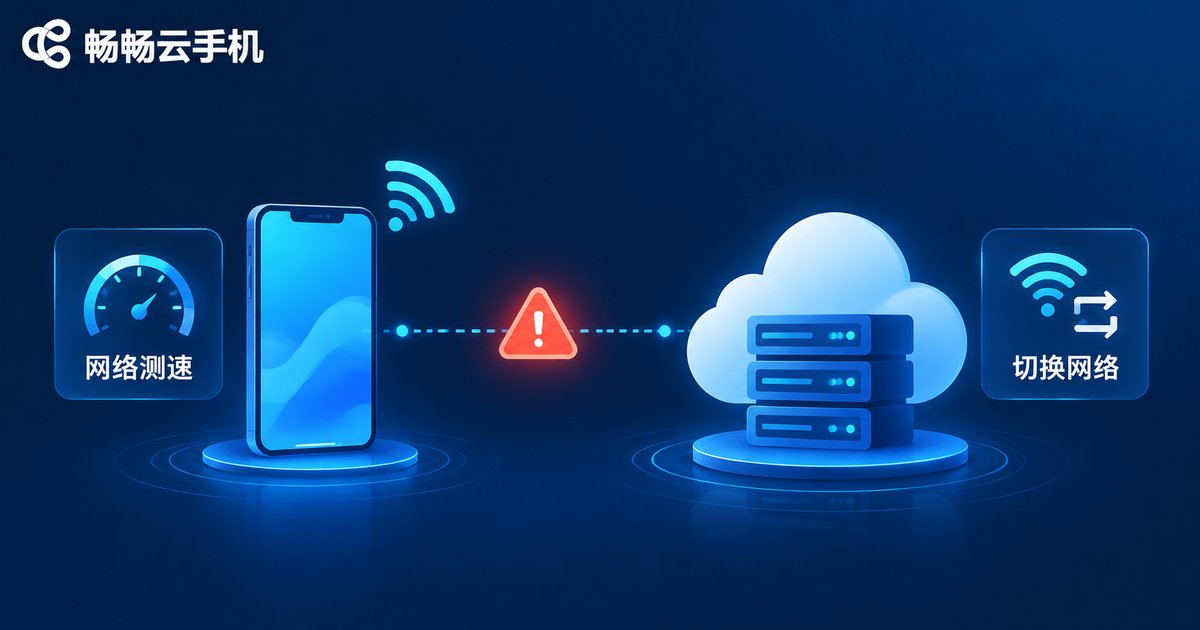
- Run a speed test: aim for at least 5 Mbps download and latency under 50 ms;
- Switch networks: move from Wi-Fi to 4G/5G data, or get closer to the router;
- Disable battery restrictions: allow the cloud phone app to run in the background and whitelist it from battery optimization;
- Free up bandwidth: pause downloads, streaming, and other heavy traffic on the same network.
If disconnections persist across different networks, restart the cloud phone from the console to rule out a stale cloud session.
Fixing Lag: High Latency and Unresponsive Controls?
Lag has more possible causes than disconnection, so first identify which type of lag you are experiencing:
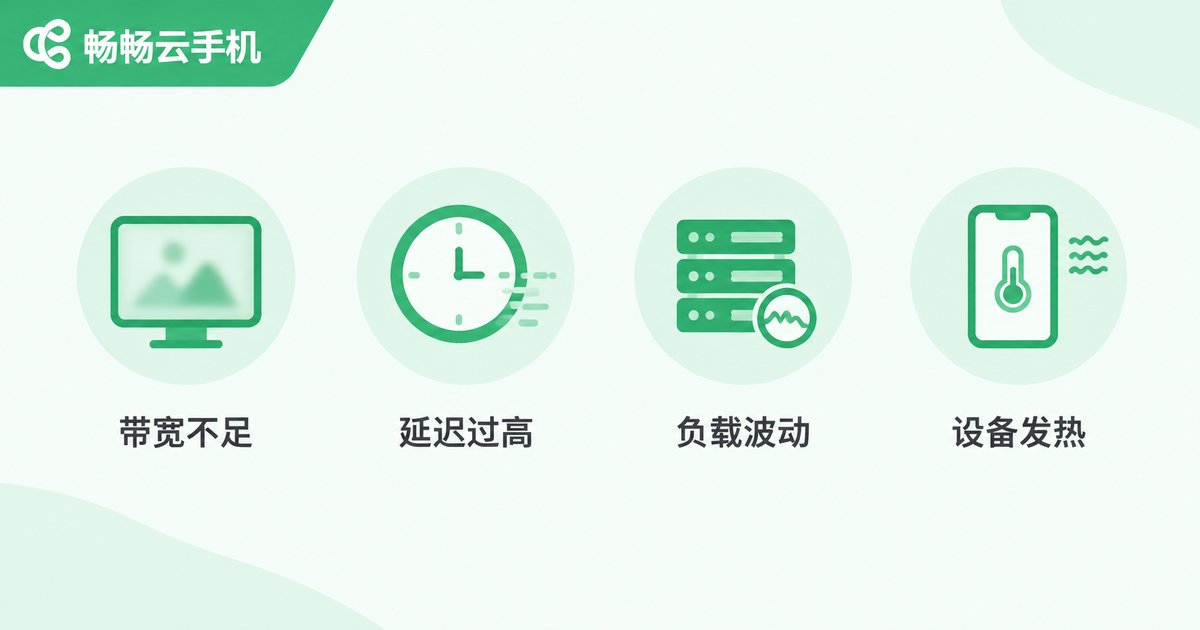
| Symptom | Likely Cause | Solution |
|---|---|---|
| Blurry image, blocky artifacts | Insufficient bandwidth, lowered bitrate | Switch to a stabler network or lower the stream quality |
| Delayed, unresponsive controls | High network latency | Use 5 GHz Wi-Fi or 5G, choose a nearby node |
| Occasional frame drops | Cloud server load fluctuation | Use off-peak hours or restart the cloud phone |
| Local device overheating | Heavy decoding workload | Close background apps, lower resolution and frame rate |
Three quick wins: connect to 5 GHz Wi-Fi for lower interference and latency; set stream quality to smoothness-first in the app settings; and restart the cloud phone periodically after long idle sessions to clear its runtime cache.
Fixing Black Screen: Blank Display or Frozen Picture?
A black screen looks alarming, but in most cases only the video stream or decoding pipeline is at fault — the cloud phone itself is usually still running.
Troubleshoot in this order:
- Wait 10-20 seconds: a black screen right after entering often means the video stream is reconnecting;
- Check the network: open a web page to confirm local connectivity;
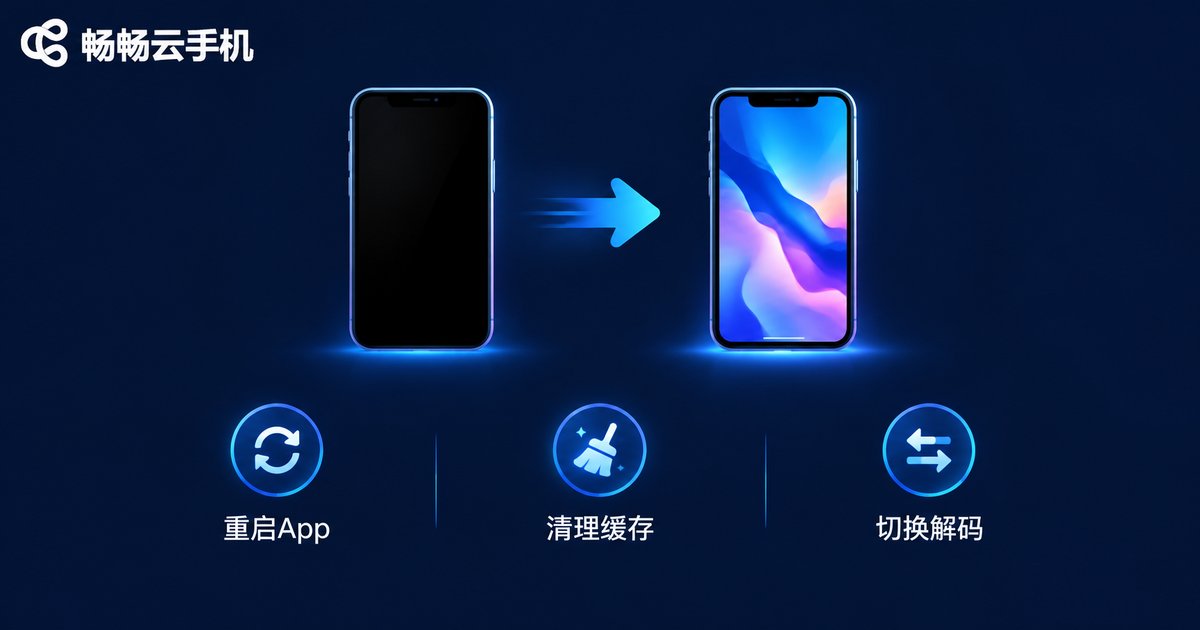
- Restart the app: fully close the cloud phone app and reopen it;
- Clear the cache: clear the app cache in system settings;
- Switch the decoder: toggle between hardware and software decoding in app settings;
- Restart the cloud phone: if one specific instance stays black, restart it from the console.
Tip: if you can still hear game audio while the screen is black, the cloud phone is running fine and the issue is almost certainly video decoding — try switching the decoder first.
Universal Checklist: Follow This Order
For any issue, run through network → app → cloud phone → local device → account:
- Network: run a speed test; compare Wi-Fi vs. mobile data;
- App: restart it, clear the cache, update to the latest version;
- Cloud phone: restart the instance from the console;
- Local device: close background apps, disable battery saver, free up storage;
- Account: confirm the device limit is not exceeded and the account is not logged in elsewhere.
Following this checklist resolves over 90% of common issues on the spot.
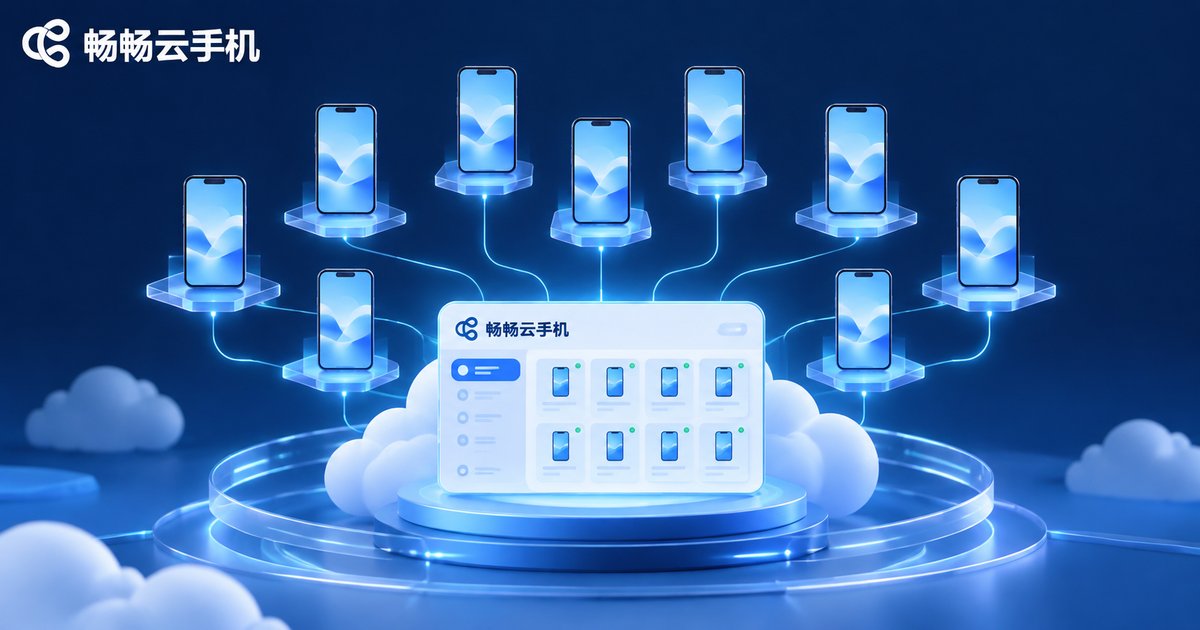
Choose a Reliable Platform to Cut Issues in Half
Troubleshooting skills help in the moment, but a stable platform is the real foundation. ChangChang Cloud Phone (ccloudphone) delivers a smooth, stable cloud Android environment with multiple instances running online simultaneously and group control management — ideal for multi-account gaming, short-video matrices, and app idle running. Because instances keep running in the cloud, local disconnections do not interrupt tasks inside the cloud phone. If anything goes wrong, contact official support via the website ccloudphone to quickly determine whether the issue is on the network side or the cloud side.
Remember three habits: keep the network stable, keep the app updated, and restart the cloud phone regularly. Do these and disconnections, lag, and black screens will stay far away.
FAQ
Q: Will my data and game progress be lost after a disconnection?
No. Cloud phone data is stored in the cloud; a disconnection only interrupts the video stream. After logging back in, the instance generally resumes in its previous state. Back up important files to cloud storage regularly.
Q: Should I upgrade my local phone or fix the network first when lagging?
Check the network first. Cloud phones place little demand on local hardware; most lag comes from network latency or insufficient bandwidth, so a stabler connection usually helps immediately.
Q: The screen is black but I can still hear audio. What is wrong?
Most likely a video decoding issue. The instance is running normally — switch between hardware and software decoding, or clear the cache and restart the app.
Q: How fast does my internet need to be for a cloud phone?
For daily use, at least 5 Mbps download with latency under 50 ms. For large games or high frame rates, aim for 10 Mbps or more on 5 GHz Wi-Fi.
Q: Does ChangChang Cloud Phone support multi-instance and group control?
Yes. It offers multi-instance management and group control; see the official website ccloudphone for current features and plans.


