
How to Run Scripts on a Cloud Phone: Script Permissions and Configuration Explained
Why Run Scripts on a Cloud Phone?
Here is the key point: a cloud phone is essentially an Android device running on a cloud server. Just like a physical phone, it can install apps, grant permissions, and run automation scripts. The difference is that it does not depend on the device in your hand — even if your phone is off or your laptop is closed, the cloud keeps running.
For long-duration automation tasks, this brings real advantages:
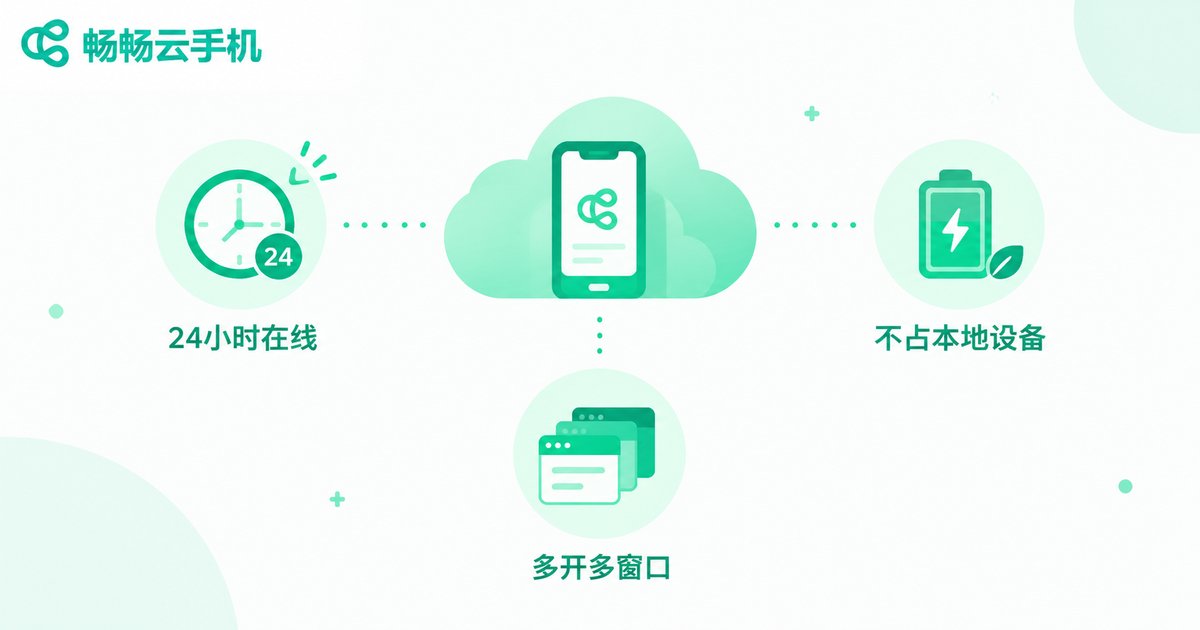
- Online 24/7: cloud servers never power off or lose connectivity, so scripts can run continuously;
- No wear on your own device: no overheating, battery drain, or hardware strain on your phone;
- Isolated environment: scripts run in a separate space that does not interfere with your daily devices;
- Flexible scaling: each cloud phone is an independent environment, so different tasks can be configured separately.
Three Things to Prepare Before Running Scripts
Confirm three things before you start, and you will avoid most common pitfalls.
First, clarify your use case and compliance boundaries. Scripts are commonly used for game idle farming, daily check-ins, and repetitive batch operations. However, many platforms explicitly restrict automation in their terms of service, and using scripts in games may trigger anti-cheat bans. Read the rules of the target platform first — compliant use is the only sustainable approach.
Second, prepare your script tool. Common tools fall into three categories: accessibility-based auto-clickers, root-required macro tools, and automation frameworks with built-in script engines. Different tools require different permissions, covered in the next section.
Third, choose a cloud phone with suitable specs. Taking ccloudphone as an example, focus on three factors: whether the Android version is compatible with your script tool, whether the required permission modes are supported, and whether the configuration can handle long-running tasks. Check the official website for exact plans and specifications.
How to Enable Script Permissions, One by One
Whether a script runs stably inside a cloud phone depends largely on whether all required permissions are granted. Here are the most common ones and where to enable them:
| Permission | What it does | Where to enable |
|---|---|---|
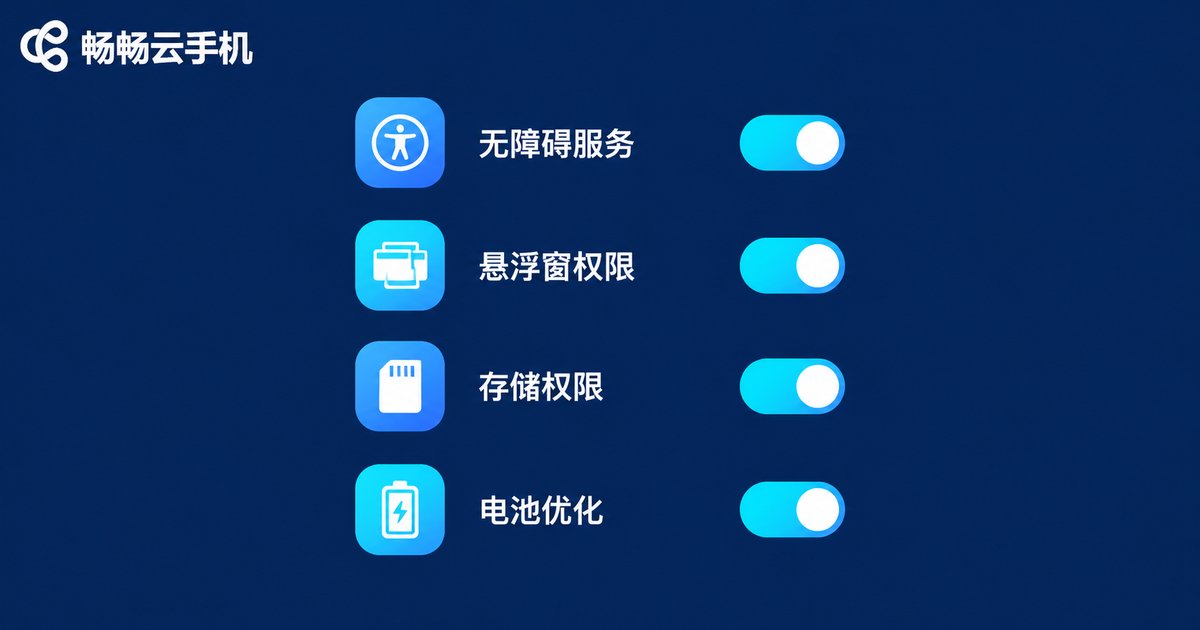
| Accessibility service | Reads screen elements, simulates taps and swipes | Settings → Accessibility → Downloaded services |
| Floating window | Shows the script control panel and start/stop buttons | Settings → Apps → your script tool → Display over other apps |
| Storage | Reads script files, saves run logs | Settings → Apps → Permissions → Storage |
| Background autostart | Prevents the system from killing the script | Settings → Battery → Unrestricted / Autostart manager |
| Root access | Needed by some advanced scripts | Depends on whether the cloud phone offers a root environment |
Key reminder: the accessibility service is the most fragile link. Many systems disable accessibility automatically after a while to save power, which makes scripts stop abruptly. After enabling it, set the script tool's battery policy to Unrestricted and turn off battery optimization for it.
If your script requires root, confirm on the official website that the cloud phone supports it before purchasing, so you do not discover the limitation afterwards.
Running Configuration: Settings That Keep Scripts Stable
Permissions are only step one. Poor configuration still leads to lag and disconnects. These parameters deserve the most attention:
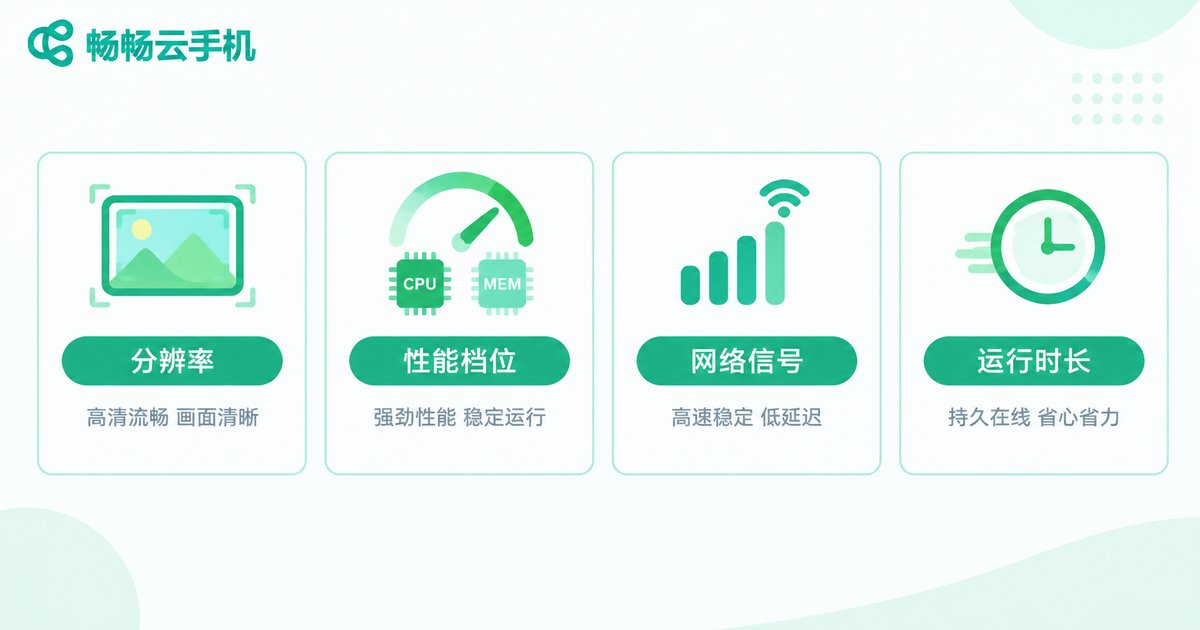
1. Resolution and DPI. Scripts usually operate on fixed coordinates or specific on-screen controls. If the resolution changes, taps may miss their targets. Confirm the resolution your script was designed for, then set the cloud phone to match, and avoid changing it midway.
2. Performance profile. A single lightweight script runs fine on basic specs. If you plan to run multiple instances, or the script is performance-hungry (such as rendering game graphics), choose a higher CPU and memory tier. Typical symptoms of insufficient specs: choppy visuals, delayed taps, and broken script timing.
3. Network stability. A cloud phone uses the data center network, which is stable by design; your local connection only affects the remote viewing stream. Scripts run in the cloud and are not affected by your local disconnection — a fundamental difference from local emulators.
4. Scheduling and keep-alive. If your script supports scheduled starts, combine it with the cloud phone's timer features. For long idle sessions, add the script tool to the keep-alive whitelist so the system does not clean it up.
Complete Workflow for Running Scripts on ccloudphone
Putting it all together, the full workflow takes five steps:
Step 1: Activate a cloud phone. Choose a suitable configuration on the ccloudphone official website and enter the cloud phone desktop.
Step 2: Install the script tool and target apps. Use the app store or installation packages to add the script tool and the app you want to automate.
Step 3: Grant permissions one by one. Following the table above, enable accessibility, floating window, storage, background autostart, and any other required permissions.
Step 4: Configure running parameters. Set the resolution and performance tier, import or record your script, and do a short trial run to verify every action lands correctly.
Step 5: Start long-term operation. Once verified, let it run continuously, and check the screen and logs remotely from time to time to catch issues early.
Troubleshooting: Why Scripts Stop Working
| Symptom | Likely cause | Fix |
|---|---|---|
| Script taps do nothing | Accessibility service off or disabled by system | Re-enable accessibility, disable battery optimization |
| Taps land in wrong places | Resolution mismatch with the script | Set the cloud phone resolution to match the script |
| Stops after running a while | Killed by background cleanup or lost connection | Add autostart whitelist, check cloud phone status |
| Laggy visuals, high latency | Insufficient specs or poor local network | Upgrade the performance tier, switch to a stable network |
FAQ
Q: Will running scripts on a cloud phone be detected?
Detection depends on the target platform. A cloud phone provides a genuine Android environment, but any automation carries the risk of being flagged. Always understand and follow the platform rules before you start.
Q: Do I need to keep my computer on while scripts run?
No. Scripts run on the cloud server; your local device is only for remote viewing and control. You can shut it down and the script keeps running.
Q: Can every script tool run on a cloud phone?
Most accessibility-based tools work fine. Tools that require root or special drivers depend on whether the cloud phone provides that environment, so verify first.
Q: How many scripts can one cloud phone run at once?
It depends on the specs and how resource-hungry each script is. Lightweight scripts can run in parallel; heavy scripts are better kept one per device to avoid resource contention.
Q: Permissions keep getting disabled automatically. What should I do?
This is usually caused by power-saving policies. Set the script tool to Unrestricted battery, enable autostart, and disable any hibernation or cleanup options in the system settings.


