How to Set Up Scheduled Tasks on Cloud Phone? Complete Guide to Auto-Open Apps and Execute Fixed Actions Daily
1. What Is a Cloud Phone Scheduled Task?
Simply put, a scheduled task is like setting a "digital alarm clock" for your cloud phone. At the time you specify, the cloud phone automatically opens the designated app and follows a pre-recorded operation path to complete clicks, swipes, and text input on its own. You don't need to watch the screen—just come back later and check the results.
For example, CCloudPhone (ccloudphone) has the scheduled task feature built right into the cloud phone system. No extra plugins are required; you can use it right away.
2. What Can Scheduled Tasks Do for You?
| Scenario | Automated Actions |
|---|---|
| Daily check-in | Open office or study apps on time and complete sign-in automatically |
| Flash sale | Enter product pages at the exact hour and place orders quickly |
| Game dailies | Claim stamina, complete daily quests and dungeons automatically |
| Idle grinding | Keep apps online and execute repetitive operations automatically |
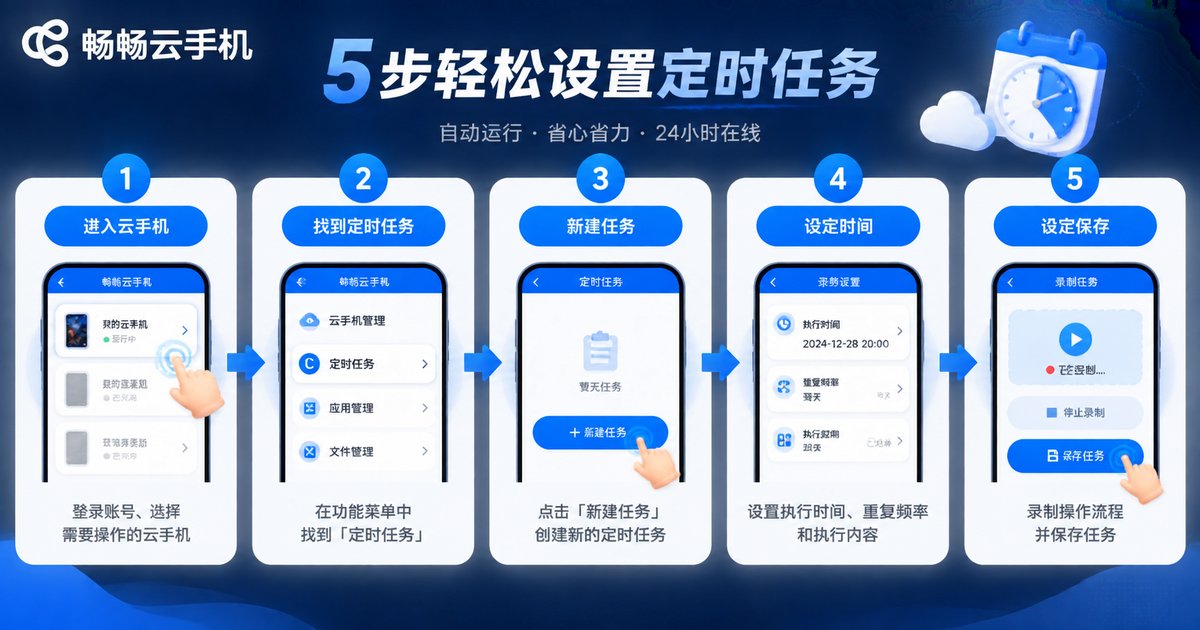
3. Step-by-Step Guide to Setting Up Scheduled Tasks
Step 1: Enter your cloud phone
Open the CCloudPhone app and go to your cloud phone instance desktop.
Step 2: Find Scheduled Tasks
Tap the "Scheduled Tasks" icon in the system function menu to open the task management page.
Step 3: Create a new task
Tap "New Task" and choose the app you want to auto-open from the app list.
Step 4: Set the execution time
Set a specific time and choose the repeat cycle (daily, weekdays, or custom)—for example, 9:00 AM every day.
Step 5: Record operations and save
Tap "Start Recording," perform the clicks and swipes you want automated on the cloud phone screen, then save and enable the task.
Tip: Keep your recording actions slow and precise to avoid extra swipes—this greatly improves the success rate.
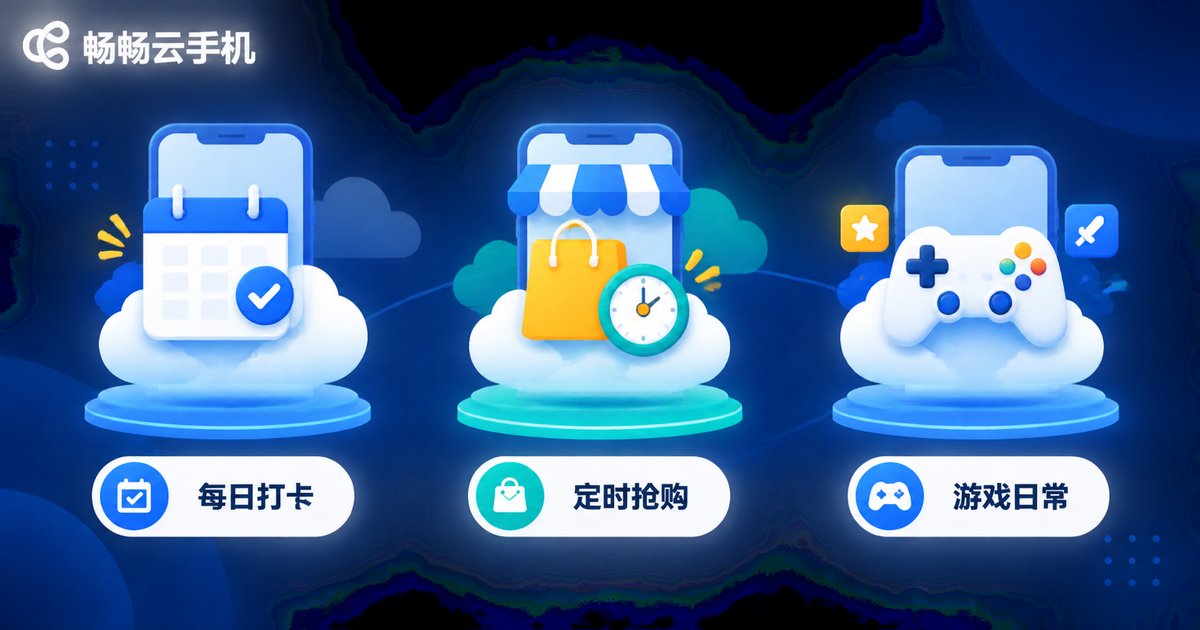
4. Three High-Frequency Use Cases
1. Office workers' daily check-in
Your cloud phone opens the attendance app and signs you in at the set time every day—no more forgetting to clock in.
2. Flash sale purchases
When hot products go on sale, scheduled tasks get you into the page early and place the order automatically at the exact moment. No human hand can beat automation.
3. Game players' dailies
Claim stamina, sign in, and finish daily dungeons automatically so you never miss a day of game resources.
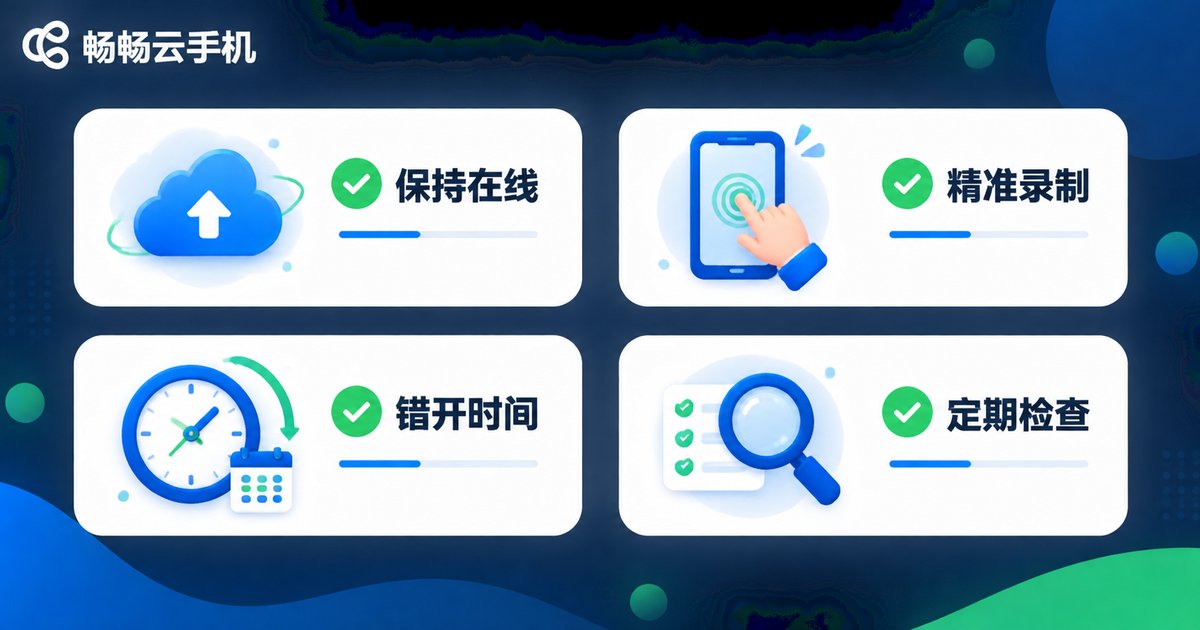
5. 4 Tips for Keeping Tasks Running Reliably
Keep your cloud phone online: Make sure your cloud phone instance is running and the network is stable.
Record precisely: Minimize extra actions when recording to avoid mis-clicks caused by UI changes.
Stagger task times: Don't schedule multiple tasks at the exact same minute to avoid interference.
Check regularly: Review the task execution log once a week and fix any issues promptly.
6. FAQ
Q: Can scheduled tasks fail?
A: As long as your cloud phone stays online and the network is stable, the success rate is very high. Even if a task fails, the system logs the reason so you can troubleshoot.
Q: Can I set up multiple scheduled tasks at the same time?
A: Yes. CCloudPhone supports multiple scheduled tasks, but we recommend staggering the times to avoid lag from simultaneous execution.
Q: Will tasks still run if my local phone is turned off?
A: Yes. Tasks run in the cloud and are independent of your local device, so turning off your phone won't affect them.
Q: Can using scheduled tasks get my account banned?
A: As long as your operation frequency is reasonable and complies with platform rules, there should be no problem. We suggest avoiding high-risk scenarios such as financial transactions.