
How to Log Out of a Cloud Phone? Key Tips for Switching Devices
Three Things to Know Before Logging Out
When switching to a new phone or temporarily borrowing someone else's device to use a cloud phone, many people's first instinct is to log out — yet they worry about losing data. Before doing anything, understanding three concepts will put your mind at ease.
First, cloud phone data lives in the cloud. The games, apps, and account data inside your cloud phone are stored on the provider's cloud servers, not on the physical phone in your hand. Logging out or switching devices does not delete any cloud data.
Second, logging out is not the same as deleting your account. Logging out only disconnects the current device from your account; both the account and the cloud phone remain intact. Deleting an account permanently removes it, and the cloud phone and its data are wiped — think it through before taking that step.
Third, uninstalling the app does not lose data either. Removing the cloud phone app only deletes the local program and cache. Cloud data stays fully intact, and you can pick up right where you left off after reinstalling and logging in.

How to Log Out of a Cloud Phone: Step by Step
Using ChangChang Cloud Phone as an example, logging out is very simple and takes only a few minutes:
Step 1: Open the cloud phone app and tap 'Me' or a similar tab on the bottom navigation bar to enter the personal center.
Step 2: Find and tap 'Settings' in the personal center.
Step 3: Scroll down the settings page, find the 'Log Out' button and tap it.
Step 4: Confirm the pop-up prompt. The current device is now signed out, while the cloud phone itself keeps running normally in the cloud with all data intact.
Menu names may vary slightly between app versions, but the path is generally Personal Center → Settings → Log Out. If you cannot find it, search for the keyword 'log out' on the settings page.

Precautions When Signing In on a New Device
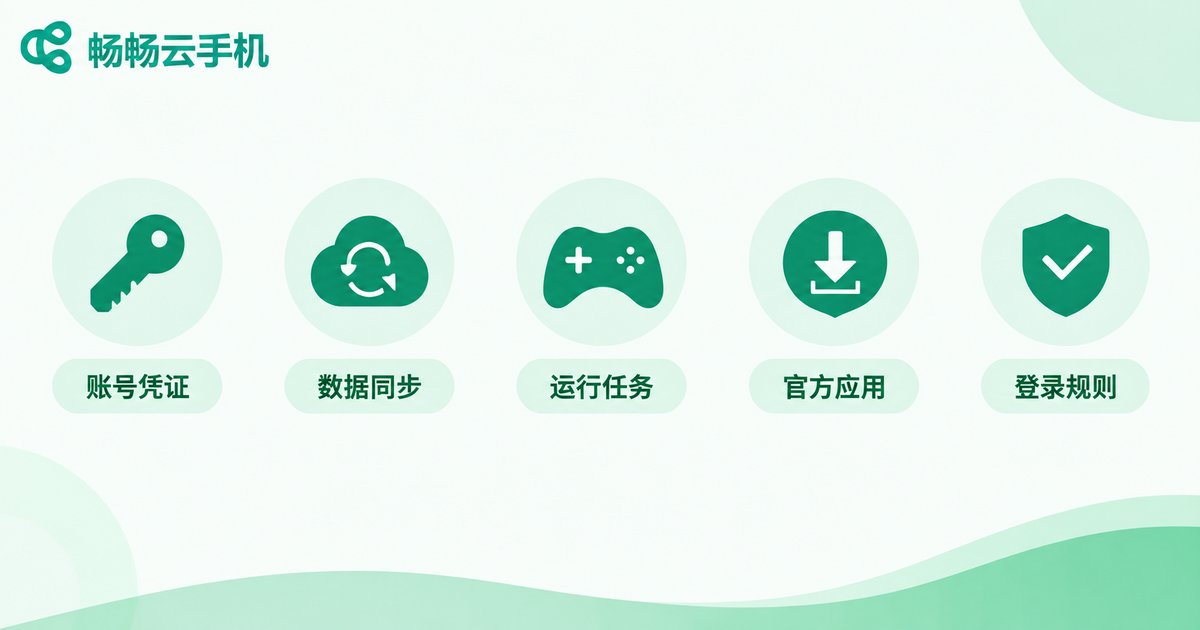
Logging out is only the first step. To make switching devices smooth, be sure to prepare the following in advance:
1. Memorize your account details. Make sure you remember your account and password, or that a phone number or third-party login is linked. If the password has not been used for a long time, change it to something memorable on the old device first, and check that the linked phone number still works.
2. Confirm cloud data is synced. If you have just installed a new game or uploaded files inside the cloud phone, wait a moment before logging out so the data finishes syncing, avoiding rare sync issues.
3. Treat running tasks properly. If you are idling a game or running scheduled tasks on the cloud phone, switching devices does not interrupt the cloud side, but it is wise to check the task status after signing in on the new device.
4. Download the official app on the new device. Always get the cloud phone app from the official website or an official app store. Never use installation packages from unknown sources, so your credentials stay safe.
5. Learn the device login rules. Some cloud phone services limit how many devices can stay online with one account at the same time. If signing in on the new device kicks the old one offline, that is normal — just log back in when needed.
Will Data Be Lost After Logging Out?
This is the question everyone cares about most. One table makes the three common operations clear:
| Operation | Cloud data | Cloud phone instance | Can you resume? |
|---|---|---|---|
| Log out | Fully kept | Keeps running | Yes, just log back in |
| Uninstall app | Fully kept | Keeps running | Yes, reinstall and log in |
| Delete account | Wiped | Released | No |
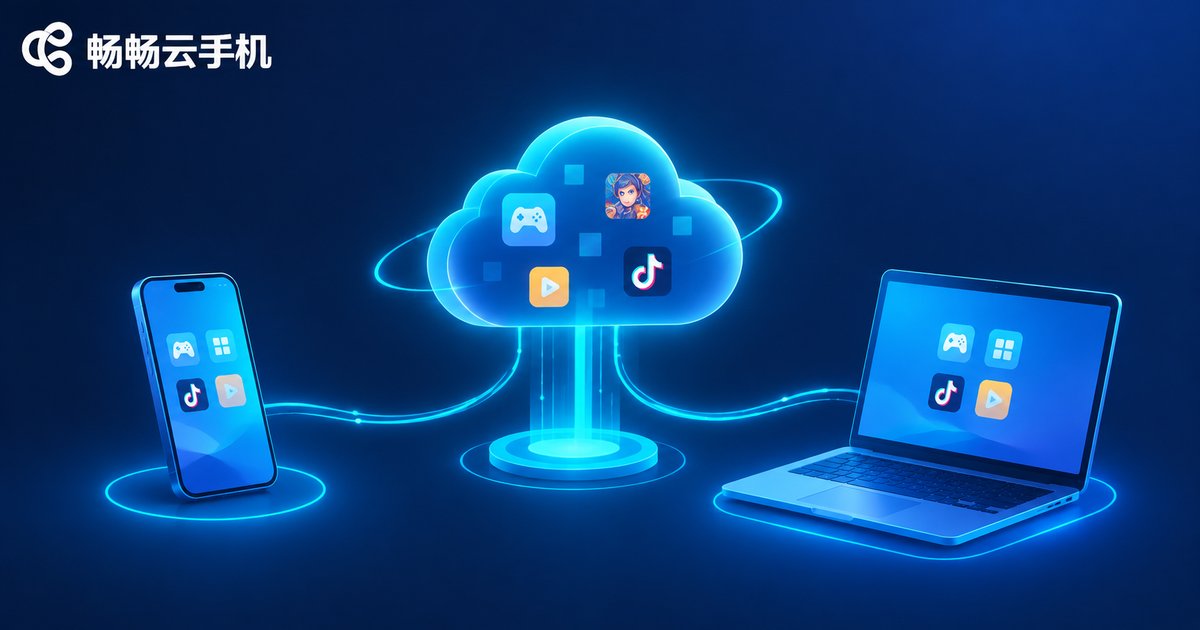
As you can see, as long as you do not delete your account, your cloud phone and data are always there. This is a major advantage of cloud phones over physical devices: the device is only an entrance, while data always follows the account. With services like ChangChang Cloud Phone (ccloudphone), switching between a phone and a computer feels seamless.
FAQ
Q: After logging out, are my game data and progress still there?
Yes. Cloud phone data is stored on cloud servers. Logging out only disconnects the current device; game progress and app data are not lost, and everything is exactly as you left it when you log back in.
Q: When I switch to a new phone, do I need to download the games again?
No. Games and apps are installed in the cloud. You only need to install the cloud phone app on the new phone and log in — previously installed games are ready to play immediately.
Q: What if I forget my password?
Tap 'Forgot Password' on the login page and reset it via the linked phone number. That is why keeping your phone number binding valid matters so much.
Q: Can one cloud phone be logged in on two devices at the same time?
It is generally not recommended. Multiple simultaneous logins may cause forced sign-outs or operation conflicts. Log in only on the device you are currently using, and log out when you are done for better security.
Q: Should I shut down the cloud phone before logging out?
No need. Logging out does not affect the cloud phone's running state in the cloud; an idling game keeps running. If you really want to pause the cloud phone, shut it down separately in device management inside the app.


