
How to Use a Cloud Phone Console: Resource Management and Instance Allocation Guide
What Is a Cloud Phone Console? Understand Its Role First
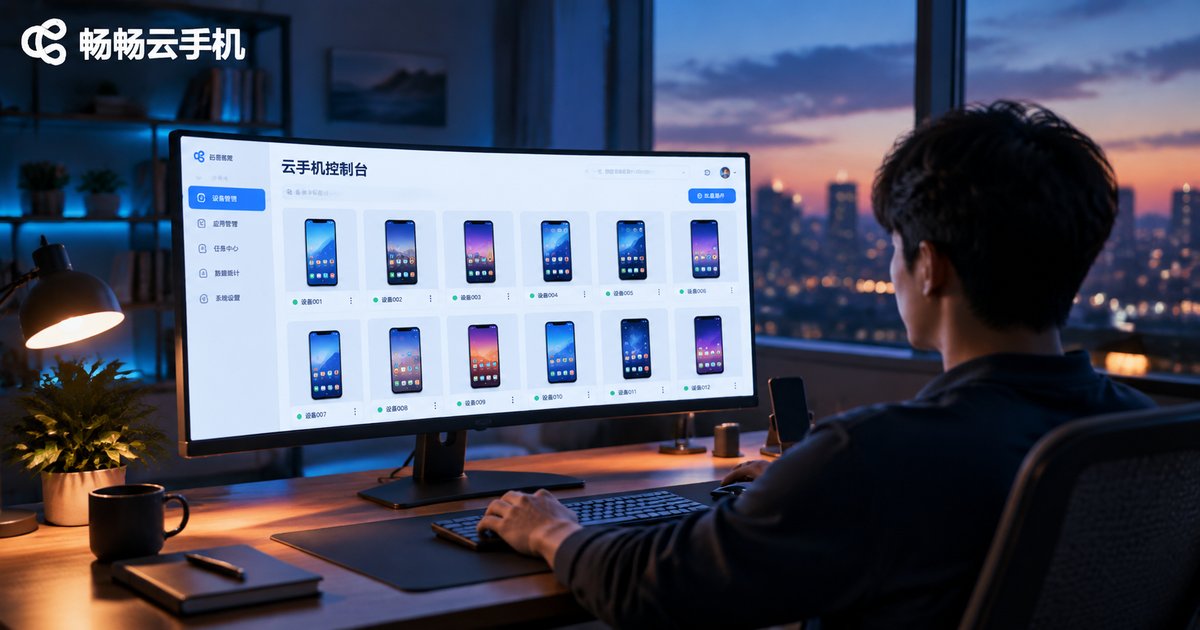
In simple terms, the cloud phone console is the “command center” for managing all of your cloud devices. Everything you do with cloud phones—creating devices, powering them on or off, running batch operations, checking usage—starts from the console. Think of it as a combination of a computer's “desktop plus task manager”: the desktop handles daily operations, while the task manager tracks resources and status.
Many beginners feel overwhelmed the first time they open a console, but you only need to grasp two main threads: resource management, which answers “what devices do I have and what state are they in,” and instance allocation, which answers “how do I create, assign, and use devices.” Once these two threads are clear, the console becomes far less intimidating.
A Quick Tour of the Console's Core Sections
Using the console of ChangChang Cloud Phone (ccloudphone) as an example, the most frequently used sections are:
| Section | What It Does | How Often You Will Use It |
|---|---|---|
| Device list | View the online status and configuration of all cloud phone instances | Almost daily |
| Group management | Categorize devices by purpose for easy batch operations | Frequently during setup |
| Create device | Provision new cloud phone instances | As needed |
| Usage and duration | Check resource consumption and remaining time to plan capacity | Periodic reviews |
We recommend spending five minutes clicking through each section on your first visit. Familiarizing yourself with where everything lives will make every later step smoother.

Resource Management: From Overview to Grouping
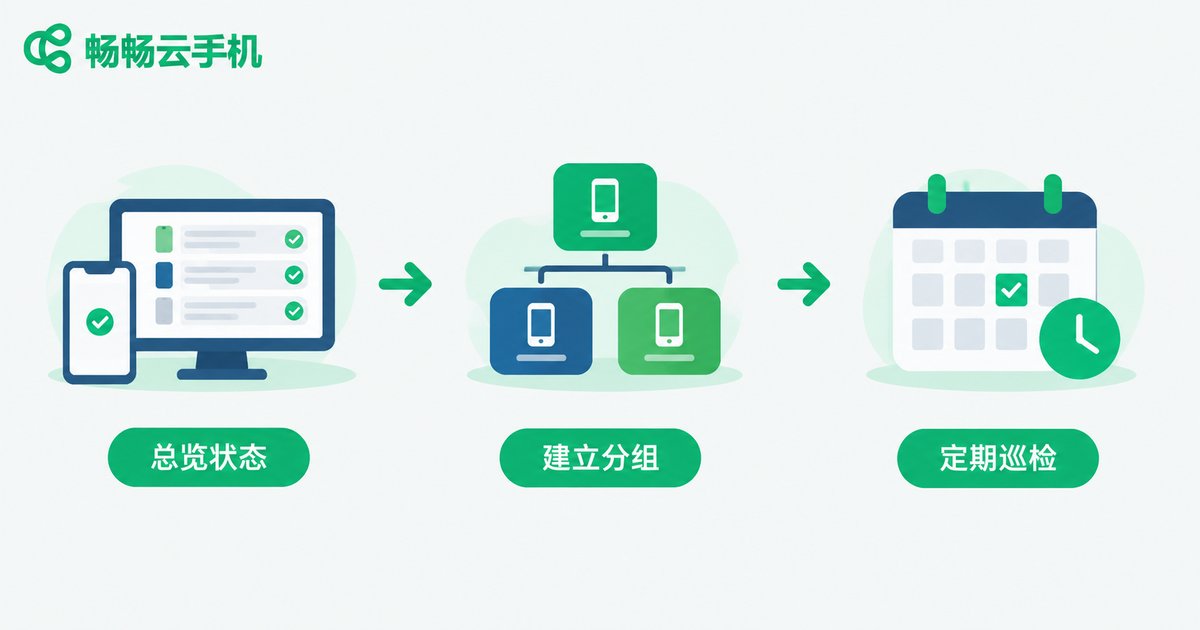
The goal of resource management is to always know “how many devices I have and what they are doing.” We recommend a simple three-step routine:
Step 1: Review device status. Start with the device list and pay attention to online status and remaining duration. Deal with offline or soon-to-expire devices promptly so they never interrupt your work.
Step 2: Create groups. Categorize devices by purpose—for example “game multi-boxing,” “testing,” or “daily backup.” Once groups are in place, batch operations can be executed per group, doubling your efficiency.
Step 3: Inspect regularly. Set a fixed time each week to review usage, and shut down or reallocate devices you no longer need to keep resources from sitting idle.
Instance Allocation: Single and Batch Operations
Instance allocation is the core console operation—in short, “create cloud phone instances and place them where they belong.” The workflow looks like this:
Single creation: Click to create a new device in the console, choose the configuration and quantity, and confirm. The system provisions it automatically, and the new device usually appears in the list within tens of seconds.
Batch creation: Need many devices at once? Enter the quantity during creation and provision them in one go instead of repeating the process.
Assign to groups: After devices are created, select the target instances in the device list and move them into the groups you prepared earlier, so even a large fleet stays organized at a glance.
Batch control: With multiple devices selected, you can power on, power off, or restart them in bulk—ideal when you need to manage a large number of devices in a unified way.

Practical Tips for Grouping and Batch Operations
Once you have the basics down, these tips will noticeably boost your efficiency:
Standardize naming: Include a number and purpose in each device name, such as “Game-01” or “Game-02,” so you never have to open devices one by one to identify them.
Group by lifecycle: Split devices into “in use,” “standby,” and “to clean up” groups, and clear the cleanup group regularly to keep your resources healthy.
Build groups before devices: Starting from scratch? Set up your group structure first, then batch-create devices straight into their groups in one pass.
Common Scenarios Compared
| Scenario | Recommended Approach | Key Notes |
|---|---|---|
| Just registered, first time | Create 1-2 devices to learn the flow | Explore the console before bulk provisioning |
| Game multi-boxing | Batch-create, then group them together | Operate per group instead of one by one |
| Many devices, long-term use | Use groups plus regular usage reviews | Retire idle devices promptly |
| Temporary backup devices | Create on demand and release after use | Watch remaining duration to avoid waste |
Why Choose ChangChang Cloud Phone
How good the console feels directly shapes your overall cloud phone experience. The console of ChangChang Cloud Phone (ccloudphone) is clean and clearly organized, so even beginners can get productive fast: device status is visible at a glance, group management and batch operations feel smooth, and the instance creation flow is straightforward.
If you are looking for a cloud phone that is simple to operate and efficient to manage, visit the official ChangChang Cloud Phone website (ccloudphone) to sign up and try it. Follow the steps in this tutorial to build your own device management system, and you will be up to speed in no time.

FAQ
Q: The console will not load or is slow. What should I do?
Check that your local network is stable, then refresh the page or try a different browser. If the problem persists, contact ChangChang Cloud Phone customer support for help.
Q: How soon is a newly created instance ready?
New devices usually appear in the device list within tens of seconds after creation, and you can start using them right away. If nothing shows up after a while, refresh the console page to confirm.
Q: Is there a limit on how many devices I can create in bulk?
Available resources vary by account; refer to the options shown on the creation page in the console. We suggest starting with a small batch and scaling up once everything is stable.
Q: Does deleting a group affect my devices?
Deleting a group generally only removes the categorization—your devices are not lost and can be moved into other groups. To be safe, check the devices inside a group before deleting it.
Q: What happens if I leave unused devices running?
Idle devices keep occupying your resource quota. Inspect regularly and shut down or release devices you no longer need, reserving resources for the ones actually in use.


