

Cloud Phone Compatibility Testing: System Versions, Resolution, and App Adaptation
Why Compatibility Testing Deserves Its Own Round
Many teams get their app running smoothly on a local real device and assume the job is done. Then they install it on a cloud phone and everything falls apart: instant crashes, squashed layouts, buttons that cannot be tapped, cameras that refuse to open. This is not because cloud phones are unstable — it is because cloud phones, like real devices, come in a wide range of system versions, screen parameters, and hardware abstraction layers. Your app simply has never been verified against those combinations.
The core idea behind compatibility testing is simple: break the environments your users might have into a few controllable variables, then run the app against every combination. The value of a cloud phone is that those variables can be switched in minutes, with no need to buy a pile of physical devices.
Dimension One: System Version Decides a Lot
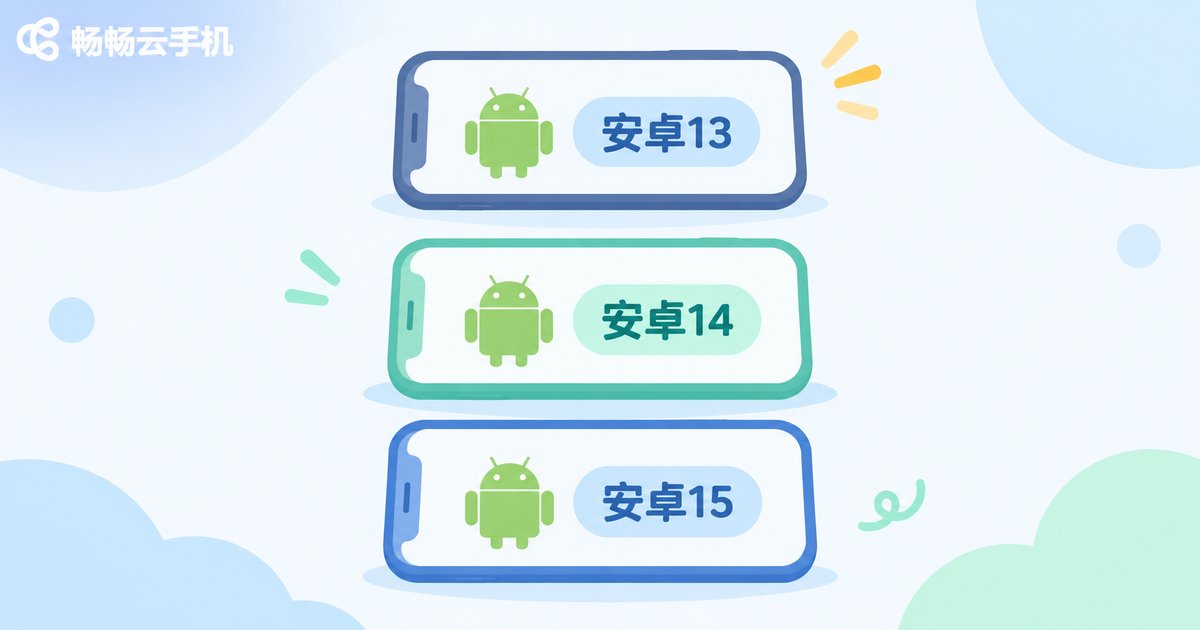
Android version is the number one source of compatibility problems. The same app may work perfectly on Android 9 but fail to get data on Android 13 because the permission model changed. Conversely, older apps may simply show a blank screen on newer systems because they were never adapted.
Three versions mark the major dividing lines worth watching:
| System version | Typical change | What to test |
|---|---|---|
| Around Android 9 | Large installed base of legacy apps, some newer SDKs no longer supported | Confirm existing users can still use the app, check fallback logic for APIs |
| Around Android 11 | Scoped storage, changed permission dialog behavior | File read/write, gallery access, uploads and downloads |
| Android 13 and above | Notification permission and finer-grained media permissions | First-launch onboarding, push notifications, fallback after a permission denial |
A practical rule: do not only test the one or two versions you use daily. Cover at least the minimum supported version, the current mainstream version, and the latest version — that is enough to surface most version-related issues.
Dimension Two: Resolution and DPI Look the Same but Behave Differently
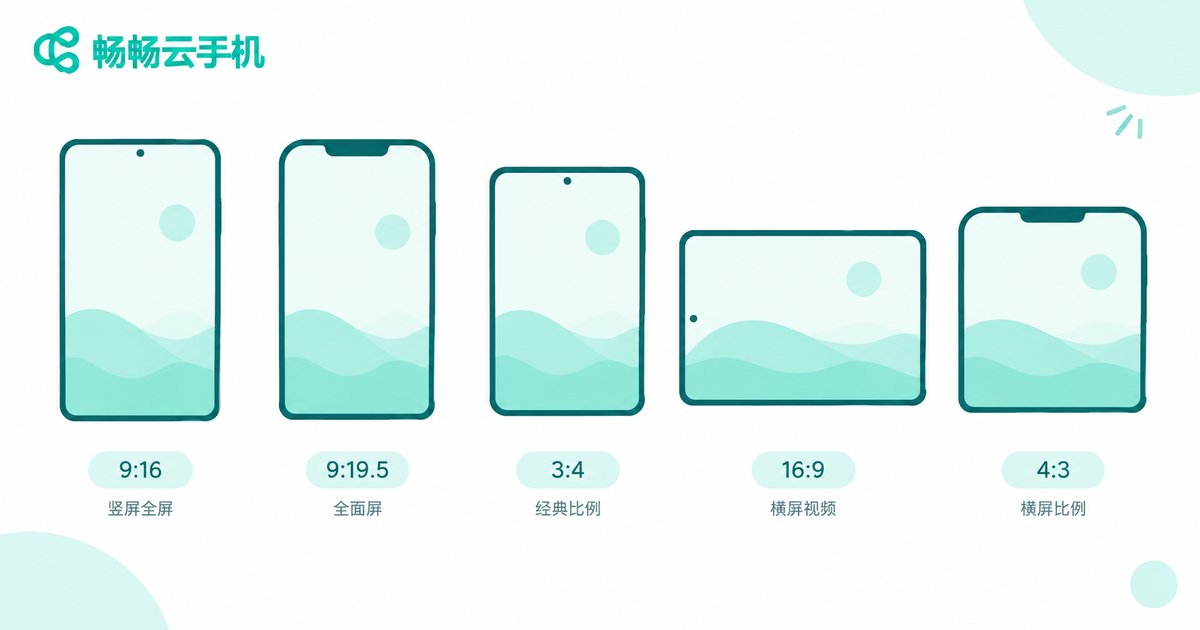
Resolution issues are the most underestimated, because they are not as obvious as a crash. But the interface is exactly what users see. Common traps include layouts stretched on tall screens, bottom buttons hidden behind the navigation bar, cropped images, and text overflowing on small displays.
Beyond pixel dimensions, DPI (screen density) matters just as much. Two devices both reported as 1080 wide will convert 1dp into different actual pixels when their densities differ, and both image assets and font sizes shift accordingly.
| Resolution type | Typical scenario | What to verify |
|---|---|---|
| 720 × 1280 | Low-end and older devices | Whether the layout degrades correctly, whether elements overlap |
| 1080 × 1920 | Mainstream baseline | Use as the control baseline, confirm key screens are normal |
| 1080 × 2400 | Tall, full-screen displays | Safe-area adaptation, whether bottom bars are covered |
| 1440 × 3200 | High-density displays | HD asset loading, memory usage, rendering pressure |
| 1600 × 2560 | Tablets and large screens | Landscape layouts and split-column rendering |
When testing resolutions, run your core flows on two or three tiers first, then add key screens for tall and high-density displays. That is the most efficient order.
Dimension Three: App Adaptation and Four Common Symptoms
Once system version and resolution are under control, the remaining issues mostly live inside the app itself. These four symptoms are the most representative, and you can use them as a checklist:
- Crashes at launch: usually apps depending on specific system APIs or architectures that break on a different version.
- Blank screens or long black screens: often failed network requests, WebView engine differences, or asset loading errors.
- Misaligned layouts: hard-coded pixel values instead of adaptive units, exposed immediately on non-standard resolutions.
- Missing functionality: camera, location, and notifications denied under the new permission model, with no fallback message.
There is also a hidden category: performance. The app does not crash and does not go blank, but it stutters and drops frames in certain environments. These problems are often tied directly to resolution and rendering pressure, and belong in the compatibility test scope as well.
A Test Workflow You Can Copy Directly
Whether you are testing your own app or someone else's, this workflow is reusable as-is:
- Define the device matrix: pick 3 system versions × 3 resolution tiers for 9 baseline combinations. Do not try to cover everything at once.
- Prepare the environment: create cloud phone instances with the matching configuration, and keep each instance in a clean, consistent initial state.
- Install and smoke test: after installation, run launch, login, and core screens to confirm there are no blocking issues.
- Verify feature by feature: walk through the four symptom categories above and capture screenshots as you go.
- Log the issues: every issue needs system version + resolution + reproduction steps, otherwise developers cannot track it down.
- Regression test: after fixes, rerun the same matrix to avoid fixing one thing and breaking another.
The key to this workflow is a fixed matrix and a clean environment. Get those two right and your reproduction rate for compatibility issues goes up noticeably.
Building Your Test Environment in the Cloud with CCloudPhone
The traditional approach is to buy a stack of physical devices: expensive, hard to manage, and the devices get dirty over time until problems can no longer be reproduced. Cloud phones solve exactly these two pain points:
- Switchable configurations: on CCloudPhone (ccloudphone) you can select cloud phone instances with different system versions and screen parameters according to your testing needs. Refer to the official website for the configurations actually available.
- Clean, resettable environments: every instance is isolated, so you can reset it after a round of testing without leftover data affecting results.
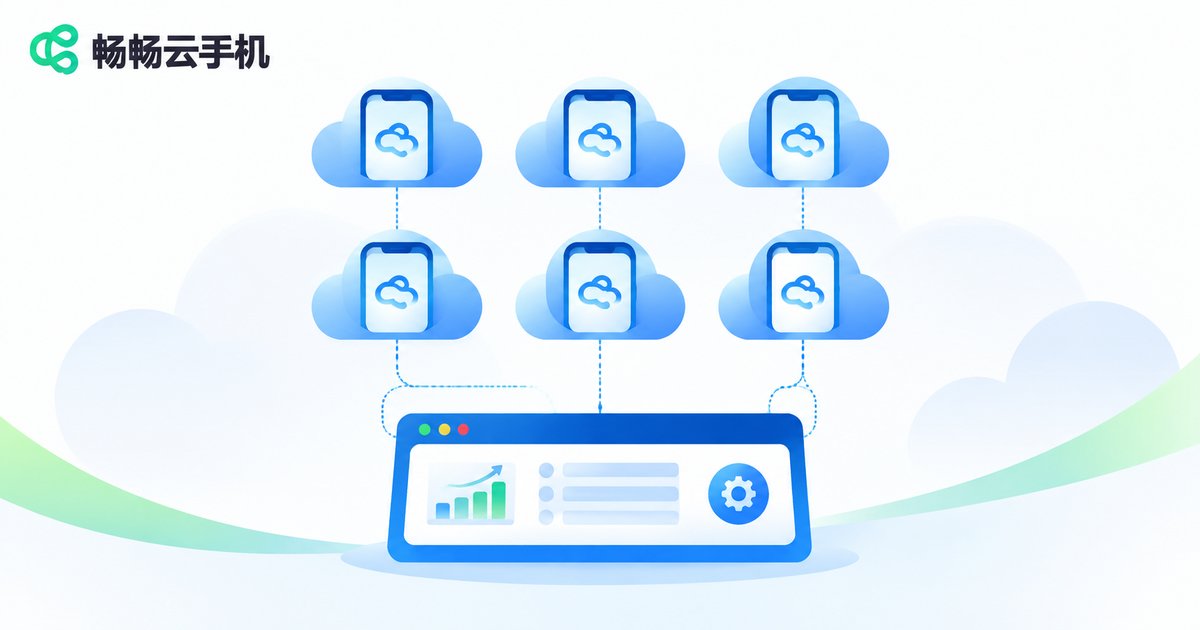
- Parallel instances: open multiple cloud phone instances at once and run different combinations simultaneously — far more efficient than swapping between physical devices one by one.
- Operate from the web: no extra hardware needed. You can install, operate, and capture screenshots right from your computer.
A recommended approach: map the 9-combination baseline matrix directly onto 9 cloud phone instances, run them all at once, collect every issue, and fix them in a single batch. One round like this gives you far better coverage than scattered ad-hoc testing.
Frequently Asked Questions
Q: Are compatibility issues on a cloud phone the same as on a real device?
Largely yes. A cloud phone runs a real Android system environment, so system version, resolution, and permission model — the key variables — are all present, and symptoms are very close to those on physical devices. A few scenarios that depend on specific hardware sensors need separate handling.
Q: Do I have to test every system version?
No. Covering the minimum supported version, the current mainstream version, and the latest version is enough to find the vast majority of issues. Add long-tail versions later based on your actual user distribution.
Q: How many resolution tiers are enough?
Usually three to five. Include one low-end small screen, one mainstream baseline, and one tall full-screen device, adding a high-density display and a tablet if needed. What matters is that each tier has a clear verification goal rather than just piling on quantity.
Q: My app crashes on a cloud phone — is that the cloud phone's fault?
Do not jump to conclusions. Install the same app on a cloud phone instance running a different system version first. If it works there, you have a version adaptation problem. If it crashes on every version, look into the app's own compatibility.
Q: What should a test record contain?
At minimum: system version, resolution (including DPI), and reproduction steps. Attach a screenshot if you can — with that, a developer can locate the issue directly instead of going back and forth.


