
How to Install a Cloud Phone Client? Version and System Mismatches Cause Real Headaches
Why Is Installing a Client So Much Trouble?
Nine out of ten people who try a cloud phone for the first time get stuck at the same step: installing the client. Someone downloads an Android package onto an iPhone. Someone else double-clicks a mobile app expecting it to run on a desktop. Others install it on an older operating system and watch it crash on launch. After an hour of fiddling, the real problem usually isn't the cloud phone itself — it's the wrong version, or a mismatch between the device system and the client.
This guide sorts it out once and for all: which package goes with which device, what to check before you download, and how to troubleshoot when the client installs but won't connect.
Three Things to Confirm Before You Install
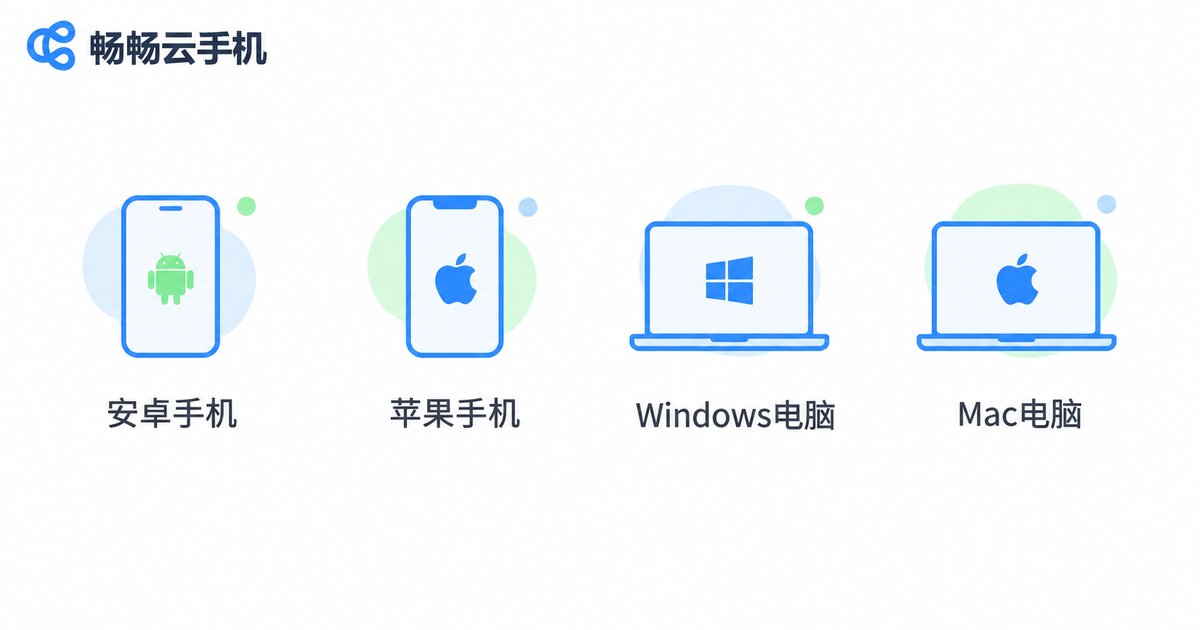
1. What system is your device running? Android phones, iPhones, Windows PCs and Macs each need a completely different installer. They are not interchangeable. An Android APK will not open on an iPhone, and vice versa.
2. You are installing the controller. A cloud phone client is essentially a remote control. It runs on your device and connects to a real phone running in the cloud. You only install the controller — the cloud device itself is handled for you.
3. Is your system version new enough? This is the most commonly overlooked point. An older Android or iOS version may accept the install but fail to run it — showing up as crashes, a blank screen, or a login page that spins forever.
Which Client Goes With Which Device?
Use this table as a quick reference:
| Your device | What to install | Most common pitfall |
|---|---|---|
| Android phone or tablet | Android app (APK or app store) | Downloading an outdated build from a third-party site, then getting a parse error |
| iPhone or iPad | iOS app (App Store) | Trying to install an Android APK on an iPhone |
| Windows PC | Windows client, or just use a browser | Installing a mobile app on a desktop, or a 64-bit package on a 32-bit system |
| Mac | Mac client, or just use a browser | Not checking whether the chip is Intel or Apple silicon |
If any row in that table makes you hesitate, hold off on downloading — opening the web version in a browser is usually the least error-prone option.
Installing on Android
1. Open Settings, find Security or Privacy, and allow installation from unknown sources (not needed if you download from an app store).
2. Download the correct build and confirm it is the Android version.
3. Tap install. If you see a parse error, the package is usually incomplete or too old — delete it and download again.
4. Open the app and sign in.
Installing on iPhone
iPhone is simpler: just search and download from the App Store, no extra settings required. The thing to watch is your iOS version. If your iPhone is still on a very old release, the download button may be greyed out, or the app may refuse to open. Check Settings – General – Software Update first.
Installing on Windows and Mac
Windows and Mac users should confirm two things first: system architecture (most are 64-bit now) and chip type (Macs come in Intel and Apple silicon variants). Pick the wrong build and the installer may fail outright, or the app may not launch afterwards.
If you would rather not install anything on your computer at all, there is a lighter option — see the next section.
The Easiest Option: Skip the Client and Use the Web Version
Many people don't realise a cloud phone does not always require a client. CCloudPhone (畅畅云手机) offers a web version: open the official site in your browser, sign in, and you are operating an Android device in the cloud. No download, no installation, and no worrying about whether your system version matches.
This suits a few groups especially well:
· People on a work computer who can't freely install software;
· People on older devices where app installs tend to go wrong;
· People who only need it occasionally and don't want a dedicated client for one tool;
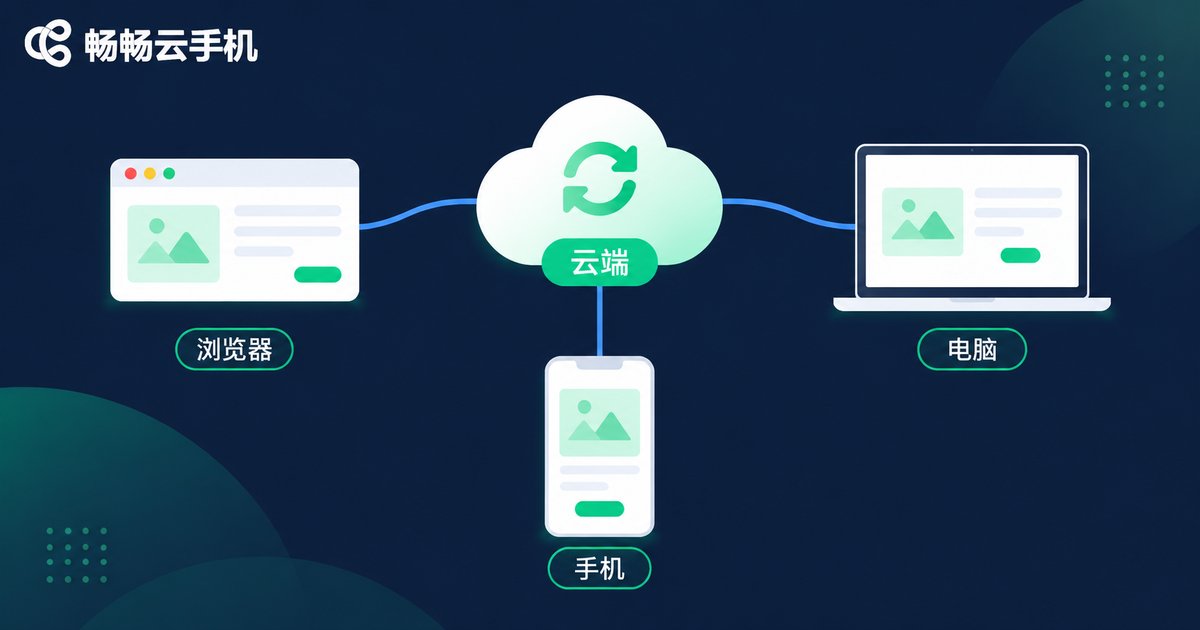
· People who switch between phone, tablet and computer and want to see the same device each time.
CCloudPhone runs a full Android system in the cloud, and the device stays online 24 hours a day — a local network drop or a powered-off computer does not stop it. Apps and data live in the cloud, so signing in from another device brings you back to the same phone. Besides the web version, Android and iOS apps are also available; if you prefer a client, follow the steps above.
Installed but Won't Connect? Check in This Order
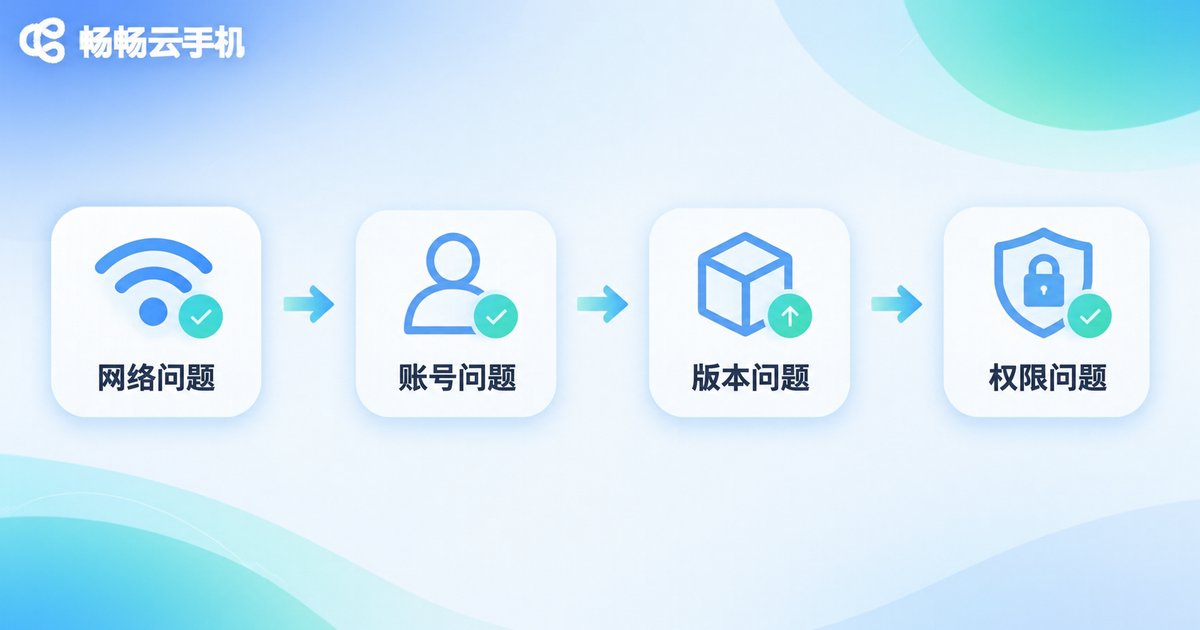
1. Check the network first. A cloud phone is a remote connection, so an unstable network will leave you stuck on “connecting”. Switch to a stable Wi-Fi or mobile network and try again.
2. Check the account. Make sure you are signed into the same account — this gets confusing quickly on devices with multiple logins.
3. Check the version. An outdated client may not connect to a newer cloud service. Update to the latest build from the official site or app store.
4. Check system permissions. On Android, disabling an app's network or storage permissions can look exactly like “won't connect” or “keeps crashing”.
If none of that helps, the fastest test is to try the web version once. If the web version connects normally, the problem lies in the client or your local environment, not in your account.
FAQ
Q: Can I install an Android package on an iPhone?
No. Android uses APK files and iPhone uses iOS apps; they are not interchangeable. iPhone users should download the iOS version from the App Store.
Q: What should I do about a parse error during installation?
It usually means the package downloaded incompletely or does not match your system. Delete it and download again. If it still fails, your system version may be too old — the web version is a good fallback.
Q: Can I install a mobile app on a computer?
Technically yes, with an emulator, but that adds another layer that tends to cause more problems. Using the CCloudPhone web version in a browser is simpler and skips that layer entirely.
Q: Does the cloud phone client take up much memory?
The client is only a connection tool and uses very little storage or memory. The apps actually run on the cloud device, so a modest local phone is not a limitation.
Q: If I change phones, is my data still there?
Yes. Apps and data are stored in the cloud, so signing in with the same account on any device brings you back to the same phone.
Q: How many devices can sign in to one account?
Rules vary — check the official CCloudPhone website for the latest account and device details.


