
Complete Guide to Mobile Super Terminal Commands: Common Commands and Usage Tutorial
What Is the Mobile Super Terminal?
The mobile super terminal is a command-line interface on your phone. Just like a terminal window on a computer, it lets you talk to the system directly by typing text commands. Tapping icons is convenient for everyday tasks, but many advanced functions—batch file processing, inspecting low-level system status, or precisely controlling app behavior—can only be achieved through the command line. Mastering terminal commands means holding the advanced control panel of your phone.
Getting Started: Three Ways to Open a Terminal
There are three common ways to use terminal commands on an Android phone:
1. Terminal emulator app: Install a terminal app on your phone and start typing commands right away;
2. ADB connection: Connect your phone to a computer via USB or wirelessly, then run adb shell to enter the phone's command line;
3. Root access: On some unlocked devices, the su command grants the highest privileges for system-level operations.
Keep in mind that commands involving system modifications usually require root privileges, and mistakes can cause system issues. Beginners should practice in a safe environment first.
File and Directory Management Commands
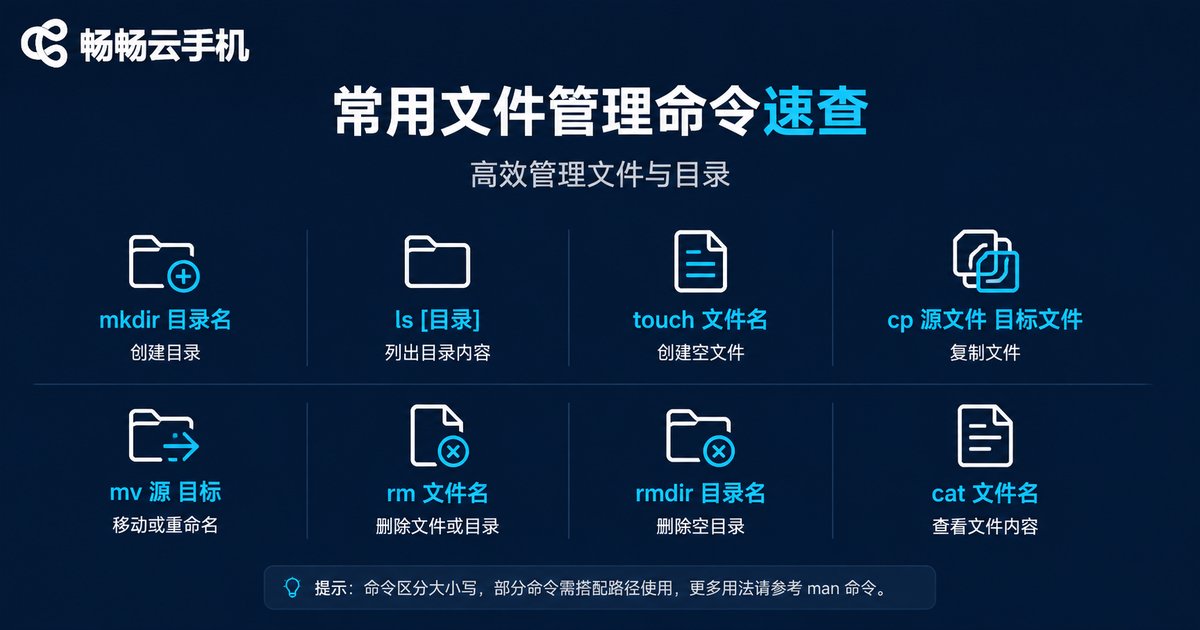
File operations are the foundation of terminal use. The table below lists the most common commands:
| Command | Function | Example |
|---|---|---|
| ls | List directory contents | ls -l /sdcard |
| cd | Change directory | cd /sdcard/Download |
| pwd | Print current path | pwd |
| mkdir | Create a new directory | mkdir myfolder |
| cp | Copy files or directories | cp a.txt b.txt |
| mv | Move or rename | mv a.txt /sdcard/ |
| rm | Delete files or directories | rm -r myfolder |
| cat | View file contents | cat notes.txt |
Practical examples:
ls -l /sdcard          # List the storage root
cd /sdcard/Download    # Enter the Download directory
mkdir myfolder         # Create a new folder
cp notes.txt backup/    # Copy a file to the backup folder
rm -r myfolder # Delete an entire folder (use with caution)Note: Files deleted with rm do not go to a recycle bin. Always double-check the path before executing.
System Information Commands
Want to know your phone's hardware status and system version? These commands tell you at a glance:
uname -a                            # Show kernel version
getprop ro.build.version.release    # Show Android version
df -h                               # Show storage usage
free -m                             # Show memory usage
cat /proc/cpuinfo                   # Show CPU information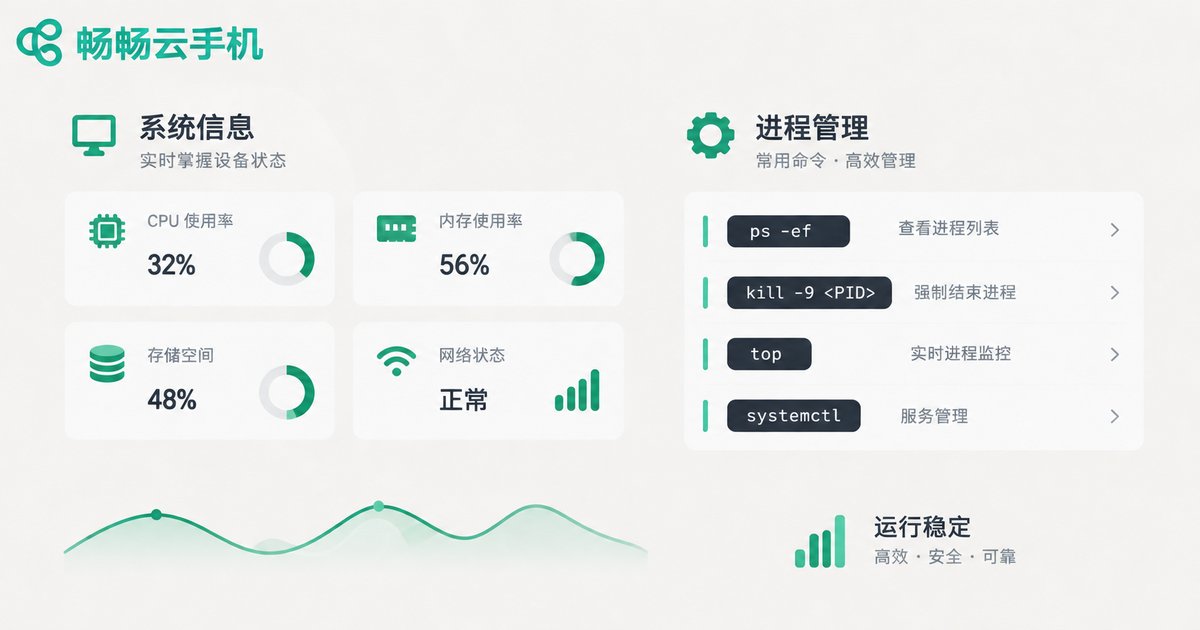
Process and Memory Management Commands
When your phone lags, these commands help you quickly find the culprit:
top                              # Real-time resource usage ranking
ps | grep com.example.app        # Find a specific app's process
kill 1234                        # Terminate a process by ID
am force-stop com.example.app    # Force stop an app
The top command works like a task manager, refreshing in real time to show the processes consuming the most CPU and memory—perfect for diagnosing lag.
Network Diagnostic Commands
When your connection is unstable, terminal commands help you locate the problem quickly:
ping www.example.com    # Test connectivity and latency
netstat -tuln            # Show active connections and ports
ifconfig wlan0           # Show Wi-Fi interface details and IP address
Advanced Commands: App Management and Logs
These commands lean toward development, but everyday users can benefit too:
pm list packages                          # List all installed apps
pm uninstall -k --user 0 com.example.app  # Uninstall an app but keep data
logcat -d > /sdcard/log.txt               # Export system logs
dumpsys battery                          # Check battery health and drain
logcat logs are especially useful when reporting app issues—developers often need them to locate crash causes.
Why Practice Terminal Commands on a Cloud Phone?
Terminal commands are powerful, but the risk of mistakes is just as real. A mistyped rm command can delete important files, and incorrect system modifications may even prevent your phone from booting normally.
For anyone who wants to learn terminal commands systematically, we recommend practicing with ccloudphone. A cloud phone runs on remote servers, completely isolated from your physical device—even if you type the wrong command or mess up the environment, a single reset restores everything, with zero impact on the phone you use daily. You can freely experiment with command combinations and practice repeatedly until you are proficient. In addition, ccloudphone supports multiple cloud devices online at the same time, making it easy to compare how different commands behave in different environments—an ideal sandbox for learning the command line.

FAQ
Q: Are mobile terminal commands the same as Linux commands on a PC?
Most basic commands share the same syntax, since the Android kernel is based on Linux. However, the directory structure differs, and some commands require root privileges.
Q: Can terminal commands damage my phone?
Read-only commands such as ls, df, and cat are completely harmless. Commands that delete or modify system files carry risk, so practice in an isolated environment like a cloud phone first.
Q: Which commands work without root?
View commands such as ls, cd, pwd, cat, ping, df, and free generally work without root; modifying system partitions or killing other apps' processes usually requires root.
Q: Can I run terminal commands on a cloud phone?
Yes. A cloud phone is a full Android system running in the cloud, supporting terminal emulators and ADB operations. Mistakes never affect your real device, making it perfect for practice.
Q: What are the practical benefits of learning terminal commands?
Batch file management, diagnosing lag and network issues, automation, and app debugging all rely on the command line—an essential skill for advanced users.


