
What to Do When Cloud Phone Lags or Disconnects? 5 Key Parameter Adjustment Tips to Improve Fluency
When using a cloud phone, fluency is the core factor determining the user experience. If you frequently encounter screen lag, operation delays, or sudden disconnections, it not only affects gaming and work efficiency but also causes great frustration. In fact, most lag issues can be resolved by adjusting a few key parameters. This article will introduce 5 key parameter adjustment tips to improve cloud phone fluency.
1. Optimize Network Latency Parameters
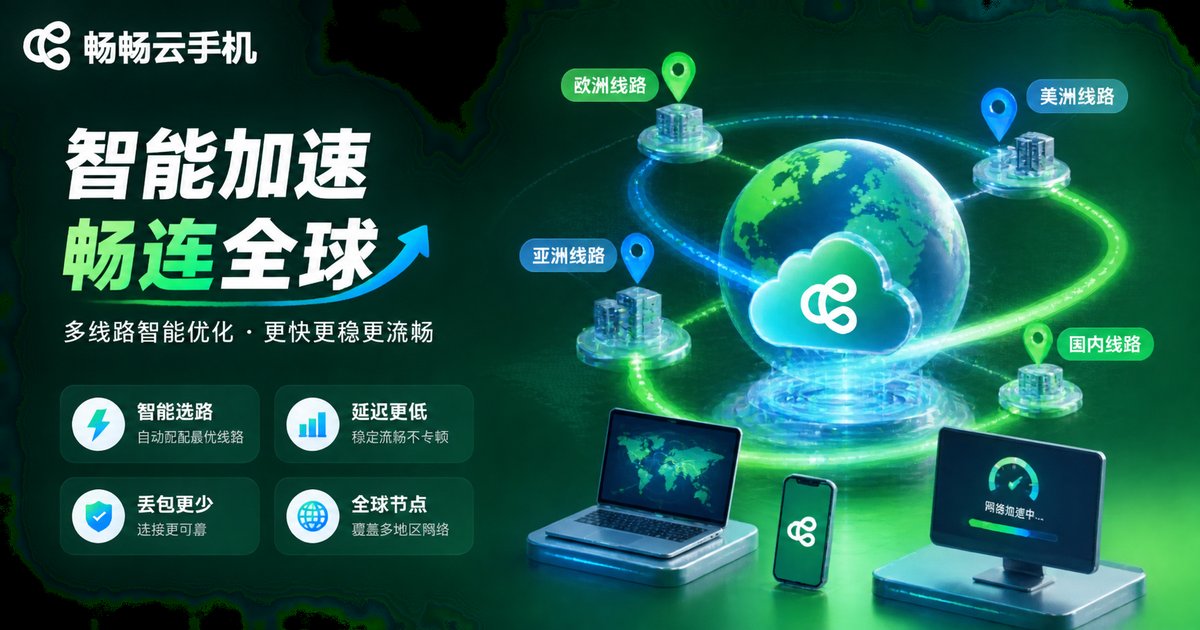
Network latency is the primary cause of cloud phone lag and disconnections. The principle of a cloud phone is to transmit the screen from the server to the local device in real-time. If the network is unstable, the screen will tear or lag.
Adjustment Tip: In the cloud phone settings panel, find the "Network Acceleration" or "Transmission Protocol" option. It is recommended to prioritize the UDP protocol, which has lower latency than the TCP protocol for real-time transmission. At the same time, enable the "Smart Routing" feature to let the system automatically select the node with the lowest latency.
2. Set Screen Resolution Reasonably
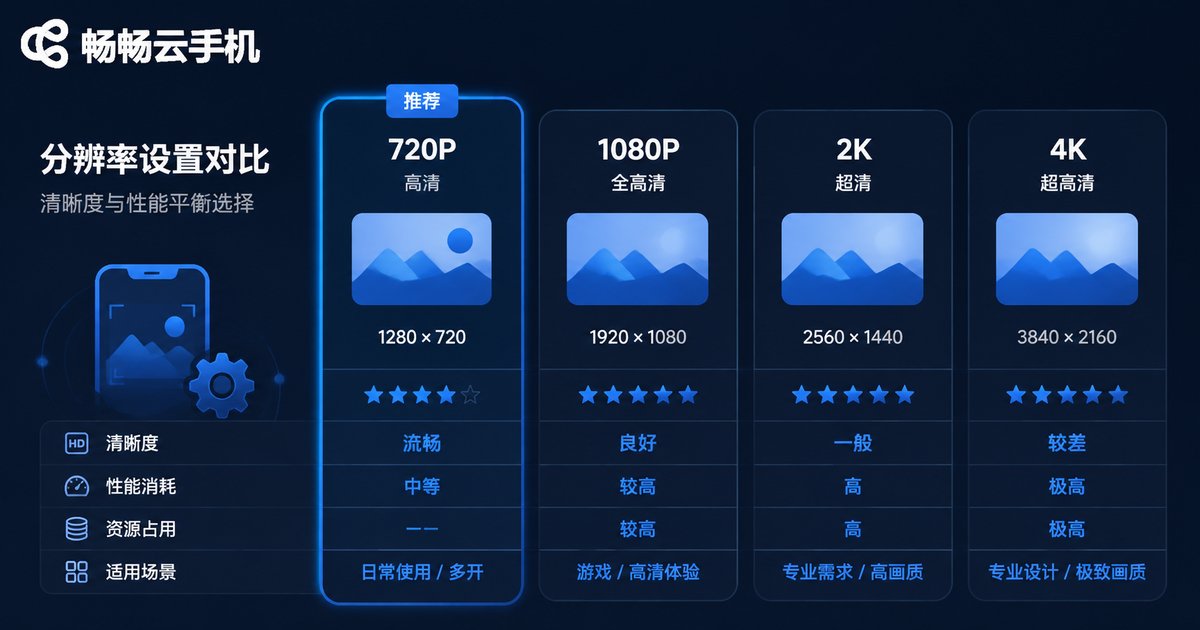
Higher resolution means clearer images, but it also puts more pressure on network bandwidth and the local device's decoding capabilities. If your network bandwidth is limited, excessively high resolution will cause lag instead.
Adjustment Tip: Adjust the resolution according to your local network conditions. If you are mainly performing daily app operations or AFK (Away From Keyboard) tasks, setting the resolution to 720P is sufficient; if you are playing large games with ample bandwidth, you can consider upgrading to 1080P. Reasonably lowering the resolution can significantly improve operational fluency.
| Usage Scenario | Recommended Resolution | Fluency Performance |
|---|---|---|
| Daily AFK/Reading | 540P - 720P | Extremely smooth, saves data |
| Casual Games/Social | 720P - 1080P | Smooth, balanced quality |
| Large 3D Games | 1080P (High bandwidth required) | Clear image, network-dependent |
3. Adjust Frame Rate (FPS) Limit
Frame rate determines the continuity of the screen. If the frame rate is too low, the screen will have noticeable ghosting and lag; however, if the frame rate is set too high and the server or network cannot support it, it will also trigger disconnections.
Adjustment Tip: In the video stream settings, lock the frame rate at 60 FPS. For most mobile games, 60 frames provides a very silky visual experience. If the device overheats or the network fluctuates, you can appropriately lower it to 40 FPS to ensure connection stability.
4. Turn Off Unnecessary Background Sync
If apps inside the cloud phone frequently sync data in the background, it will occupy the server's CPU and memory resources, causing lag in foreground operations.
Adjustment Tip: Enter the cloud phone's system settings and turn off features like automatic photo sync and automatic app updates. Keep the cloud phone background clean to concentrate computing power on the tasks running in the foreground.
5. Choose a High-Quality Cloud Phone Service Provider
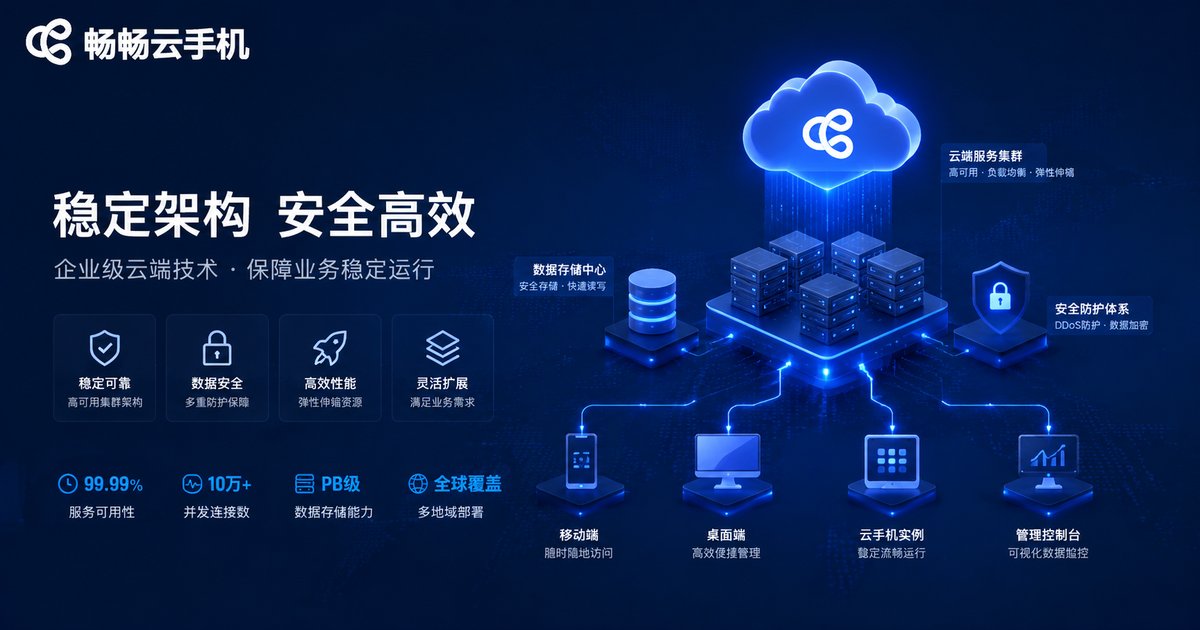
While parameter adjustments are important, the underlying server architecture and stability are the cornerstones of fluency. Inferior service providers have few nodes and overloaded servers, meaning it will lag no matter how you adjust the parameters.
Adjustment Tip: We recommend using ccloudphone. ccloudphone adopts a self-developed stable cloud architecture, equipped with high-performance GPU computing clusters to effectively reduce transmission latency. Its built-in smart network scheduling system can automatically bypass congested nodes, solving disconnection issues from the root and providing you with a persistently smooth cloud experience.
FAQ
Q: What should I do if it still occasionally lags after adjusting parameters?
A: Please check if other devices on your local network are consuming a lot of bandwidth (such as downloading large files). If your local network is fine, it is recommended to restart the ccloudphone client, and the system will automatically reassign the optimal node for you.
Q: Do I need to manually set these parameters in ccloudphone?
A: ccloudphone uses a smart adaptation mode by default, so manual intervention is usually unnecessary. However, if your network environment is special, manually fine-tuning using the tips above can provide a more extreme experience.
Q: Is the lag severe when playing on a cloud phone using cellular data?
A: 4G/5G networks usually have lower latency and are more stable than some Wi-Fi connections. ccloudphone is deeply optimized for mobile networks, maintaining good fluency even when using cellular data.


